
Build Your Smart Thermostat
The Story
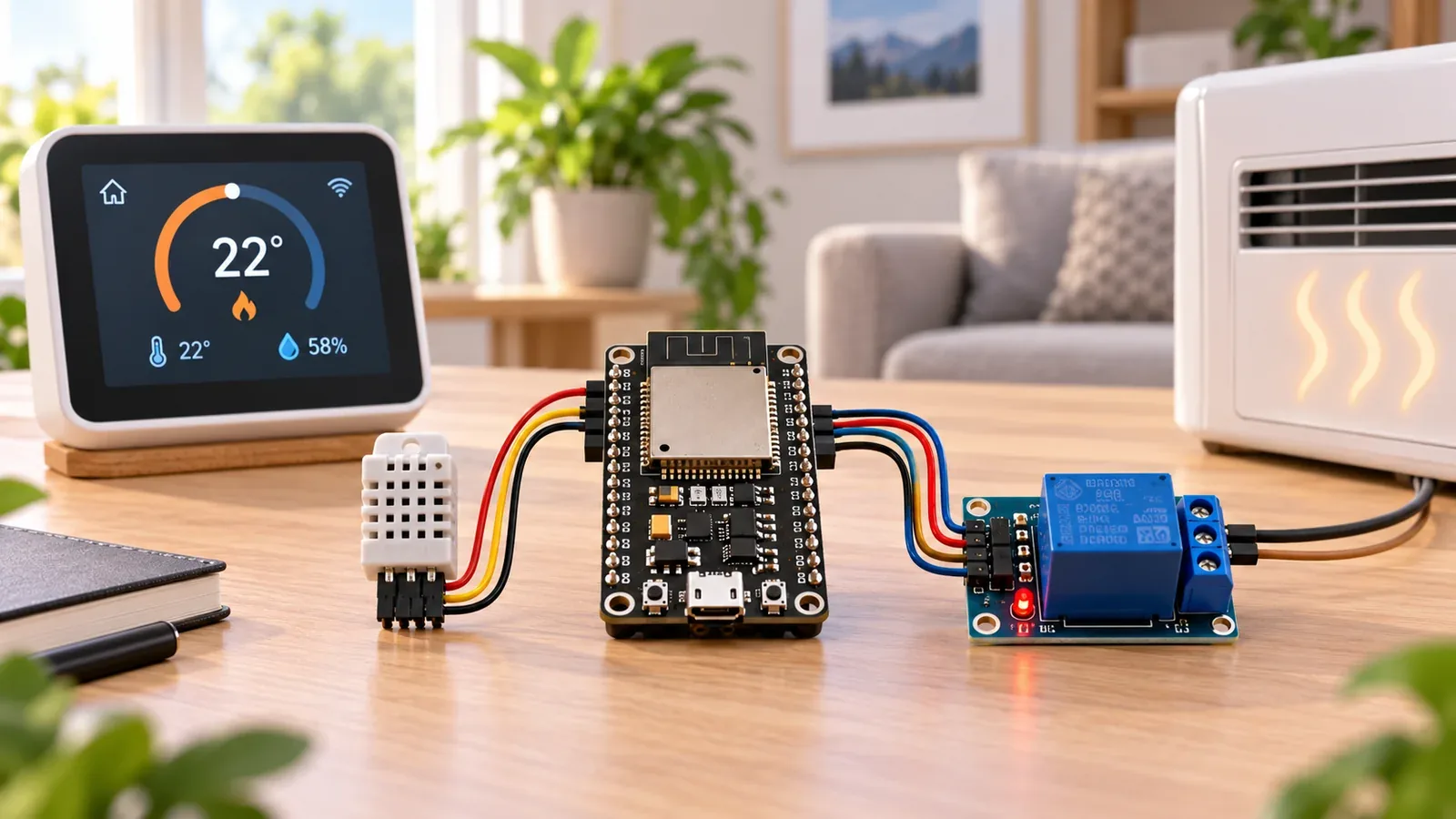
ESP32 Smart Thermostat turns the ESP32 into a real object that senses room temperature, decides whether the value is above or below the thermostat thresholds, and commands a low-voltage relay fan output.
The important lesson is not only the finished thermostat controller. You learn why separate fan-on and fan-off thresholds prevent relay chatter, how failed DHT22 reads leave the fan command safely off, and why sensor placement matters near heat sources.
Explain Like I'm 12
Think of the ESP32 as the brain. The DHT22 temperature sensor is how it notices the room. The relay module is how it commands a separate low-voltage fan. The code is the rule book that tells the brain what to do when the numbers change.
Safety Standards
- Unplug USB before changing jumper wires. Recheck 3.3 V, 5 V, and GND before reconnecting power.
- Do not power motors, pumps, LED strips, or servos from the ESP32 3.3 V pin. Use a suitable external supply and common ground.
- Breadboards are for low-current prototypes. Move high-current or unattended builds to proper terminals, enclosure, strain relief, and fusing.
- Relay and mains-voltage projects require isolation, correct relay ratings, enclosed wiring, and qualified adult supervision.
What You Will Build
A working ESP32 thermostat controller that reads room temperature from a DHT22 on GPIO4, turns a relay fan command on from GPIO26 at 27.0 C, turns it off at 25.5 C, prints diagnostics in Serial Monitor, and keeps the relay contacts limited to a separate low-voltage fan or indicator load for learning.
Learning Objectives
- Wire and test the DHT22 temperature sensor on GPIO4 before connecting the relay circuit.
- Map each signal to a named ESP32 GPIO and keep the code constants readable.
- Control a relay module from GPIO26 using clear threshold and relay-polarity constants instead of hidden magic numbers.
- Use Serial Monitor as an engineering tool, not only as a success message.
- Identify power, wiring, and timing faults using a repeatable test checklist.
Components List
- ESP32 DevKit boardDHT22 and relay thermostat controller
- DHT22 sensor moduleGPIO4 room temperature input
- Relay moduleGPIO26 control for a low-voltage fan
- SSD1306 OLED displayOptional setpoint display
- Breadboard and wiresPrototype wiring
Bill of Materials
| Part | Qty | Estimated Cost | Notes |
|---|---|---|---|
| ESP32 DevKit | 1 | $6-$10 | USB board |
| DHT22 module | 1 | $3-$6 | Temperature and humidity |
| Relay module | 1 | $2-$5 | Use low-voltage load only |
| OLED | 1 optional | $3-$6 | I2C feedback |
Wiring
Wire the low-voltage sensing side first. DHT22 VCC goes to 3.3 V, DHT22 GND goes to GND, and DHT22 DATA or OUT goes to GPIO4. After temperature readings work, connect relay VCC to the voltage your relay module requires, relay GND to ESP32 GND, and relay IN to GPIO26. The relay contacts are only for a separate low-voltage test fan or indicator load in this tutorial.
-
1
Unplug USB and keep the relay load disconnected.
-
2
Connect a 3-pin DHT22 module VCC to 3.3 V, GND to GND, and DATA or OUT to GPIO4.
-
3
If you use a bare 4-pin DHT22 sensor, add about a 10 k ohm pull-up resistor from DATA to 3.3 V and leave the NC pin disconnected.
-
4
Connect relay VCC to 5 V if your relay module requires it, GND to ESP32 GND, and IN to GPIO26.
-
5
Keep the ESP32 GPIO side separate from the relay contact/load side; GPIO26 controls only the relay module input.
-
6
Connect only a separate low-voltage test fan or indicator load to the relay contacts during learning.
-
7
Power the ESP32 and watch Serial Monitor before connecting any moving fan.
GPIO Mapping
| Signal | ESP32 Pin | Direction | Notes |
|---|---|---|---|
| DHT22 DATA or OUT | GPIO4 | Input | Digital temperature data from the sensor module. |
| DHT22 VCC | 3.3 V | Power | Use 3.3 V for the DHT22 sensor side. |
| DHT22 GND | GND | Ground | Common ground for the low-voltage sensor circuit. |
| Relay IN | GPIO26 | Output | Relay module control input from the thermostat code. |
| Relay VCC | 5 V if module requires it | Power | Follow the relay module label; keep load current off the ESP32 GPIO. |
| Relay GND | GND | Ground | Common signal ground between ESP32 and relay module. |
| OLED SDA | GPIO21 | I2C data | Optional |
| OLED SCL | GPIO22 | I2C clock | Optional |
Circuit Explanation
The DHT22 side is a low-current digital sensor input on GPIO4 using 3.3 V logic. Many 3-pin DHT22 modules already include the DATA pull-up resistor; a bare 4-pin DHT22 normally needs about a 10 k ohm pull-up from DATA to 3.3 V. The relay input side is a low-voltage control signal on GPIO26. The relay contacts are a separate load-switching side for a low-voltage fan or indicator load, and the ESP32 must not power the fan or relay load directly from a GPIO.
Engineering Explanation
Why a thermostat needs hysteresis: a fan should not rapidly switch on and off when the room temperature hovers near one setpoint. This sketch uses FAN_ON_C = 27.0 and FAN_OFF_C = 25.5 so the relay has a quiet middle band.
Below 25.5 C the fan command becomes OFF. From 25.5 C to below 27.0 C the code keeps the previous fan state. At or above 27.0 C the fan command becomes ON. Those separate ON and OFF thresholds prevent relay chatter near the setpoint.
Place the DHT22 where it can measure room air, not local heat. Keep it away from the ESP32 regulator, relay coil/module heat, fan exhaust, heating elements, and direct sunlight. The DHT22 is a good learning thermostat sensor, but it is not a precision HVAC-grade sensor. Its response is relatively slow, so the current 2-second read interval is appropriate and you should not poll it excessively fast.
Code
Copy into Arduino IDE. Install any libraries noted in the component guides first.
#include "DHT.h"

#define DHTPIN 4
#define DHTTYPE DHT22
#define RELAY_PIN 26

const int RELAY_ON = HIGH;   // Change to LOW for an active-LOW relay module.
const int RELAY_OFF = LOW;   // Change to HIGH for an active-LOW relay module.

const float FAN_ON_C = 27.0;
const float FAN_OFF_C = 25.5;
bool fanOn = false;
DHT dht(DHTPIN, DHTTYPE);

void setup() {
  Serial.begin(115200);
  pinMode(RELAY_PIN, OUTPUT);
  digitalWrite(RELAY_PIN, RELAY_OFF);
  dht.begin();
  Serial.println("Smart thermostat ready");
}

void loop() {
  float tempC = dht.readTemperature();
  if (isnan(tempC)) {
    Serial.println("Temperature read failed");
    digitalWrite(RELAY_PIN, RELAY_OFF);
    delay(2000);
    return;
  }

  if (!fanOn && tempC >= FAN_ON_C) fanOn = true;
  if (fanOn && tempC <= FAN_OFF_C) fanOn = false;

  digitalWrite(RELAY_PIN, fanOn ? RELAY_ON : RELAY_OFF);
  Serial.print("Temp C: "); Serial.print(tempC, 1);
  Serial.print(" | Fan: "); Serial.println(fanOn ? "ON" : "OFF");
  delay(2000);
}
Code Explanation
The code keeps the fan state in a Boolean variable. Two thresholds create hysteresis: FAN_ON_C turns the output on at or above 27.0 C, and FAN_OFF_C turns it off at or below 25.5 C.
RELAY_ON and RELAY_OFF let you support active-HIGH or active-LOW relay modules by changing two constants instead of rewriting the control logic. Setup initializes the relay to RELAY_OFF, and a failed DHT22 read also leaves the relay in the safe OFF command state.
Expected Output
Below 25.5 C, Serial Monitor prints Fan: OFF. Between 25.5 C and 27.0 C, the sketch keeps the previous fan state so the relay does not chatter. Warm the DHT22 to 27.0 C or higher and the relay command switches ON. Let the sensor cool to 25.5 C or lower and the relay command switches OFF.
Troubleshooting
- DHT22 returns NaN or "Temperature read failed" Confirm 3.3 V, GND, DATA on GPIO4, the DHT library type is DHT22, and add about a 10 k ohm DATA-to-3.3 V pull-up if you are using a bare 4-pin sensor.
- Temperature seems too high Move the DHT22 away from the ESP32 regulator, relay module heat, fan exhaust, heating element, and direct sunlight so it measures room air instead of local hot spots.
- Relay LED works but the fan does not The ESP32 may be driving the relay input correctly while the separate low-voltage load circuit is not powered or not connected through the relay contacts.
- Relay logic is reversed Some relay modules are active HIGH and some are active LOW. Swap RELAY_ON and RELAY_OFF in the constants instead of rewriting the thermostat logic.
- Relay chatters near the threshold Keep the separate 27.0 C ON and 25.5 C OFF thresholds. If chatter remains, move the sensor away from the fan airflow and use a steadier low-voltage supply.
- ESP32 resets when relay switches Use a suitable separate supply for the fan or load, keep relay/load wiring short, and make sure only signal ground is shared where the module requires it.
- Fan stays ON or OFF unexpectedly Check the current temperature against FAN_ON_C and FAN_OFF_C, confirm GPIO26 reaches the relay IN pin, and verify the relay polarity constants match your module.
Common Mistakes
- Driving a fan motor directly from an ESP32 GPIO.
- Using mains voltage on a breadboard.
- Forgetting hysteresis and making the relay chatter.
- Placing the DHT22 beside the ESP32 regulator, relay coil, fan exhaust, heating element, or direct sunlight.
- Using a relay module that needs more current than the USB port can provide.
Testing Checklist
- ESP32 appears on the correct port and accepts a basic blink upload.
- Ground is shared between every module that exchanges signals with the ESP32.
- Each GPIO in the code matches the wire connected on the breadboard.
- Serial Monitor prints startup text at 115200 baud.
- The DHT22 temperature value changes slowly when you create a real test condition, with about 2 seconds between reads.
- The relay module input on GPIO26 changes only when the expected hysteresis threshold is reached.
- The fan turns ON at or above 27.0 C, stays in its previous state in the middle band, and turns OFF at or below 25.5 C.
- The DHT22 is positioned away from ESP32, relay, fan, sunlight, and heater heat sources before judging room temperature accuracy.
- The circuit still behaves correctly after power is removed and restored.
Upgrade Ideas
- Add buttons to adjust setpoint.
- Show temperature and fan state on OLED.
- Add Wi-Fi dashboard control.
- Log heating and cooling cycles.
Real-World Applications
- Room fan controller
- Greenhouse vent trigger
- Small incubator demo
- HVAC classroom model
- Thermal control trainer
Downloads
- ESP32 Smart Thermostat Arduino sketchUse the code section as the downloadable source until file downloads are published.
- Wiring checklistMatch the GPIO table and wiring steps before powering the circuit.
- Troubleshooting worksheetRecord symptoms, Serial output, voltage checks, and fixes.
FAQs
Why does my DHT22 thermostat reading look wrong?
Check 3.3 V power, ground, DATA on GPIO4, the pull-up resistor if using a bare 4-pin DHT22, and whether the sensor is near heat from the ESP32 regulator, relay module, fan exhaust, heater, or direct sunlight.
Why does the relay fan output not respond?
Check the ground connection first. Then confirm GPIO26, relay power, the separate low-voltage load circuit, and whether RELAY_ON and RELAY_OFF match your active-HIGH or active-LOW relay module.
Why does the thermostat use two temperatures instead of one?
The 27.0 C ON threshold and 25.5 C OFF threshold create hysteresis. The middle band keeps the previous fan state so the relay does not chatter near the setpoint.
Can I connect this to household HVAC wiring?
No. This tutorial is for a low-voltage fan or indicator prototype only. Do not connect mains or HVAC wiring to the breadboard circuit.
Review, Testing, and References
Author: Abdul Mubeen and the ESP32 Engine editorial team. Last updated: 2026-08-22. Reviewed: wiring logic, Arduino code structure, beginner safety, and learning sequence.
Educational level: Intermediate. Estimated completion time: 90-120 min. This project is for learning and prototyping; production or unattended hardware needs additional engineering review.
Project Complete!
You built a low-voltage thermostat controller and learned how to connect DHT22 sensing on GPIO4, hysteresis decision logic, and relay output control on GPIO26 in one ESP32 project.
- Wire and test a DHT22 temperature sensor
- Control a relay module and separate low-voltage fan from ESP32
- Debug hardware with Serial Monitor
- Improve the project safely