
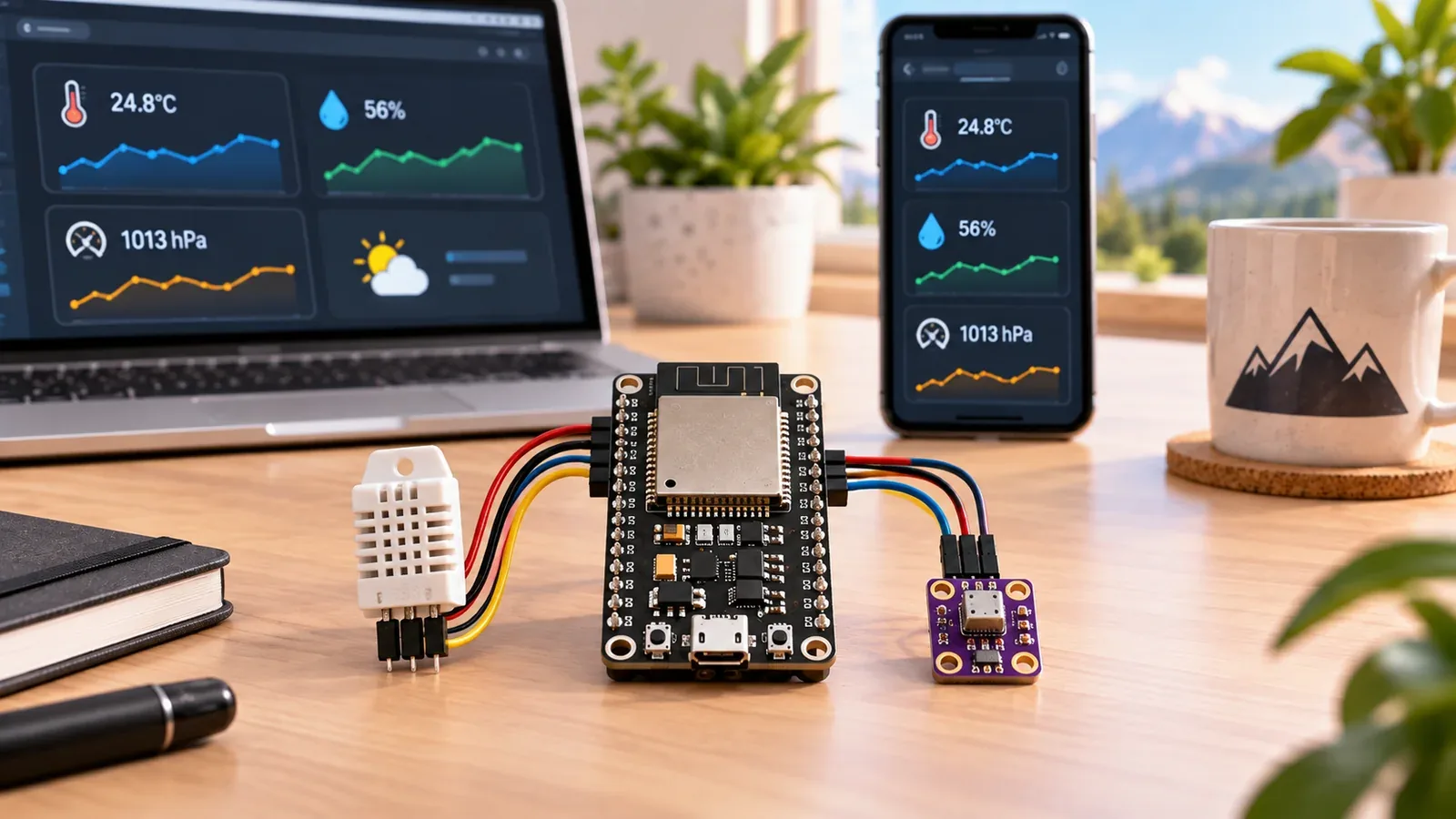
Build an MQTT Sensor Dashboard
The Story
ESP32 MQTT Sensor Dashboard solves a real beginner problem: turning an ESP32 reading into a useful physical or networked result. Build this after basic sensor missions when you are ready to learn the publish/subscribe pattern used in real IoT systems.
The tutorial focuses on the engineering path: prove the input, understand the circuit, write readable code, then test the output under real conditions.
Explain Like I'm 12
MQTT is like a notice board. The ESP32 posts sensor readings to a topic, and any dashboard that subscribes to that topic can read the latest message.
Safety Standards
- Unplug USB before changing jumper wires. Recheck 3.3 V, 5 V, and GND before reconnecting power.
- Do not power motors, pumps, LED strips, or servos from the ESP32 3.3 V pin. Use a suitable external supply and common ground.
- Breadboards are for low-current prototypes. Move high-current or unattended builds to proper terminals, enclosure, strain relief, and fusing.
What You Will Build
An ESP32 sensor node that publishes DHT22 temperature and humidity readings to clear MQTT topics so a local dashboard can subscribe and display live data.
Learning Objectives
- Wire and read a DHT22 sensor.
- Connect ESP32 to Wi-Fi safely in Arduino code.
- Publish readings to an MQTT topic.
- Understand broker, publisher, subscriber, and topic names.
- Design topic names that scale beyond one sensor.
Components List
- 1× ESP32 DevKit V1Required for this build
- 1× DHT22 Temperature & Humidity SensorRequired for this build
- 1× 10 kΩ ResistorDHT22 pull-up
- 1× MQTT Broker (Mosquitto)Install free on Raspberry Pi or PC: sudo apt install mosquitto
- 1× Node-REDFree dashboard: sudo npm install -g node-red
- Breadboard and jumper wiresFor safe low-voltage prototyping
- USB data cableProgramming and bench power
Bill of Materials
| Part | Qty | Estimated Cost | Notes |
|---|---|---|---|
| 1× ESP32 DevKit V1 | 1 | Varies | Required for this build |
| 1× DHT22 Temperature & Humidity Sensor | 1 | Varies | Required for this build |
| 1× 10 kΩ Resistor | 1 | Varies | DHT22 pull-up |
| 1× MQTT Broker (Mosquitto) | 1 | Varies | Install free on Raspberry Pi or PC: sudo apt install mosquitto |
| 1× Node-RED | 1 | Varies | Free dashboard: sudo npm install -g node-red |
| Breadboard and jumper wires | 1 set | Varies | For safe low-voltage prototyping |
Wiring
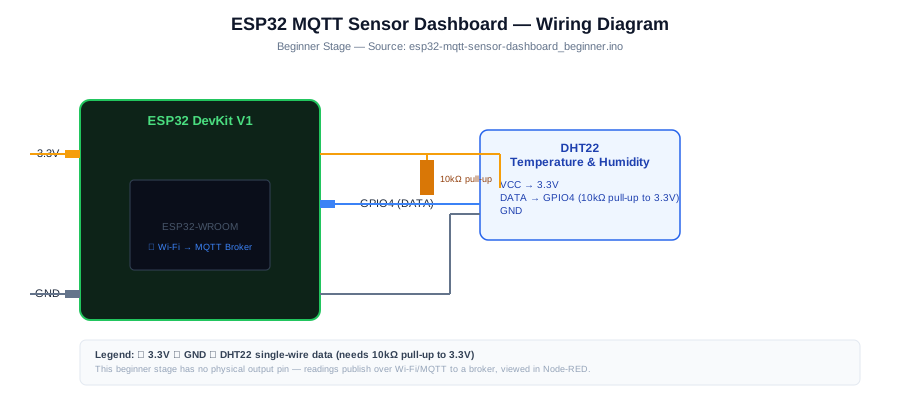
Wire the DHT22 first and prove temperature/humidity readings in Serial Monitor before connecting the Wi-Fi and MQTT pieces. The DHT22 data pin uses a 10 kOhm pull-up resistor so the signal idles HIGH.
-
1
Unplug USB before changing wires.
-
2
Connect DHT22 VCC to 3.3 V.
-
3
Connect DHT22 DATA to GPIO 4 (10 kΩ pull-up to 3.3 V).
-
4
Connect DHT22 GND to GND.
-
5
Reconnect USB, upload the sketch, and open Serial Monitor at 115200 baud unless the code says otherwise.
GPIO Mapping
| Signal | ESP32 Pin | Direction | Notes |
|---|---|---|---|
| DHT22 VCC | 3.3 V | Power | Match this wire to the code constant. |
| DHT22 DATA | GPIO 4 | Power | 10 kΩ pull-up to 3.3 V |
| DHT22 GND | GND | Ground | Match this wire to the code constant. |
Circuit Explanation
The DHT22 data pin uses a pull-up resistor so the signal idles HIGH. The ESP32 reads the sensor locally, then uses Wi-Fi to publish the value to the broker. The hardware circuit is simple; the engineering challenge is reliable network behavior.
Engineering Explanation
MQTT separates devices from dashboards. The ESP32 publishes temperature, humidity, and availability messages to named topics such as esp32engine/sensors/room1/temperature. A dashboard subscribes to those topics on the same broker. A reliable node reconnects after Wi-Fi loss, publishes at a reasonable interval, and keeps topic names consistent.
Libraries
- Arduino ESP32 coreInstall ESP32 board support in Arduino IDE.
Code
Copy into Arduino IDE. Install any libraries noted in the component guides first.
/*
 * ESP32 MQTT Sensor Dashboard — Beginner
 * Publishes DHT22 temp & humidity to MQTT every 30 seconds.
 * View live data in Node-RED, MQTT Explorer, or any subscriber.
 *
 * Setup:
 *   1) Install Mosquitto broker on your network
 *   2) Install Node-RED + node-red-dashboard
 *   3) Import the Node-RED flow from the project page
 *   4) Update SSID, PASSWORD, BROKER below
 *
 * Library: DHT (Adafruit), PubSubClient (Nick O'Leary)
 */
#include <WiFi.h>
#include <PubSubClient.h>
#include <DHT.h>

const char* SSID     = "YOUR_WIFI_SSID";
const char* PASSWORD = "YOUR_WIFI_PASSWORD";
const char* BROKER   = "192.168.1.100";   // Your broker IP
const int   PORT     = 1883;

#define DHT_PIN  4
#define DHT_TYPE DHT22

// MQTT Topics (change "room1" to identify this sensor's location)
const char* TOPIC_TEMP = "esp32engine/sensors/room1/temperature";
const char* TOPIC_HUM  = "esp32engine/sensors/room1/humidity";
const char* TOPIC_AVAIL= "esp32engine/sensors/room1/availability";

DHT dht(DHT_PIN, DHT_TYPE);
WiFiClient net;
PubSubClient mqtt(net);

void connectMQTT() {
  while (!mqtt.connected()) {
    Serial.print("Connecting MQTT... ");
    // Last Will: publish "offline" if we disconnect unexpectedly
    if (mqtt.connect("esp32-room1", "", "", TOPIC_AVAIL, 0, true, "offline")) {
      mqtt.publish(TOPIC_AVAIL, "online", true);
      Serial.println("connected");
    } else {
      Serial.printf("failed rc=%d — retry in 5sn", mqtt.state());
      delay(5000);
    }
  }
}

void setup() {
  Serial.begin(115200);
  dht.begin();
  WiFi.begin(SSID, PASSWORD);
  Serial.print("Connecting Wi-Fi");
  while (WiFi.status() != WL_CONNECTED) { delay(400); Serial.print("."); }
  Serial.printf("nConnected: %sn", WiFi.localIP().toString().c_str());
  mqtt.setServer(BROKER, PORT);
  connectMQTT();
}

void loop() {
  if (!mqtt.connected()) connectMQTT();
  mqtt.loop();

  static unsigned long last = 0;
  if (millis() - last >= 30000) {
    last = millis();
    float h = dht.readHumidity();
    float t = dht.readTemperature();
    if (!isnan(h) && !isnan(t)) {
      mqtt.publish(TOPIC_TEMP, String(t, 2).c_str(), true);
      mqtt.publish(TOPIC_HUM,  String(h, 2).c_str(), true);
      Serial.printf("Published: temp=%.2f  hum=%.2fn", t, h);
    }
  }
}
Code Explanation
The sketch starts the DHT22 on GPIO4, connects to Wi-Fi, connects to the MQTT broker on port 1883, publishes an online availability message, and sends retained temperature and humidity values every 30 seconds. Serial output separates Wi-Fi, MQTT, and sensor failures while debugging.
Expected Output
Serial Monitor prints Wi-Fi connection progress, MQTT connection status, and lines such as "Published: temp=24.50 hum=52.10". A subscriber should see values on the temperature and humidity topics.
Troubleshooting
- MQTT messages never appear Check broker IP, port 1883, topic name, and whether the ESP32 is on the same network.
- Wi-Fi connects but MQTT fails Confirm broker firewall settings and test with a desktop MQTT client.
- Sensor reads NAN Check DHT22 wiring, pull-up resistor, and library selection.
- Dashboard values freeze Add reconnect logic and publish a heartbeat or timestamp.
Common Mistakes
- Publishing every loop cycle and flooding the broker.
- Hardcoding wrong Wi-Fi credentials and not printing connection status.
- Forgetting the DHT22 pull-up resistor.
- Using inconsistent MQTT topic names.
- Ignoring reconnect logic after Wi-Fi drops.
Testing Checklist
- Upload a simple Blink sketch first to confirm the board and USB cable work.
- Wire the DHT22 with its 10 kOhm pull-up and confirm readings locally first.
- Start the MQTT broker and verify its IP address from another MQTT client.
- Upload the full sketch and watch Wi-Fi and MQTT connection messages.
- Subscribe to the exact topic names before building a dashboard widget.
- Power-cycle the project and confirm it starts in a safe state.
Engineering Tips
- Use readable topics such as esp32/room1/temperature.
- Publish JSON only when you need grouped values.
- Keep sensor publishing interval slower than the sensor response time.
- Never put real passwords in public screenshots or repositories.
- Add Last Will and Testament for production MQTT nodes.
Performance Tips
- Publish every 5-30 seconds instead of every loop.
- Reuse the MQTT client connection.
- Avoid long blocking delays in reconnect code.
- Use retained messages only for state values that should be remembered.
Upgrade Ideas
- Add a BMP280 pressure sensor on I2C to publish a third metric (air pressure)
- Add a PIR motion sensor and publish motion events to trigger Home Assistant automations
Real-World Applications
- Home Assistant room sensor
- Node-RED classroom dashboard
- Greenhouse telemetry
- Workshop temperature and humidity logger
Downloads
- ESP32 MQTT Sensor Dashboard Arduino sketchUse the code section as the source sketch.
- Bench test checklistFollow the testing checklist before permanent installation.
FAQs
What happens if the MQTT broker is offline?
The ESP32 can still read the DHT22, but publishing fails until Wi-Fi and the broker connection recover. Use Serial Monitor to separate sensor faults from broker faults.
Are readings stored while the ESP32 is disconnected?
No. This tutorial publishes live readings and does not add offline storage, so missed messages are not replayed after reconnect.
Why does the dashboard stop updating?
Check that the ESP32, broker, and dashboard all use the same topic name. Then confirm the DHT22 has its 10 kOhm pull-up and is not returning NAN.
Review, Testing, and References
Author: Abdul Mubeen and the ESP32 Engine editorial team. Last updated: 2026-08-26. Reviewed: wiring logic, Arduino code structure, beginner safety, and learning sequence.
Educational level: Intermediate. Estimated completion time: 90-120 min. This project is for learning and prototyping; production or unattended hardware needs additional engineering review.
Project Complete!
You completed ESP32 MQTT Sensor Dashboard as a real ESP32 engineering build, not just a wiring demo. You now know how to test the input, protect the circuit, explain the code, and improve the project safely.
- Read and verify project input hardware
- Map signals to safe ESP32 GPIO pins
- Debug with Serial Monitor
- Apply safety and performance checks
- Plan the next learning step