
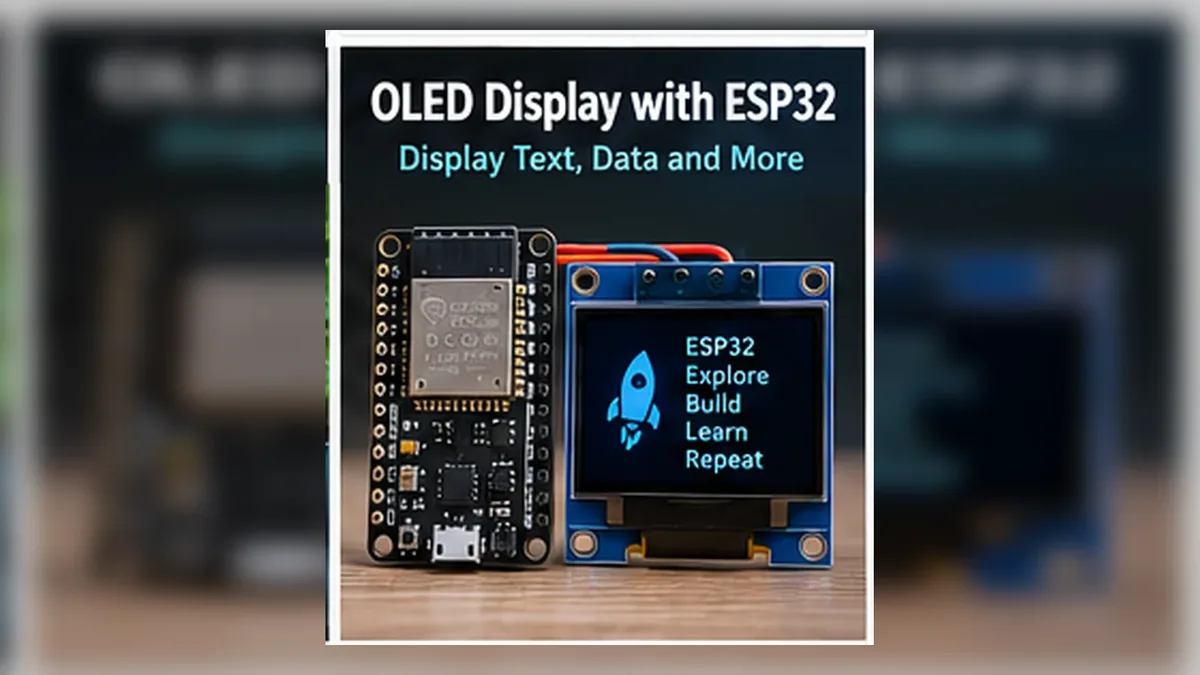
Show ESP32 Data on a Tiny Screen
The Story
So far, your ESP32 has mostly talked through Serial Monitor. That is perfect while learning, but real embedded products cannot depend on a laptop window.
This mission uses an SSD1306 OLED module with the I2C interface. It is the four-pin style with VCC, GND, SDA, and SCL, not an SPI OLED with extra signal pins.
A thermostat needs to show the temperature. A weather station needs to show readings. A robot might show battery level or mode. Mission 09 gives your ESP32 a small local display so your project can communicate directly with the person using it.
Explain Like I'm 12
Serial Monitor is like whispering information to your computer. An OLED is like giving your ESP32 a little face.
The OLED does not measure anything by itself. It shows the information your code sends to it. In this mission, the ESP32 reads the potentiometer from Mission 08 and prints that value on the screen.
Mission Goal
Connect an SSD1306 I2C OLED display to ESP32 and show both text and live analog values on the screen.
Estimated Time
40-45 min
Difficulty
Beginner
Prerequisites
Skills You'll Learn
- Explain what an OLED display is
- Wire an SSD1306 I2C OLED to the ESP32 GPIO21/GPIO22 example I2C pins
- Describe SDA, SCL, and a simple I2C address
- Install and use the Adafruit SSD1306 and GFX libraries
- Display text and live analog values on the OLED
Components Required
- ESP32 DevKit boardControls the OLED and reads the potentiometer
- SSD1306 0.96 inch I2C OLED displayShows text and live values
- 10 kOhm potentiometerProvides a changing analog value from Mission 08
- Breadboard and jumper wiresConnect 3.3 V, GND, SDA, SCL, and the analog input
- USB data cableUpload code and compare OLED output with Serial Monitor
The OLED Is a Tiny Output Device
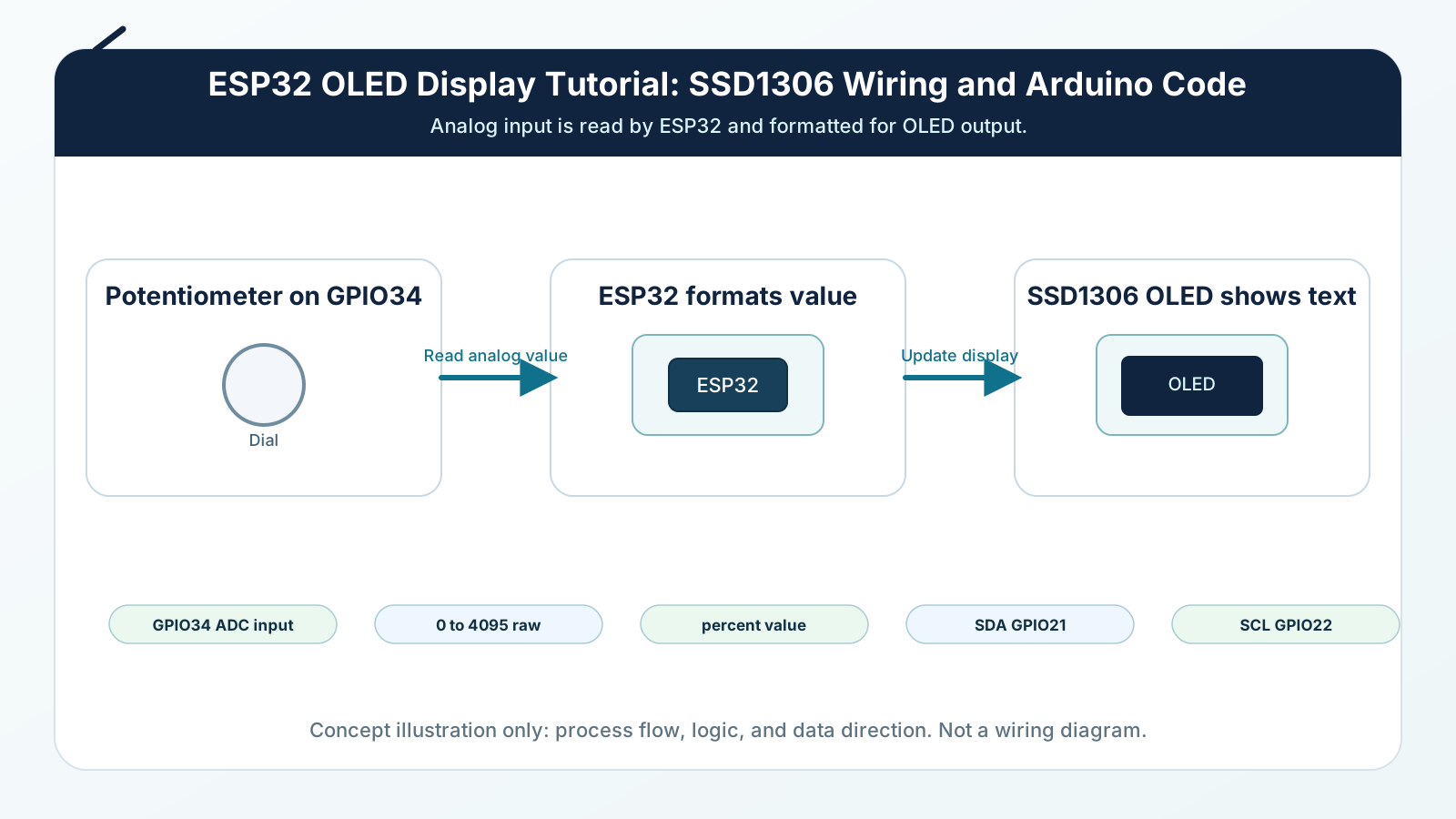
An OLED display is an output device. It does not decide what to show. Your ESP32 code decides what text and numbers to draw.
Most small SSD1306 OLED modules use I2C. That means the ESP32 does not need many wires. It sends commands and display data over two signal lines: SDA and SCL.
The important beginner idea is simple: Serial Monitor shows data on your computer, while an OLED shows data on the project itself.
Engineering Explanation
The SSD1306 OLED module contains a display panel and a controller chip. The controller remembers what each pixel should do, and the OLED panel lights those pixels.
The ESP32 communicates with the controller over I2C in this tutorial. SDA carries the data bits. SCL is the clock signal that keeps both sides moving together. This site's examples use GPIO21 for SDA and GPIO22 for SCL. ESP32 I2C pins can be changed, but the wiring and Wire.begin(SDA, SCL) call must agree.
The OLED also has an I2C address, usually 0x3C and sometimes 0x3D. The address tells the ESP32 which device on the bus should listen. If the screen stays blank even though power and wiring look correct, run an I2C scanner before guessing.
The Adafruit SSD1306 library hides most of the low-level commands. Your sketch draws into a screen buffer in memory using functions such as setCursor(), print(), and println(). When you call display.display(), the library sends the buffer to the OLED controller and the visible screen updates.
This is why clearDisplay() matters. The screen buffer keeps old pixels until you clear or overwrite them. A clean refresh usually means: clear the buffer, draw the new text, then send it to the screen.
Real-World Analogy
Think of I2C like a classroom with one teacher and several students. The teacher is the ESP32. The students are devices such as displays and sensors. Everyone hears the same two wires, but the teacher says an address first. Only the student with that address answers.
The OLED buffer is like writing on a small whiteboard before showing it to the class. You prepare the message, then hold it up. display.display() is the moment the class sees the whiteboard.
The Serial Monitor is like a notebook on your desk. Useful while learning, but the OLED is like a label on the product itself. Anyone can read it without opening your computer.
Wiring Diagram
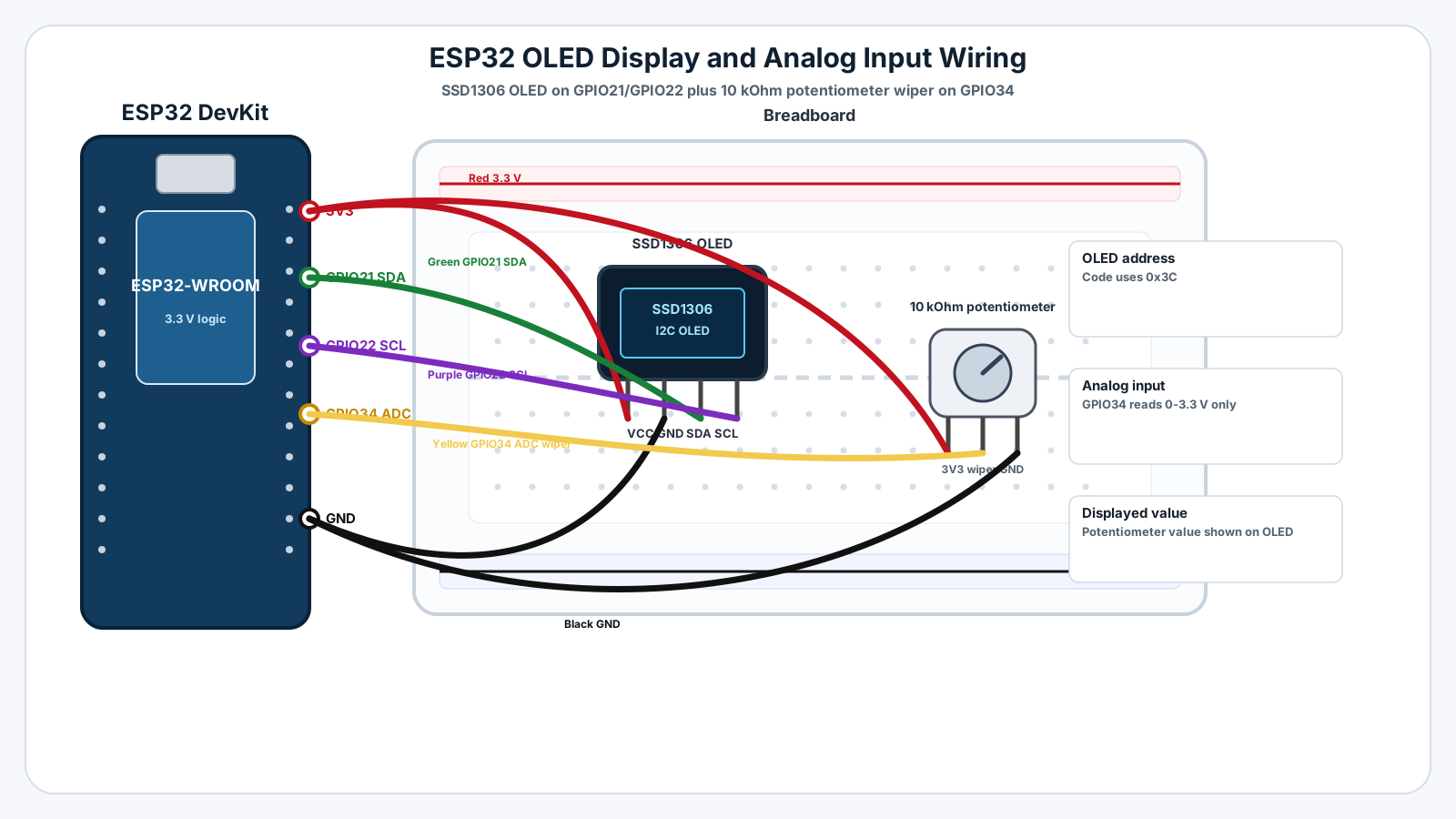
Follow these steps in order. Unplug USB before you change any wires.
-
1
Unplug the ESP32 USB cable before wiring.
-
2
Connect OLED VCC to ESP32 3.3 V.
-
3
Connect OLED GND to ESP32 GND.
-
4
Connect OLED SDA to ESP32 GPIO21.
-
5
Connect OLED SCL to ESP32 GPIO22.
-
6
Connect one outer potentiometer pin to 3.3 V.
-
7
Connect the other outer potentiometer pin to GND.
-
8
Connect the potentiometer middle pin to GPIO34.
-
9
Install Adafruit SSD1306 and Adafruit GFX libraries in Arduino IDE.
-
10
Plug USB back in, upload the sketch, and open Serial Monitor at 115200 baud.
GPIO Table
| Signal | ESP32 Pin | Mode | Notes |
|---|---|---|---|
| OLED VCC | 3V3 | Power | Powers the OLED module safely from the ESP32 3.3 V rail. |
| OLED GND | GND | Ground | The OLED and ESP32 must share ground. |
| OLED SDA | GPIO21 | I2C data | Common ESP32 Arduino example SDA pin used by this tutorial. |
| OLED SCL | GPIO22 | I2C clock | Common ESP32 Arduino example SCL pin used by this tutorial. |
| Potentiometer wiper | GPIO34 | Analog input | Provides the live value shown on the OLED. |
Arduino Code
Copy this into Arduino IDE, then click Upload.
#include <Wire.h>
#include <Adafruit_GFX.h>
#include <Adafruit_SSD1306.h>

const int SCREEN_WIDTH = 128;
const int SCREEN_HEIGHT = 64;
const int OLED_RESET = -1;
const int POT_PIN = 34;

const int I2C_SDA = 21;
const int I2C_SCL = 22;
const int OLED_ADDRESS = 0x3C;

Adafruit_SSD1306 display(SCREEN_WIDTH, SCREEN_HEIGHT, &Wire, OLED_RESET);

void setup() {
  Serial.begin(115200);

  Wire.begin(I2C_SDA, I2C_SCL);

  if (!display.begin(SSD1306_SWITCHCAPVCC, OLED_ADDRESS)) {
    Serial.println("OLED not found. Check wiring and I2C address.");
    while (true) {
      delay(1000);
    }
  }

  display.clearDisplay();
  display.setTextColor(SSD1306_WHITE);
  display.setTextSize(1);
  display.setCursor(0, 0);
  display.println("ESP32 Engine");
  display.println("OLED ready");
  display.display();

  delay(1500);
}

void loop() {
  int rawValue = analogRead(POT_PIN);
  int percent = map(rawValue, 0, 4095, 0, 100);

  Serial.print("ADC: ");
  Serial.print(rawValue);
  Serial.print(" | Percent: ");
  Serial.print(percent);
  Serial.println("%");

  display.clearDisplay();

  display.setTextSize(1);
  display.setCursor(0, 0);
  display.println("Mission 09 OLED");

  display.setCursor(0, 18);
  display.print("ADC: ");
  display.println(rawValue);

  display.setCursor(0, 34);
  display.print("Dial: ");
  display.print(percent);
  display.println("%");

  display.setCursor(0, 52);
  display.println("GPIO34 -> screen");

  display.display();
  delay(250);
}- Install Adafruit SSD1306 and Adafruit GFX before compiling.
- The OLED address is set to 0x3C, the most common SSD1306 address.
- GPIO21 is SDA and GPIO22 is SCL.
- GPIO34 reads the potentiometer value from Mission 08.
Line-by-line Explanation
- Wire.h gives the ESP32 I2C communication functions.
- Adafruit_GFX provides drawing and text functions used by many Adafruit display libraries.
- Adafruit_SSD1306 knows how to talk to the SSD1306 OLED controller.
- SCREEN_WIDTH and SCREEN_HEIGHT match a common 128x64 OLED module.
- POT_PIN is GPIO34, the analog input from Mission 08.
- Wire.begin(21, 22) starts I2C using the same SDA and SCL pins wired in this tutorial.
- display.begin() checks whether the OLED responds at address 0x3C.
- If the OLED is not found, the sketch prints a clear error and stops so you do not miss the wiring problem.
- analogRead() gets the raw ADC value from the potentiometer.
- map() converts the raw 0 to 4095 range into a friendlier 0 to 100 percent range.
- clearDisplay() clears the screen buffer before drawing the next frame.
- setCursor() chooses where the next text will appear.
- print() and println() add text and numbers to the screen buffer.
- display.display() sends the finished buffer to the OLED so the visible pixels update.
Expected Behaviour
The OLED first shows:
ESP32 Engine OLED ready
After the short startup message, the screen updates several times per second:
Mission 09 OLED ADC: 1875 Dial: 45% GPIO34 -> screen
When you turn the potentiometer, the ADC and percent values change on both the OLED and Serial Monitor.
Serial Monitor should show lines like:
ADC: 32 | Percent: 0% ADC: 1040 | Percent: 25% ADC: 2198 | Percent: 53% ADC: 4090 | Percent: 99%
Common Mistakes
SDA and SCL swapped
The OLED cannot understand the bus when data and clock are reversed.
Wrong I2C address
Most OLEDs use 0x3C, but some modules use 0x3D.
Missing libraries
Arduino IDE cannot compile the display code without Adafruit SSD1306 and Adafruit GFX.
Forgetting display.display()
The code draws into memory but never sends the buffer to the physical OLED.
Old text remains on the screen
New text is drawn over old pixels without clearing them first.
Using 5 V signal logic
The ESP32 GPIO pins are 3.3 V pins.
Potentiometer value does not change
The middle pin may not be connected to GPIO34, or the outer pins may not go to 3.3 V and GND.
Screen updates too fast to read
A very short delay can refresh the text more often than a human needs.
Tiny text is hard to read
Text size 1 fits more content but is small.
Confusing display coordinates
The top-left pixel is coordinate 0,0, and y increases downward.
Troubleshooting
Most ESP32 problems are wiring, power, library, or timing issues. Check these first.
OLED stays completely blank
Likely cause: Power, ground, SDA, SCL, address, or library setup may be wrong.
Fix: Check 3.3 V, GND, GPIO21, GPIO22, OLED_ADDRESS, and installed libraries.
Serial Monitor says OLED not found
Likely cause: The ESP32 did not receive a response from the display at address 0x3C.
Fix: Check wiring first, then try 0x3D if your module uses a different address.
Code compiles but upload fails
Likely cause: Wrong board, wrong port, or boot mode issue in Arduino IDE.
Fix: Select the correct ESP32 board and port, then hold BOOT during upload if your board requires it.
OLED works but analog value is random
Likely cause: GPIO34 may be floating if the potentiometer wiper is not connected.
Fix: Reconnect the potentiometer exactly like Mission 08.
OLED shows strange characters
Likely cause: The display type, I2C address, or memory update may not match the module.
Fix: Confirm the module is SSD1306 128x64 and use the correct address.
Values change on Serial Monitor but not OLED
Likely cause: The display buffer may not be refreshed after printing the new value.
Fix: Make sure display.display() runs after all OLED print statements in loop().
Engineer Tip
Professional embedded products usually separate measurement from presentation. First read the sensor cleanly. Then decide what the user needs to see. Then update the display at a readable rate. A screen is for communication, not for dumping every variable as fast as possible.
Remember This Forever
Serial Monitor helps you debug the project.
An OLED helps the project speak for itself.
Mini Challenge
No wrong answers — experiment and have fun!
- Make the percent value use setTextSize(2) so it becomes the main number on the display.
- Draw a simple text bar using ten blocks or characters based on the percent value.
- Change OLED_ADDRESS from 0x3C to 0x3D and observe what happens if your display uses 0x3C.
- Change the refresh delay to 1000 ms and decide whether the display feels easier or slower to read.
- Replace the potentiometer label with a pretend sensor label such as Light, Moisture, or Battery.
FAQs
What is an OLED display?
An OLED display is a small screen where each pixel can create its own light. The SSD1306 module is popular because it is low power, sharp, and easy to control over I2C.
Why use an OLED instead of Serial Monitor?
Serial Monitor is only visible on your computer. An OLED lets the ESP32 project show information when it is running on a desk, wall, robot, or enclosure.
What does SSD1306 mean?
SSD1306 is the display controller chip used on many 0.96 inch OLED modules. Your Arduino code talks to this controller, and the controller updates the pixels.
What is I2C?
I2C is a communication bus that lets the ESP32 talk to smart parts using two signal wires: SDA for data and SCL for clock.
Which ESP32 pins should I use for I2C OLED?
This site's ESP32 OLED examples use GPIO21 for SDA and GPIO22 for SCL. ESP32 I2C pins can be changed in code, but the wires and Wire.begin(SDA, SCL) call must match.
What OLED I2C address should I use?
Most SSD1306 0.96 inch OLED modules use address 0x3C. Some use 0x3D. If the screen stays blank, address mismatch is one of the first things to check.
Should OLED VCC connect to 3.3 V or 5 V?
Use 3.3 V for this mission. Many modules tolerate 5 V on VCC, but the ESP32 GPIO signals are 3.3 V, so 3.3 V wiring is the safer beginner choice.
Why does the code call display.display()?
The library first draws into a memory buffer. display.display() sends that buffer to the real screen, so the pixels actually update.
Why do we clear the display before drawing again?
If you do not clear the display, old text can remain behind new text. clearDisplay() gives each refresh a clean screen.
Can the OLED show sensor values?
Yes. Any value you can print to Serial Monitor can usually be printed to the OLED, including temperature, humidity, light level, distance, and ADC readings.
Why does the OLED flicker if I refresh too fast?
Refreshing too often can make updates look unstable. Update only as fast as the user needs to read the value, such as a few times per second.
What libraries do I need?
Install Adafruit SSD1306 and Adafruit GFX from the Arduino Library Manager. The Wire library is included with the ESP32 Arduino core.
Can I use a different OLED size?
Yes, but you must match the screen width, height, and driver. This mission assumes a 128x64 SSD1306 OLED.
Can many I2C devices share GPIO21 and GPIO22?
Yes, if each device has a different I2C address and the wiring is clean. That is one reason I2C is useful.
What should I do if the screen is blank?
Check VCC, GND, SDA, SCL, the I2C address, library installation, and whether your module is really SSD1306.