
Teach Your ESP32 to Feel the Weather
The Story
Your ESP32 already knows how to blink an LED. Now it needs a sense of the room around it.
The DHT22 is a beginner-friendly digital sensor that measures air temperature and relative humidity. It is used in small weather stations, room comfort monitors, greenhouse controllers, smart thermostats, and school science projects.
In this mission you will connect the DHT22 to one ESP32 GPIO pin, read live values in Serial Monitor, and learn why sensor timing, pull-up resistors, and clean power matter.
Explain Like I'm 12
The DHT22 is like a tiny weather reporter. It has power, ground, and one data wire. The ESP32 asks, "What is the room like right now?" and the sensor replies with two numbers: temperature and humidity.
Humidity means how much water vapor is in the air. High humidity can feel sticky. Low humidity can feel dry. Temperature tells you how warm the air is.
Mission Goal
Build a real ESP32 room sensor with the DHT22. You will wire power, ground, and one data pin, then read temperature and humidity in Arduino Serial Monitor.
Estimated Time
14-18 min
Difficulty
Beginner
Prerequisites
No prerequisites.
Skills You'll Learn
- Wire a DHT22 to ESP32 3.3 V, GND, and GPIO4
- Choose safe ESP32 GPIO pins for a digital sensor
- Install and use the Arduino DHT library
- Read Celsius, Fahrenheit, humidity, and heat index
- Troubleshoot NaN readings and library errors
Components Required
- ESP32 DevKit boardAny ESP32 development board with a USB data port works.
- DHT22 temperature and humidity sensor moduleA 3-pin module is easiest because it usually includes the pull-up resistor.
- 10 k ohm resistorOnly required if you use a bare 4-pin DHT22 sensor without a module board.
- BreadboardHalf-size breadboard is enough.
- Jumper wiresUse short, firm male-to-male wires for stable readings.
- USB data cableCharge-only cables can power the board but cannot upload code.
How the DHT22 Actually Works
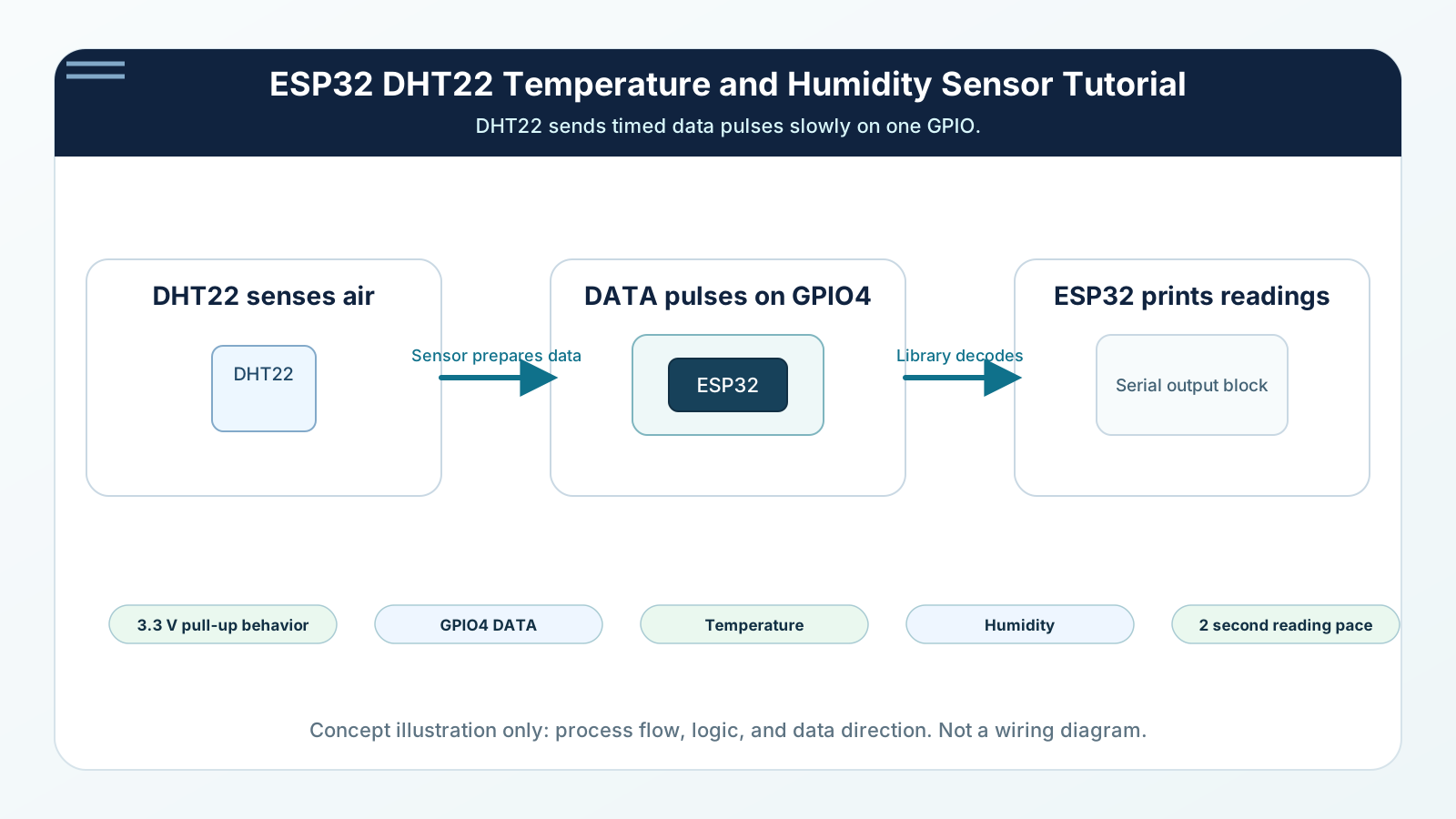
The DHT22 is a digital temperature and humidity sensor. Inside the package are a humidity sensing element, a temperature sensor, and a small controller that converts the measurement into a digital signal.
It does not behave like an analog sensor. The ESP32 cannot use analogRead() here. Instead, the ESP32 sends a start signal on one GPIO pin. The DHT22 replies by pulling that same data line HIGH and LOW in a timed pattern. The Arduino DHT library measures those pulses and converts them into humidity and temperature values.
The data line needs a pull-up resistor so it normally rests at 3.3 V. Many DHT22 modules already include this resistor. A bare DHT22 sensor usually needs an external 10 k ohm resistor between DATA and 3.3 V.
The DHT22 is useful, but it is slow. Read it about once every 2 seconds. Reading faster often causes failed values because the sensor has not prepared a new measurement yet.
Engineering Explanation
The DHT22 is a digital temperature and humidity sensor. Inside the package are a humidity sensing element, a temperature sensor, and a small controller that converts the measurement into a digital signal.
It does not behave like an analog sensor. The ESP32 cannot use analogRead() here. Instead, the ESP32 sends a start signal on one GPIO pin. The DHT22 replies by pulling that same data line HIGH and LOW in a timed pattern. The Arduino DHT library measures those pulses and converts them into humidity and temperature values.
The data line needs a pull-up resistor so it normally rests at 3.3 V. Many DHT22 modules already include this resistor. A bare DHT22 sensor usually needs an external 10 k ohm resistor between DATA and 3.3 V.
The DHT22 is useful, but it is slow. Read it about once every 2 seconds. Reading faster often causes failed values because the sensor has not prepared a new measurement yet.
Real-World Analogy
The DHT22 is like a tiny weather reporter. It has power, ground, and one data wire. The ESP32 asks, "What is the room like right now?" and the sensor replies with two numbers: temperature and humidity.
Humidity means how much water vapor is in the air. High humidity can feel sticky. Low humidity can feel dry. Temperature tells you how warm the air is.
Wiring Diagram
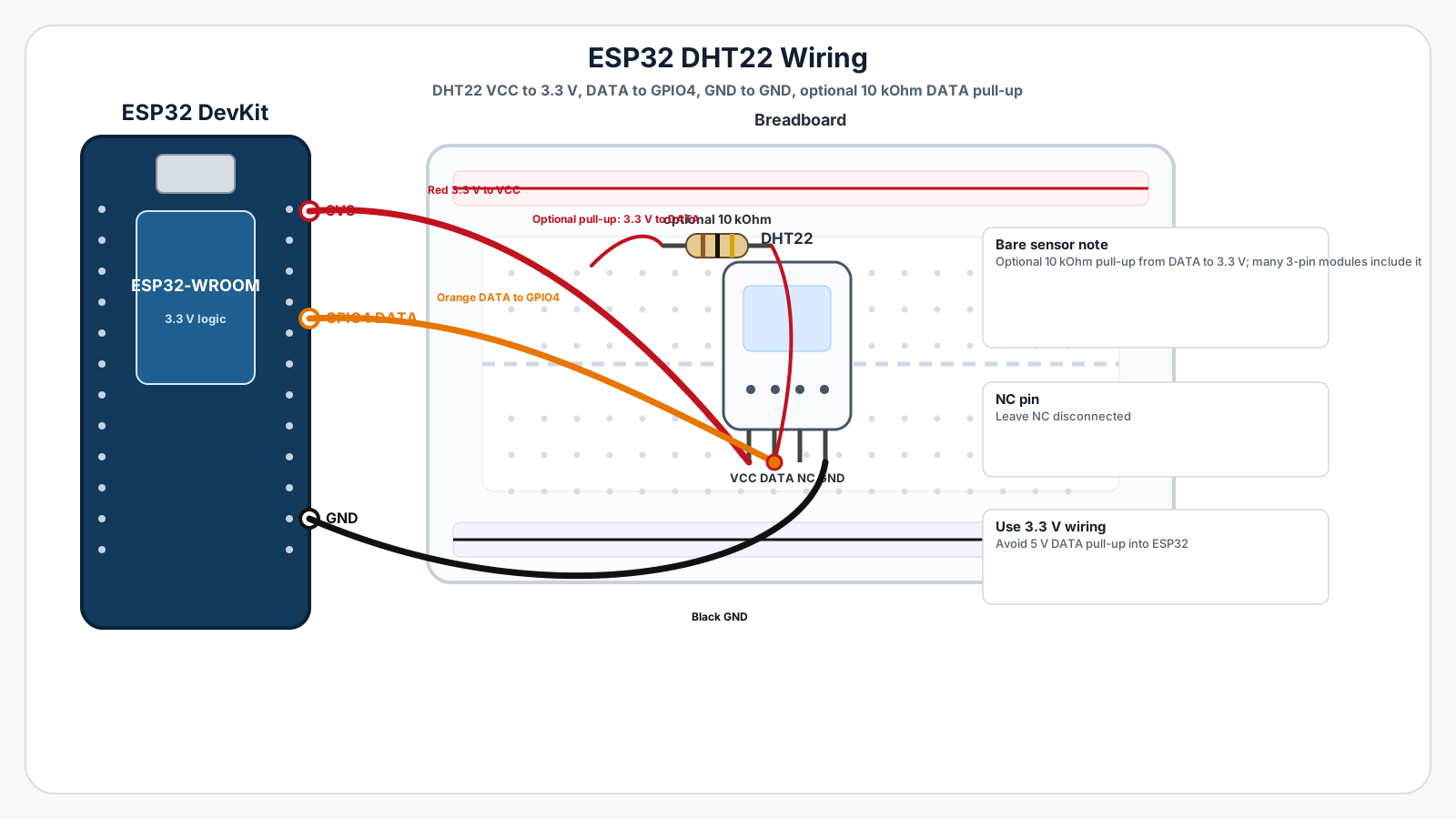
Follow these steps in order. Unplug USB before you change any wires.
-
1
Unplug the ESP32 USB cable before wiring.
-
2
Place the DHT22 module on the breadboard so each pin has its own row.
-
3
Connect DHT22 VCC or + to ESP32 3.3 V.
-
4
Connect DHT22 GND or - to ESP32 GND.
-
5
Connect DHT22 DATA or OUT to ESP32 GPIO4.
-
6
If you are using a bare 4-pin DHT22, add a 10 k ohm resistor from DATA to 3.3 V.
-
7
Leave the unused NC pin on a bare DHT22 disconnected.
-
8
In Arduino IDE, install "DHT sensor library" by Adafruit and "Adafruit Unified Sensor" from Library Manager.
Arduino Code
Copy this into Arduino IDE, then click Upload.
#include "DHT.h"

// DHT22 data pin connected to ESP32 GPIO4.
#define DHTPIN 4

// Tell the library which DHT sensor model you are using.
#define DHTTYPE DHT22

DHT dht(DHTPIN, DHTTYPE);

void setup() {
  Serial.begin(115200);
  delay(1000);

  dht.begin();
  Serial.println("DHT22 ESP32 room sensor ready");
  Serial.println("Reading every 2 seconds...");
}

void loop() {
  float humidity = dht.readHumidity();
  float temperatureC = dht.readTemperature();
  float temperatureF = dht.readTemperature(true);

  if (isnan(humidity) || isnan(temperatureC) || isnan(temperatureF)) {
    Serial.println("Read failed. Check wiring, power, pull-up resistor, and library setup.");
    delay(2000);
    return;
  }

  float heatIndexC = dht.computeHeatIndex(temperatureC, humidity, false);

  Serial.print("Temperature: ");
  Serial.print(temperatureC, 1);
  Serial.print(" C / ");
  Serial.print(temperatureF, 1);
  Serial.print(" F  |  Humidity: ");
  Serial.print(humidity, 1);
  Serial.print(" %  |  Heat index: ");
  Serial.print(heatIndexC, 1);
  Serial.println(" C");

  delay(2000);
}- DHTPIN must match the GPIO you wired to the DATA pin.
- DHTTYPE tells the library this is a DHT22, not a DHT11.
- The code waits 2 seconds between reads because the DHT22 is a slow sensor.
- isnan() protects your program from printing bad values when a read fails.
Line-by-line Explanation
- DHTPIN must match the GPIO you wired to the DATA pin.
- DHTTYPE tells the library this is a DHT22, not a DHT11.
- The code waits 2 seconds between reads because the DHT22 is a slow sensor.
- isnan() protects your program from printing bad values when a read fails.
Expected Behaviour
Open Serial Monitor at 115200 baud. Every 2 seconds you should see a line like this:
Temperature: 24.3 C / 75.7 F | Humidity: 55.0 % | Heat index: 24.1 C
Warm the sensor gently with your hand or breathe near it from a short distance. Temperature or humidity should change slowly. Do not touch the sensor grill or expose the board to moisture.
Common Mistakes
Serial Monitor says "Read failed"
DATA is on the wrong GPIO, the pull-up resistor is missing, or the sensor is being read too quickly.
Code does not compile because DHT.h is missing
The Adafruit DHT library is not installed, or the wrong library was installed.
Values are unrealistic or stuck
Loose jumper wires, poor breadboard contact, heat from your fingers, or airflow directly onto the sensor.
ESP32 uploads fail after wiring the sensor
The sensor may be connected to a boot strapping pin or a wiring mistake may pull a pin into the wrong state during reset.
Sensor works on Arduino Uno examples but not ESP32
Some examples use 5 V assumptions or a different pin number.
Troubleshooting
Most ESP32 problems are wiring, power, library, or timing issues. Check these first.
Serial Monitor says "Read failed"
Likely cause: DATA is on the wrong GPIO, the pull-up resistor is missing, or the sensor is being read too quickly.
Fix: Confirm DATA goes to GPIO4, use 3.3 V and GND, add a 10 k ohm pull-up for a bare sensor, and keep delay(2000).
Code does not compile because DHT.h is missing
Likely cause: The Adafruit DHT library is not installed, or the wrong library was installed.
Fix: Open Arduino IDE Library Manager and install "DHT sensor library" by Adafruit plus "Adafruit Unified Sensor".
Values are unrealistic or stuck
Likely cause: Loose jumper wires, poor breadboard contact, heat from your fingers, or airflow directly onto the sensor.
Fix: Reseat the wires, keep the sensor away from the warm ESP32 board, and wait a few readings for the value to settle.
ESP32 uploads fail after wiring the sensor
Likely cause: The sensor may be connected to a boot strapping pin or a wiring mistake may pull a pin into the wrong state during reset.
Fix: Use GPIO4 for this beginner circuit and disconnect power before rewiring.
Sensor works on Arduino Uno examples but not ESP32
Likely cause: Some examples use 5 V assumptions or a different pin number.
Fix: Use 3.3 V logic, update DHTPIN to your ESP32 GPIO number, and select an ESP32 board in Arduino IDE.
Mini Challenge
No wrong answers — experiment and have fun!
- Print "Too warm" when temperature is above 28 C.
- Print "Very humid" when humidity is above 70 percent.
- Average five readings before printing to make the output calmer.
- Combine this with the OLED mission and show the values on a display.
FAQs
Can I power the DHT22 from 5 V with an ESP32?
Use 3.3 V when the data pin connects directly to an ESP32 GPIO. Some DHT22 modules accept 5 V power, but their data output may also be pulled up to 5 V, which is not safe for ESP32 pins.
Why does the DHT22 sometimes return NaN?
NaN means the library did not receive a valid reading. The usual causes are wrong pin number, missing pull-up resistor, loose jumper wires, incorrect library, or reading faster than the sensor can update.
Is the DHT22 better than the DHT11?
Yes for most learning projects. DHT22 has a wider measurement range and better accuracy than DHT11, although it costs slightly more and still updates slowly.
Which ESP32 GPIO should I use for DHT22 data?
GPIO4 is a safe beginner choice. GPIO16, GPIO17, GPIO18, GPIO19, GPIO21, GPIO22, GPIO23, GPIO25, GPIO26, and GPIO27 can also work. Avoid boot strapping pins until you understand their startup behavior.
Previous Mission
Start here.