
Plain-English Overview
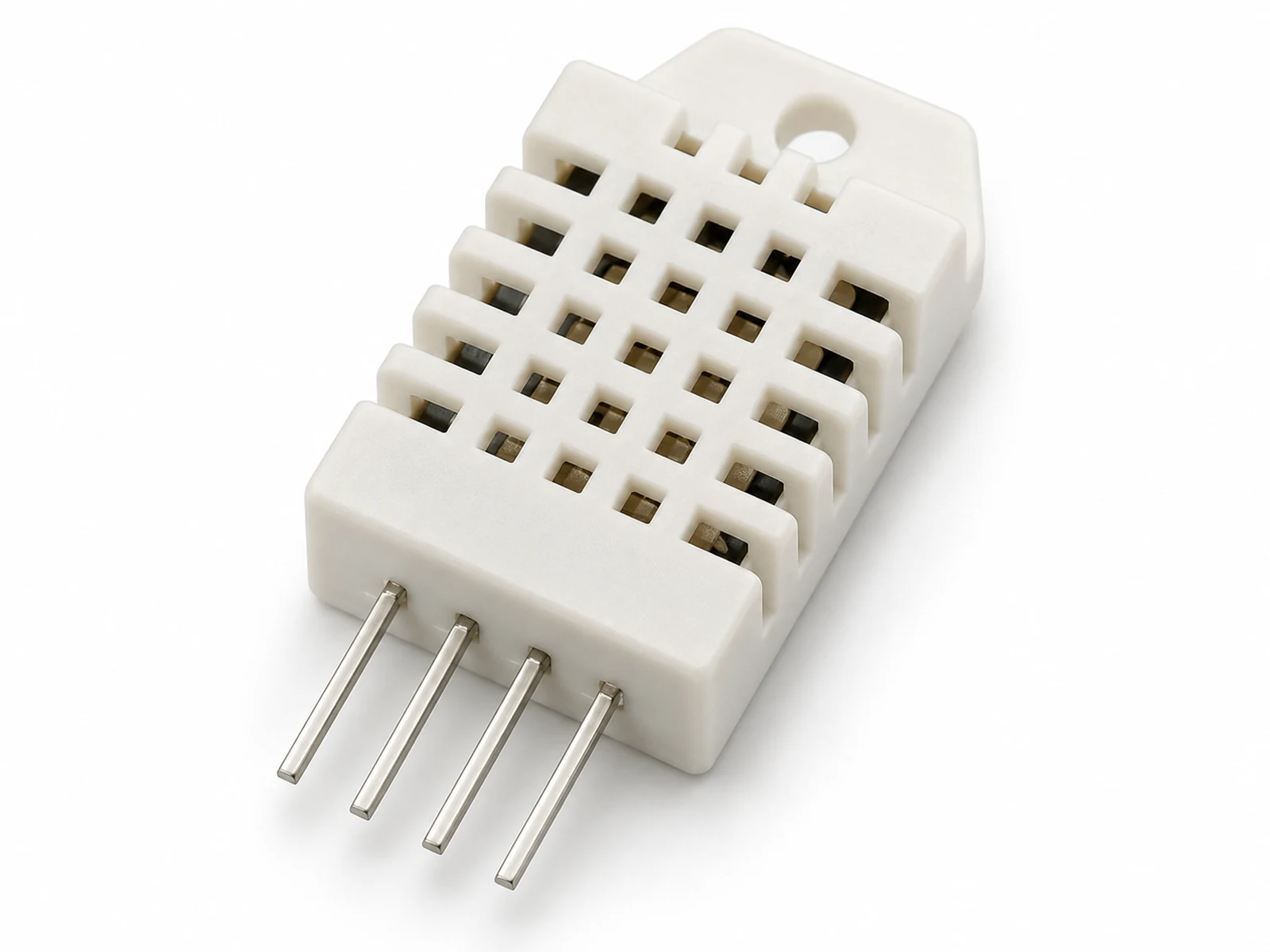
The DHT22 is a small digital sensor that reports two things about the air: temperature and humidity.
Temperature tells you how warm the air is. Humidity tells you how much water vapor is in the air. The ESP32 asks the DHT22 for a reading through one data wire, and the sensor replies with numbers your code can print, display, log, or use to control another device.
Use it when you need a simple low-cost room sensor. Do not use it for fast control loops, outdoor weatherproof measurements, or scientific calibration work.
Where You Use It
- Room comfort monitor
- ESP32 weather station
- Greenhouse humidity monitor
- Smart thermostat input
- Classroom environmental data logger
- Fan or ventilation trigger
Quick Facts
- Measures Air temperature and relative humidity
- Signal type Single-wire digital data
- Update speed About one new reading every 2 seconds
- ESP32 voltage 3.3 V recommended
- Best beginner pin GPIO4
- Library Adafruit DHT sensor library
How It Works
The DHT22 is not an analog temperature sensor. Inside the package, a humidity sensing element changes electrically as it absorbs or releases water vapor from the air. A temperature sensor measures the surrounding air temperature. A tiny controller inside the DHT22 converts those measurements into a digital data frame.
Communication happens on one DATA wire. The ESP32 briefly pulls the line low to request a measurement. The DHT22 then responds with timed HIGH and LOW pulses. Short and long pulses represent binary data. The Arduino library measures those pulse widths, checks the packet, and returns floating-point temperature and humidity values.
The pull-up resistor is important because the DATA line must normally rest at 3.3 V. The sensor transmits by pulling the line low at precise times. Without a pull-up, the line can float, noise can look like data, and the library may return NaN.
The sensor is slow because humidity measurement depends on the physical sensing material settling. That is why a 2 second interval is a requirement, not just a suggestion.
Technical Specifications
Arduino library: DHT sensor library by Adafruit plus Adafruit Unified Sensor
| Specification | Value | Why it matters |
|---|---|---|
| Supply voltage | 3.3 V to 5 V sensor range; use 3.3 V with ESP32 | ESP32 inputs must not receive 5 V logic from a pulled-up data line. |
| Temperature range | -40 C to 80 C | Wide enough for rooms, greenhouses, sheds, and many school experiments. |
| Temperature accuracy | Typically +/-0.5 C | Good for learning and comfort monitoring, not for laboratory calibration. |
| Humidity range | 0 to 100 percent RH | Covers dry indoor air through very humid environments. |
| Humidity accuracy | Typically +/-2 percent RH to +/-5 percent RH | Enough to detect trends, but values should not be treated as precision instruments. |
| Communication | Proprietary one-wire digital protocol | It uses one GPIO, but it is not Dallas OneWire and does not use I2C or SPI. |
| Sampling period | 2 seconds minimum between reads | Reading faster commonly causes NaN or repeated values. |
| Resolution | 0.1 C and 0.1 percent RH reported by common libraries | Displaying one decimal place is useful; extra decimals are not meaningful. |
| Typical current | Around 1 mA while measuring, much lower when idle | Suitable for small USB projects, but deep-sleep battery designs need careful duty cycling. |
| Pull-up resistor | 4.7 k ohm to 10 k ohm from DATA to 3.3 V | The data line must rest HIGH so the sensor can pull it LOW to transmit bits. |
| Cable length | Keep breadboard wires short; long cables need stronger wiring discipline | The timing protocol is sensitive to noise and capacitance on the data line. |
| Best environment | Clean air, no direct water, no condensation | Moisture on the board or sensor can corrupt readings and damage electronics. |
Pinout
- VCC / + Power input ESP32 3.3 V Use 3.3 V for direct ESP32 wiring. Some modules accept 5 V, but 3.3 V keeps the data line safe.
- DATA / OUT Digital signal output/input ESP32 GPIO4 Needs a pull-up to 3.3 V. Many modules include it; bare sensors usually do not.
- NC No connection on bare 4-pin sensor Leave disconnected Some 3-pin modules do not expose this pin.
- GND / - Ground reference ESP32 GND Ground must be common with the ESP32 or the data signal has no reference.
Wiring Diagram
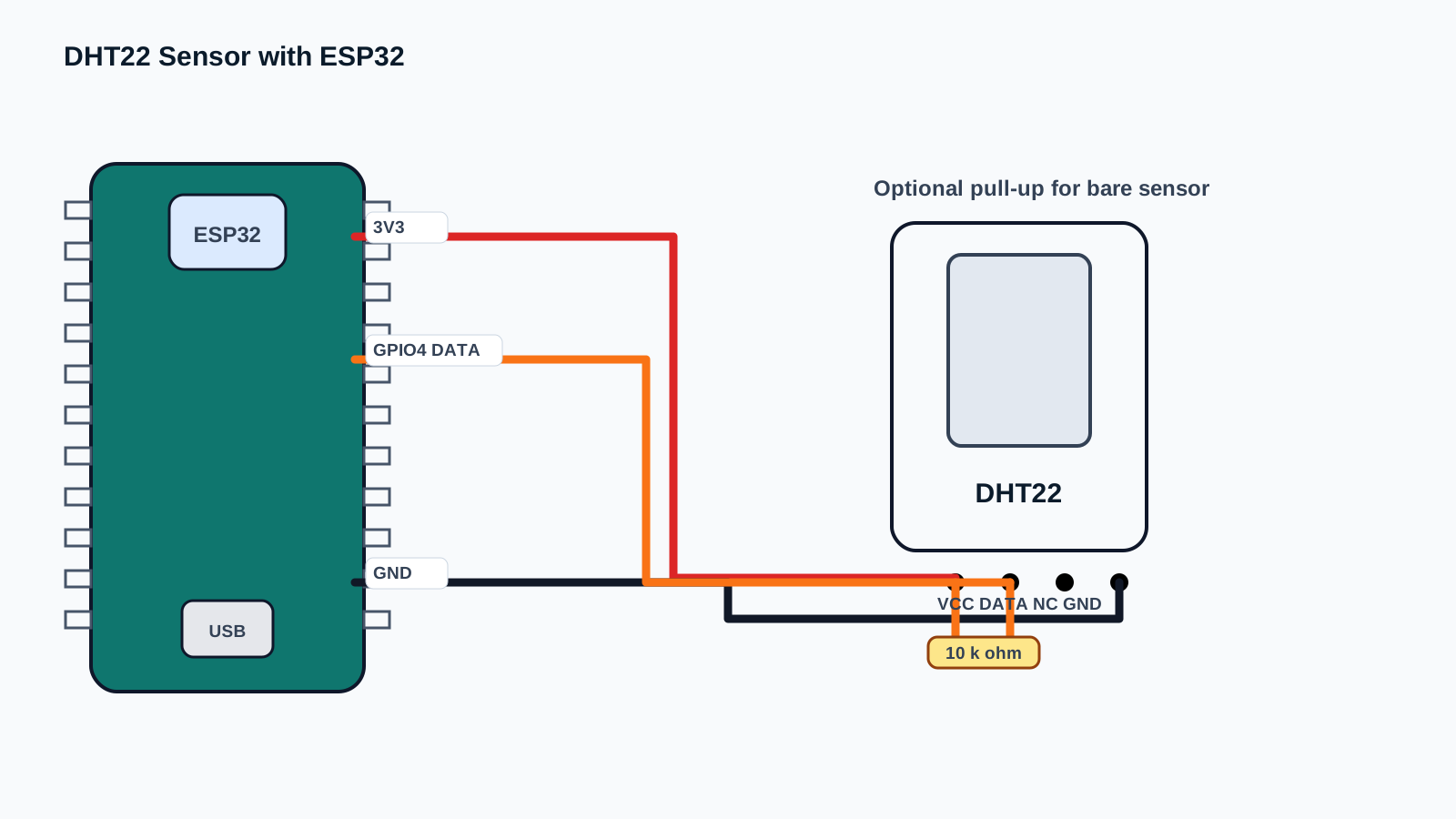
A DHT22 module is the easiest version for beginners because it usually includes the pull-up resistor. A bare 4-pin DHT22 needs one extra resistor from DATA to 3.3 V. Module labels and pin order vary, so follow the labels printed on your board instead of copying another module's left-to-right order.
Keep the wires short on a breadboard. Long jumper wires can add noise and capacitance, which makes the timed digital pulses harder for the ESP32 to read.
| DHT22 Pin | ESP32 Connection | Purpose / Notes |
|---|---|---|
| VCC / + | 3.3 V | Power for the sensor. Use 3.3 V for direct ESP32 wiring so the DATA pull-up stays ESP32-safe. |
| DATA / OUT | GPIO4 | One-wire digital signal. Needs a pull-up to 3.3 V; many modules include it, bare sensors usually do not. |
| NC | Leave disconnected | No connection on the bare 4-pin DHT22 package; many 3-pin modules do not expose this pin. |
| GND / - | GND | Shared ground reference for the ESP32 and sensor. |
| Pull-up resistor | DATA to 3.3 V | Use 10 k ohm for short breadboard wiring on a bare sensor; 4.7 k ohm may help longer wiring. |
-
1
Unplug the ESP32 USB cable before wiring.
-
2
Put the DHT22 module on the breadboard with each pin in a separate row.
-
3
Connect VCC or + to ESP32 3.3 V.
-
4
Connect GND or - to ESP32 GND.
-
5
Connect DATA or OUT to ESP32 GPIO4.
-
6
If using a bare 4-pin sensor, connect a 10 k ohm resistor between DATA and 3.3 V.
-
7
Leave NC disconnected on a bare DHT22.
-
8
Plug in USB and make sure the code uses DHTPIN 4.
Code Examples
Use the same wiring with Arduino IDE, PlatformIO, or ESP-IDF. Start with Arduino, then graduate when you need a larger project structure.
#include "DHT.h"

// DHT22 DATA pin connected to ESP32 GPIO4.
#define DHTPIN 4
#define DHTTYPE DHT22

// Read slowly. The DHT22 needs about 2 seconds per fresh reading.
const unsigned long READ_INTERVAL_MS = 2000;

DHT dht(DHTPIN, DHTTYPE);
unsigned long lastReadTime = 0;

void setup() {
  Serial.begin(115200);
  delay(1000);

  dht.begin();
  Serial.println("DHT22 component test");
  Serial.println("Check wiring if you see failed readings.");
}

void loop() {
  if (millis() - lastReadTime < READ_INTERVAL_MS) {
    return;
  }
  lastReadTime = millis();

  float humidity = dht.readHumidity();
  float temperatureC = dht.readTemperature();
  float temperatureF = dht.readTemperature(true);

  if (isnan(humidity) || isnan(temperatureC) || isnan(temperatureF)) {
    Serial.println("Read failed: check DATA pin, pull-up resistor, power, and ground.");
    return;
  }

  float heatIndexC = dht.computeHeatIndex(temperatureC, humidity, false);

  Serial.print("Temperature: ");
  Serial.print(temperatureC, 1);
  Serial.print(" C / ");
  Serial.print(temperatureF, 1);
  Serial.print(" F  |  Humidity: ");
  Serial.print(humidity, 1);
  Serial.print(" %  |  Heat index: ");
  Serial.print(heatIndexC, 1);
  Serial.println(" C");
}#include <Arduino.h>
#include "DHT.h"
// DHT22 DATA pin connected to ESP32 GPIO4.
#define DHTPIN 4
#define DHTTYPE DHT22
// Read slowly. The DHT22 needs about 2 seconds per fresh reading.
const unsigned long READ_INTERVAL_MS = 2000;
DHT dht(DHTPIN, DHTTYPE);
unsigned long lastReadTime = 0;
void setup() {
Serial.begin(115200);
delay(1000);
dht.begin();
Serial.println("DHT22 component test");
Serial.println("Check wiring if you see failed readings.");
}
void loop() {
if (millis() - lastReadTime < READ_INTERVAL_MS) {
return;
}
lastReadTime = millis();
float humidity = dht.readHumidity();
float temperatureC = dht.readTemperature();
float temperatureF = dht.readTemperature(true);
if (isnan(humidity) || isnan(temperatureC) || isnan(temperatureF)) {
Serial.println("Read failed: check DATA pin, pull-up resistor, power, and ground.");
return;
}
float heatIndexC = dht.computeHeatIndex(temperatureC, humidity, false);
Serial.print("Temperature: ");
Serial.print(temperatureC, 1);
Serial.print(" C / ");
Serial.print(temperatureF, 1);
Serial.print(" F | Humidity: ");
Serial.print(humidity, 1);
Serial.print(" % | Heat index: ");
Serial.print(heatIndexC, 1);
Serial.println(" C");
}// ESP-IDF starter structure for this component.
// Keep the wiring from the pinout section, then move the read/write logic into app_main().
#include <stdio.h>
#include "freertos/FreeRTOS.h"
#include "freertos/task.h"
void app_main(void) {
printf("DHT22 Sensor with ESP32 ready\n");
while (true) {
// Add component read/write code here.
vTaskDelay(pdMS_TO_TICKS(1000));
}
}The library include gives Arduino access to the DHT class. DHTPIN stores the ESP32 GPIO number connected to DATA, and DHTTYPE tells the library to use DHT22 timing.
setup() starts Serial Monitor and initializes the sensor. loop() uses millis() instead of delay() so the structure is easier to expand later with displays, buttons, Wi-Fi, or relays.
readHumidity(), readTemperature(), and readTemperature(true) request values from the sensor. isnan() catches failed reads before bad values enter the rest of your program. The final Serial.print() block formats the values so beginners can compare Celsius, Fahrenheit, humidity, and heat index on one line.
Expected Output
Open Serial Monitor at 115200 baud. A healthy circuit prints one line about every 2 seconds:
Temperature: 24.3 C / 75.7 F | Humidity: 55.0 % | Heat index: 24.1 C
The value should move slowly. Breathe near the sensor from a short distance and humidity should rise. Place it near a window and temperature may drift. If the output says "Read failed", the ESP32 did not decode a valid pulse train from the sensor.
Common Mistakes
- Powering the module from 5 V while the DATA pull-up also goes to 5 V.
- Using a bare DHT22 without the required pull-up resistor.
- Reading faster than once every 2 seconds.
- Wiring DATA to one GPIO but using a different pin number in code.
- Forgetting to install Adafruit Unified Sensor with the DHT library.
- Expecting DHT22 to behave like an analog sensor with analogRead().
- Touching the sensor grill and warming it with your fingers.
- Mounting the sensor directly above a warm ESP32 voltage regulator.
- Using long loose jumper wires during breadboard testing.
- Treating DHT22 readings as laboratory-grade measurements.
Troubleshooting
| Problem | Possible cause | Solution |
|---|---|---|
| Serial Monitor prints "Read failed" | DATA pin mismatch, missing pull-up resistor, bad ground, or reading too fast. | Confirm DATA is on GPIO4, add a 10 k ohm pull-up for a bare sensor, share GND, and keep the 2 second interval. |
| Code will not compile because DHT.h is missing | The Adafruit DHT sensor library is not installed. | Install "DHT sensor library" by Adafruit and "Adafruit Unified Sensor" from Arduino Library Manager. |
| Upload works but no output appears | Serial Monitor baud rate does not match the code. | Set Serial Monitor to 115200 baud and press the ESP32 reset button. |
| Readings are stuck or always zero | Sensor is not powered, ground is missing, or the jumper is in the wrong breadboard row. | Check 3.3 V, GND, and breadboard rows with the board unplugged. |
| Temperature is higher than the room | Sensor is too close to the ESP32 regulator, USB chip, laptop exhaust, or your hand. | Move the sensor away from heat sources and wait several readings. |
| Humidity jumps when you breathe nearby | Human breath is warm and humid. | This is normal. For stable room readings, place the sensor away from your face and airflow. |
| Values update slowly | DHT22 is designed for slow environmental measurements. | Use a BME280 or SHT31 if you need faster or more stable readings. |
| ESP32 will not boot after wiring | The sensor is connected to a boot-sensitive pin or the wiring pulls a pin into the wrong state. | Use GPIO4 for this beginner circuit and avoid strapping pins such as GPIO0, GPIO2, GPIO12, and GPIO15 until you understand boot modes. |
| Readings work on USB but fail on battery | Battery voltage or regulator output is unstable. | Use a stable 3.3 V regulator and add a small decoupling capacitor near the sensor if wires are long. |
| Sensor works sometimes and fails sometimes | Loose jumper wires or breadboard contact resistance. | Reseat all wires, shorten the DATA wire, and avoid moving the breadboard while testing. |
| Humidity stays at 99 or 100 percent | Condensation, water exposure, or a damaged sensing element. | Let the sensor dry in clean room air. Replace it if readings do not recover. |
| Fahrenheit output looks wrong | Calling readTemperature(true) was removed or mixed with Celsius math. | Use readTemperature() for Celsius and readTemperature(true) for Fahrenheit. |
| Heat index seems close to temperature | Heat index changes strongly only when temperature and humidity are high. | This is normal at comfortable room conditions. |
| Library examples use another pin | Example sketches often use Arduino Uno pin numbers. | Change DHTPIN to the ESP32 GPIO you actually wired, such as 4. |
| Long cable gives unreliable readings | The one-wire timing signal is degraded by cable capacitance and electrical noise. | Use shorter cable, twisted ground/data pairing, a stronger pull-up such as 4.7 k ohm, or choose an I2C sensor for longer wiring. |
Related Guides
Related Projects
FAQ
It measures air temperature and relative humidity. It does not measure pressure, gas, dust, rain, soil moisture, or water temperature.
It is digital. The ESP32 reads timed HIGH and LOW pulses on one GPIO pin, so analogRead() is not used.
Yes. Use 3.3 V, GND, and one GPIO data pin. Add a pull-up resistor if your sensor board does not already include one.
Avoid 5 V for direct ESP32 projects unless you are certain the DATA pull-up remains at 3.3 V. ESP32 GPIO pins are not 5 V tolerant.
GPIO4 is a good beginner choice. Many normal GPIOs work, but avoid boot strapping pins until you understand ESP32 boot behavior.
The data line must idle HIGH. The resistor pulls DATA to 3.3 V until the sensor pulls it LOW to send timed bits.
10 k ohm works well for short breadboard wires. For longer wires, 4.7 k ohm may be more reliable.
Read it about once every 2 seconds. Faster reads can return NaN, repeated values, or unstable output.
NaN means Not a Number. The library did not receive a valid reading from the sensor.
It is accurate enough for beginner weather and room projects, but not for calibrated laboratory measurement.
Yes. DHT22 has better range and accuracy. DHT11 is cheaper but less precise.
For many ESP32 projects, yes. BME280 uses I2C, is usually more stable, and also measures pressure. DHT22 is simpler for first lessons.
Only with weather protection and airflow. Do not expose the sensor or ESP32 board directly to rain, condensation, or sunlight.
No. Use a waterproof DS18B20 probe for water temperature.
No. Use a capacitive soil moisture sensor for soil.
Breath is warm and humid, so the sensor responds. This is a quick way to prove the sensor is alive.
The sensor may be near your hand, the ESP32 regulator, sunlight, or another heat source. Move it away and wait.
Usually not for short breadboard wiring. For long wires or unstable power, a small 0.1 uF capacitor across VCC and GND near the sensor can help.
Yes, but each sensor needs its own GPIO data pin and its own DHT object in code.
Yes. MicroPython has DHT support on ESP32, but this page focuses on Arduino because it is easiest for beginners.
Beginners do not need interrupts. Use the library read function at a slow interval and keep the rest of the loop non-blocking where possible.
Wi-Fi current bursts can disturb weak power setups. Use solid USB power, short wiring, and common ground.
Relative humidity is how full the air is with water vapor compared with the maximum it can hold at that temperature.
It is the single DHT22 DATA line that carries timed HIGH and LOW pulses between the sensor and ESP32.
Use 3.3 V power, short jumper wires, and a 10 k ohm DATA pull-up before placing the sensor away from the ESP32 heat.
Plan a short bench test with Serial Monitor first, then wait a few minutes before judging room temperature or humidity.
It teaches digital sensor timing, pull-up resistors, sampling intervals, and why readings need sanity checks.
Have students record GPIO choice, pull-up value, read interval, room conditions, and any NaN troubleshooting steps.
Breathe near the sensor briefly, then watch humidity rise and slowly settle without touching the sensing area.
Average several valid readings, reject NaN values, and display the latest stable value on an OLED or dashboard.
The sensor updates slowly, so reading too often can return repeated, invalid, or unstable values.
The line must rest at a known HIGH level so the ESP32 can detect the sensor's timed LOW pulses.
DHT22 Sensor with ESP32 is a sensors part used with the ESP32. Learn its job first, then connect power, ground, and signal pins exactly as the wiring table shows.
A signal pin is the wire that carries information between the ESP32 and the component. It may be digital, analog, I2C, SPI, PWM, or another protocol depending on the part.
For a beginner ESP32 lesson, this component is suitable when an adult checks the wiring, keeps the project at low voltage, and unplugs USB before moving jumper wires.
Watch for reversed power pins, loose jumper wires, and children touching the circuit while it is powered. Most beginner ESP32 mistakes are wiring mistakes, not broken parts.
Use DHT22 Sensor with ESP32 to connect one visible hardware behavior to one software concept. Ask students to predict the reading or output first, then test it on real hardware.
Assess whether students can explain the wiring, identify the ESP32 pins used, run the example, describe the expected output, and troubleshoot one intentional mistake.
Change one variable at a time: move to another valid GPIO, adjust the timing, display the value on an OLED, or combine the component with a related project.
Disconnect one wire, predict the failure, observe the output, then explain why the failure happened before reconnecting the circuit.
Unplug USB power first. Then check the pin labels, voltage level, and ground connection before powering the ESP32 again.
Common ground gives the ESP32 and the component the same voltage reference. Without it, signal readings can be wrong or unstable.
Review, Testing, and References
Author: Abdul Mubeen and the ESP32 Engine editorial team. Last updated: 2026-08-22. Reviewed: wiring, code, beginner safety, and ESP32 compatibility. Educational level: Beginner.
Use this component page as an educational starting point. Check official documentation before using the part in production, high-current, outdoor, battery, or safety-critical hardware.
Downloads
DHT22 datasheet for electrical ratings, timing notes, and accuracy limits. Use it when designing classroom worksheets or production prototypes.
Download Datasheet (PDF)