
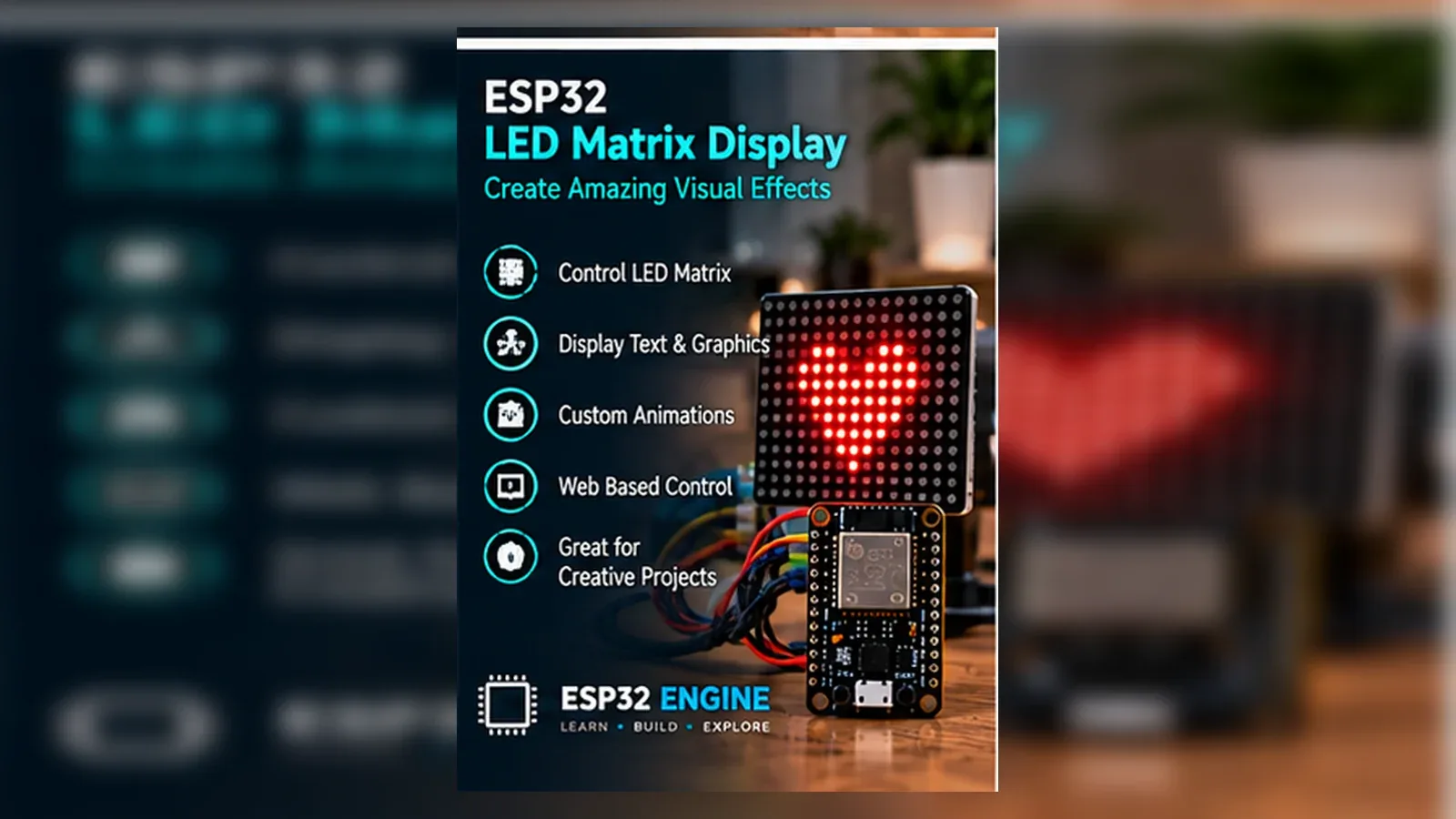
Build an LED Matrix Display
The Story
This ESP32 LED matrix display project shows scrolling text on a MAX7219 8x8 module without wiring dozens of LED pins. Build it when you want to move beyond one blinking LED and learn how a display driver controls many LEDs through only DIN, CS, and CLK.
The useful lesson is the display chain itself: match the module type, wire SPI correctly, choose safe 5 V matrix power, set brightness, and keep the scroll animation non-blocking so the ESP32 can later handle buttons, Wi-Fi, or MQTT data.
Explain Like I'm 12
The MAX7219 is a tiny display manager. Instead of asking the ESP32 to control 64 LEDs one by one, the ESP32 sends a message to the manager and the chip refreshes the LEDs for you.
Safety Standards
- Unplug USB before changing jumper wires. Recheck 3.3 V, 5 V, and GND before reconnecting power.
- Do not power motors, pumps, LED strips, or servos from the ESP32 3.3 V pin. Use a suitable external supply and common ground.
- Breadboards are for low-current prototypes. Move high-current or unattended builds to proper terminals, enclosure, strain relief, and fusing.
What You Will Build
A scrolling LED message display using an ESP32 and a MAX7219 matrix module, with clean SPI wiring and brightness control.
Learning Objectives
- Wire a MAX7219 LED matrix to ESP32 SPI pins.
- Understand why a driver chip is used for many LEDs.
- Upload a scrolling text sketch.
- Adjust brightness without overloading the supply.
- Plan safe power for chained matrix modules.
Components List
- 1× ESP32 DevKit V1Required for this build
- 1× MAX7219 8x8 LED matrix modulePre-assembled module with MAX7219 and 64 LEDs
- 1× Breadboard and jumper wiresRequired for this build
- USB data cableProgramming and bench power
Bill of Materials
| Part | Qty | Estimated Cost | Notes |
|---|---|---|---|
| 1× ESP32 DevKit V1 | 1 | Varies | Required for this build |
| 1× MAX7219 8x8 LED matrix module | 1 | Varies | Pre-assembled module with MAX7219 and 64 LEDs |
| 1× Breadboard and jumper wires | 1 set | Varies | Required for this build |
| USB data cable | 1 | Varies | Programming and bench power |
Wiring
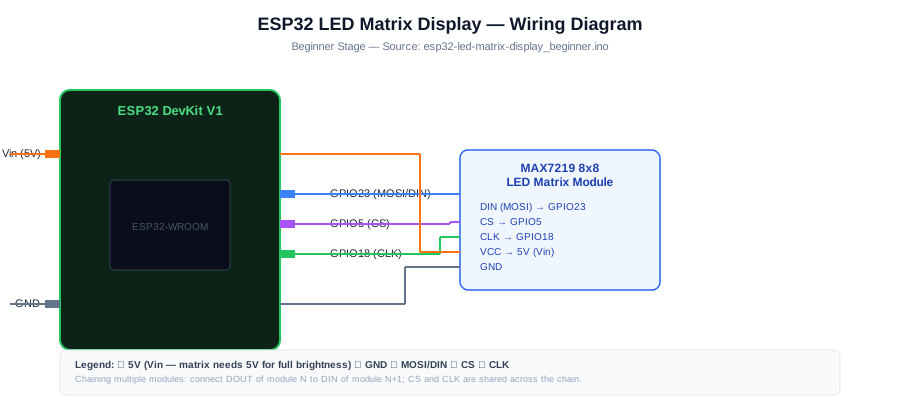
The ESP32 sends serial data to the MAX7219 through DIN, CS, and CLK. Power the matrix module from 5 V for usable brightness, keep GND common, and start with one module before chaining displays.
-
1
Unplug USB before changing wires.
-
2
Connect MAX7219 DIN (MOSI) to GPIO 23 (SPI MOSI).
-
3
Connect MAX7219 CS (CS) to GPIO 5 (SPI chip select).
-
4
Connect MAX7219 CLK to GPIO 18 (SPI clock).
-
5
Connect MAX7219 VCC to 5 V (Vin) (Matrix LEDs need 5 V for full brightness).
-
6
Connect MAX7219 GND to GND.
-
7
Reconnect USB, upload the sketch, and open Serial Monitor at 115200 baud unless the code says otherwise.
GPIO Mapping
| Signal | ESP32 Pin | Direction | Notes |
|---|---|---|---|
| MAX7219 DIN (MOSI) | GPIO 23 | Output | SPI MOSI |
| MAX7219 CS (CS) | GPIO 5 | Output | SPI chip select |
| MAX7219 CLK | GPIO 18 | Output | SPI clock |
| MAX7219 VCC | 5 V (Vin) | Power | Matrix LEDs need 5 V for full brightness |
| MAX7219 GND | GND | Ground | Match this wire to the code constant. |
Circuit Explanation
The ESP32 sends serial data to the MAX7219 through DIN, CLK, and CS. The MAX7219 multiplexes rows and columns inside the matrix and controls LED current. The module usually needs 5 V for full brightness, while the ESP32 signal pins still provide logic control.
Engineering Explanation
Matrix displays are multiplexed. Only part of the display is driven at any instant, but it refreshes fast enough that your eyes see a steady image. Brightness, power supply stability, and wiring length matter more as you chain more modules.
Libraries
- Arduino ESP32 coreInstall ESP32 board support in Arduino IDE.
Code
Copy into Arduino IDE. Install any libraries noted in the component guides first.
// ESP32 LED Matrix Display - Beginner
// Single MAX7219 8x8; scrolling text via MD_MAX72XX library
// Install: MD_MAX72XX by MajicDesigns in Library Manager
// Install: MD_Parola by MajicDesigns in Library Manager

#include <MD_Parola.h>
#include <MD_MAX72xx.h>
#include <SPI.h>

#define HARDWARE_TYPE MD_MAX72XX::FC16_HW
#define MAX_DEVICES   1
#define CS_PIN        5

MD_Parola display = MD_Parola(HARDWARE_TYPE, CS_PIN, MAX_DEVICES);

const char* message = "Hello ESP32! ";
const uint8_t SCROLL_SPEED = 60; // milliseconds per step (lower = faster)
const uint8_t BRIGHTNESS   = 5;  // 0 (dim) to 15 (full)

void setup() {
  Serial.begin(115200);
  display.begin();
  display.setIntensity(BRIGHTNESS);
  display.displayClear();
  display.displayScroll(message, PA_LEFT, PA_SCROLL_LEFT, SCROLL_SPEED);
  Serial.println("LED matrix display ready.");
}

void loop() {
  if (display.displayAnimate()) {
    // Animation complete — restart scroll
    display.displayReset();
  }
}
Code Explanation
The sketch selects the common FC16 hardware type, sets one MAX7219 device on CS GPIO5, starts MD_Parola, sets brightness, and scrolls "Hello ESP32!" across the 8x8 matrix. loop() keeps calling displayAnimate() so the non-blocking scroll can advance and restart.
Expected Output
Serial Monitor prints "LED matrix display ready." The matrix should scroll "Hello ESP32!" from right to left at the configured speed and brightness.
Troubleshooting
- Display stays blank Check VCC, GND, DIN, CS, CLK, and confirm the library hardware type matches the module.
- Text scrolls backwards Change the module orientation or hardware type in the library settings.
- Display flickers Use a stronger 5 V supply and shorter wires.
- Only one module works in a chain Check DOUT of one module goes to DIN of the next.
Common Mistakes
- Powering several matrix modules from the ESP32 3.3 V pin.
- Mixing up DIN and DOUT when chaining modules.
- Forgetting common ground between ESP32 and matrix power.
- Setting brightness too high on USB power.
- Using the wrong hardware type in the display library.
Testing Checklist
- Upload a simple Blink sketch first to confirm the board and USB cable work.
- Wire VCC and GND first, then confirm the ESP32 still boots.
- Add DIN GPIO23, CS GPIO5, and CLK GPIO18 exactly as the sketch expects.
- Upload the matrix sketch and confirm Serial Monitor prints the ready message.
- Verify one module scrolls correctly before chaining more modules.
- Power-cycle the project and confirm it starts in a safe state.
Engineering Tips
- Start with one module before chaining four or more.
- Keep brightness low during USB testing.
- Use a separate 5 V supply for multi-module displays.
- Mount matrix arrows/orientation consistently.
- Add a capacitor across 5 V and GND for long chains.
Performance Tips
- Update text only when it changes.
- Avoid blocking delays if the display shares work with sensors.
- Reduce brightness to save current.
- Use hardware SPI pins for reliable high-speed updates.
Upgrade Ideas
- Chain 4 MAX7219 modules for a 32x8 display with longer message capacity
- Add a button to cycle through several preset messages
- Add an RTC module and display the current time and date
- Add Wi-Fi and set the message via a web interface
Real-World Applications
- Classroom message board
- IoT status display
- Countdown timer
- Workshop notification sign
Downloads
- ESP32 LED Matrix Display Arduino sketchUse the code section as the source sketch.
- Bench test checklistFollow the testing checklist before permanent installation.
FAQs
Why is the MAX7219 matrix blank?
Check 5 V, GND, DIN, CS, and CLK first, then confirm the library hardware type matches your module. The project uses GPIO 23, GPIO 5, and GPIO 18 for SPI-style wiring.
Can I power several LED matrix modules from the ESP32 3.3 V pin?
No. The page wires the matrix VCC to 5 V because the LEDs need more current than the ESP32 3.3 V pin should provide, especially when brightness is high.
Why does text scroll backward?
Matrix modules are sold in different orientations. Change the library hardware type or rotate the module after the basic wiring is proven.
Review, Testing, and References
Author: Abdul Mubeen and the ESP32 Engine editorial team. Last updated: 2026-08-26. Reviewed: wiring logic, Arduino code structure, beginner safety, and learning sequence.
Educational level: Beginner. Estimated completion time: 60-90 min. This project is for learning and prototyping; production or unattended hardware needs additional engineering review.
Project Complete!
You completed ESP32 LED Matrix Display as a real ESP32 display build. You now know how to wire MAX7219 SPI-style control pins, power the matrix safely, tune brightness, and debug scrolling text.
- Read and verify project input hardware
- Map signals to safe ESP32 GPIO pins
- Debug with Serial Monitor
- Apply safety and performance checks
- Plan the next learning step