
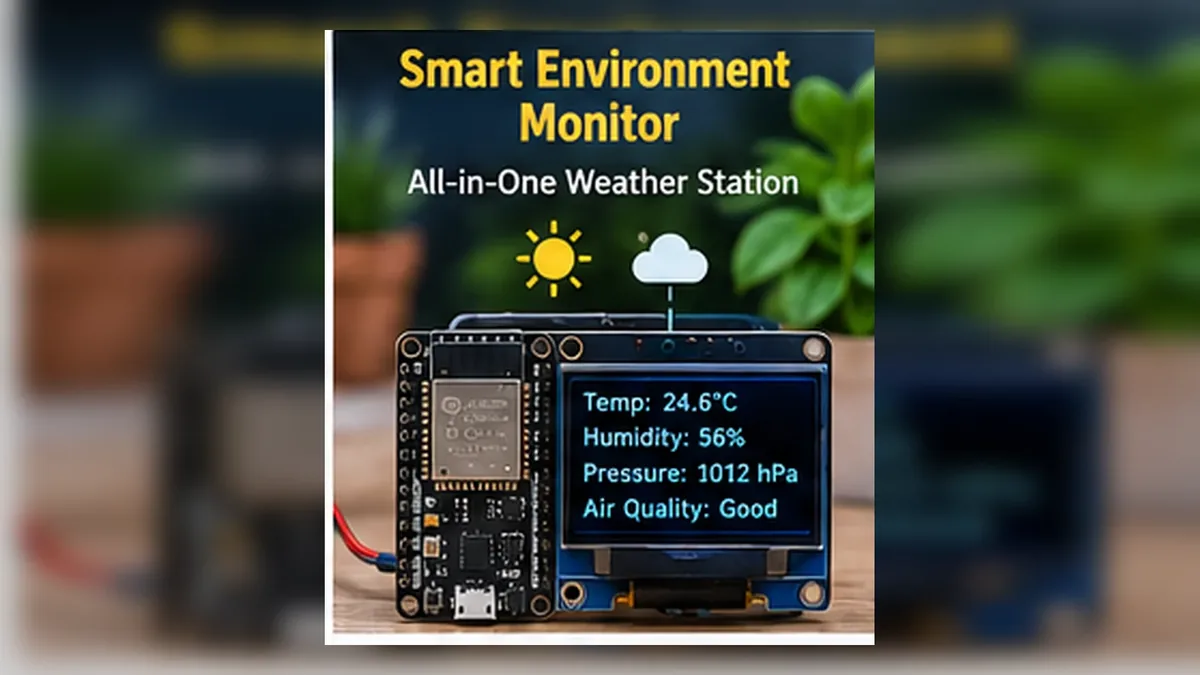
Build Your Foundation Capstone
The Story
You started this course by blinking a light. Now you are building a small monitoring system that observes the world, processes data, shows information, accepts user input, and alerts with LEDs.
That is the embedded systems workflow in miniature: observe, measure, process, display, and alert. This is the point where separate lessons become one real device.
Explain Like I'm 12
A smart monitor is like a careful assistant. It looks at the room, writes down the numbers, decides whether things are normal, and shows a simple status.
The BME280 is the monitor's senses. The ESP32 is the brain. The OLED is the face. The LEDs are quick warning lights. The button lets the user ask for a different page.
Mission Goal
Build a complete smart environment monitor that combines BME280 readings, OLED pages, LED status alerts, a debounced push button, and formatted Serial Monitor output.
Estimated Time
70-90 min
Difficulty
Beginner Capstone
Prerequisites
Skills You'll Learn
- Combine sensor input, OLED output, LEDs, and a button in one project
- Use thresholds to turn measurements into system status
- Switch OLED display pages with a debounced button
- Sample environmental data at a stable interval
- Build and test a small real-world embedded monitoring system
Components Required
- ESP32 DevKit V1Runs the complete monitor logic
- BME280 environmental sensorMeasures temperature, humidity, and pressure
- SSD1306 OLED displayShows monitor pages and status
- Green LED and red LEDShow normal and warning status
- Push buttonSwitches between OLED pages
- Breadboard, jumper wires, and LED resistorsBuild the complete circuit safely
A Monitor Turns Measurements Into Meaning
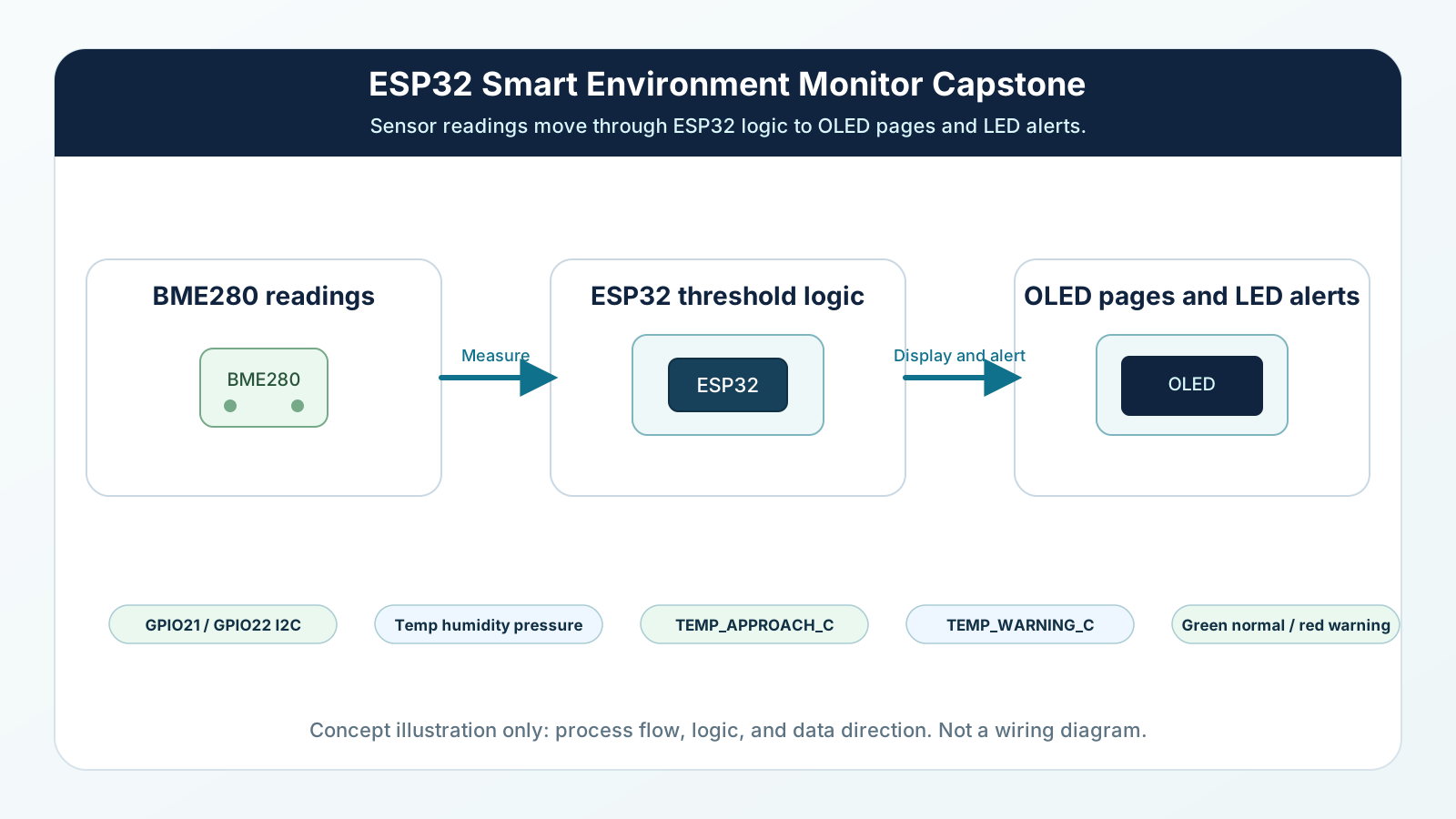
A sensor reading by itself is just a number. A monitor turns that number into information a person can use.
The BME280 measures the room. The ESP32 samples the data at a stable interval. The code compares temperature with a threshold. The OLED shows readable pages. The LEDs show quick status. The button gives the user control.
That is the same pattern used in many real embedded products.
Engineering Explanation
The engineering workflow for this capstone is observe, measure, process, display, and alert.
Observe means the system is aware of the physical world through the BME280. Measure means the sensor converts temperature, humidity, and pressure into digital values over I2C. Process means the ESP32 formats those values, compares them with thresholds, and decides the system status. Display means the OLED shows the user what matters. Alert means LEDs communicate status immediately.
Five analogies make the system easier to remember. A car dashboard does not only measure speed; it displays it and warns you when something is wrong. A home thermostat reads temperature, compares it with a setpoint, and changes state. A nurse does not react to one noisy heartbeat reading; they watch the pattern. A traffic light turns complex road decisions into simple colors. A notebook with tabs is like OLED pages: each page shows the right information without crowding.
The green LED means the environment is normal. The red LED means the temperature is above the warning threshold. A yellow status can appear as text on the OLED when the reading is approaching the threshold, even though this beginner hardware uses green and red LEDs only.
Stable monitoring matters. Sensor values fluctuate because air moves, electronics have noise, and sensors have limits. A professional monitor does not panic over every tiny change. It samples at a reasonable interval, formats honest values, and uses thresholds that match the real use case.
Project walkthrough: wire the I2C devices first, run the scanner if needed, test the OLED, test the BME280, add LEDs, add the button, then combine the logic. Engineering review: each block should have one job. The sensor block measures, the decision block sets status, the display block shows pages, and the alert block controls LEDs.
Professional applications include room comfort monitors, greenhouse controllers, storage-room alarms, classroom weather stations, server-room status displays, and product prototypes. Portfolio tip: show a photo, wiring diagram, code, expected output, and what you tested. Resume tip: describe it as an ESP32 embedded monitoring system using I2C sensors, OLED UI, GPIO alerts, and button input. LinkedIn tip: post a short video showing page switching and LED warnings. GitHub tip: include a README with components, wiring table, thresholds, and troubleshooting notes.
Real-World Analogy
A smart environment monitor is like a tiny weather station for your desk. It does not just collect numbers; it explains what those numbers mean.
It is also like a smoke alarm in a gentle beginner form. The device watches a condition and alerts when a value crosses a threshold.
The OLED pages are like screens on a smartwatch. One screen cannot show everything, so the button lets you move between focused views.
The LEDs are like status lights on a router. You can understand the basic state without reading detailed text.
The Serial Monitor is like an engineer's service panel. Users look at the OLED, but builders use the detailed log to debug.
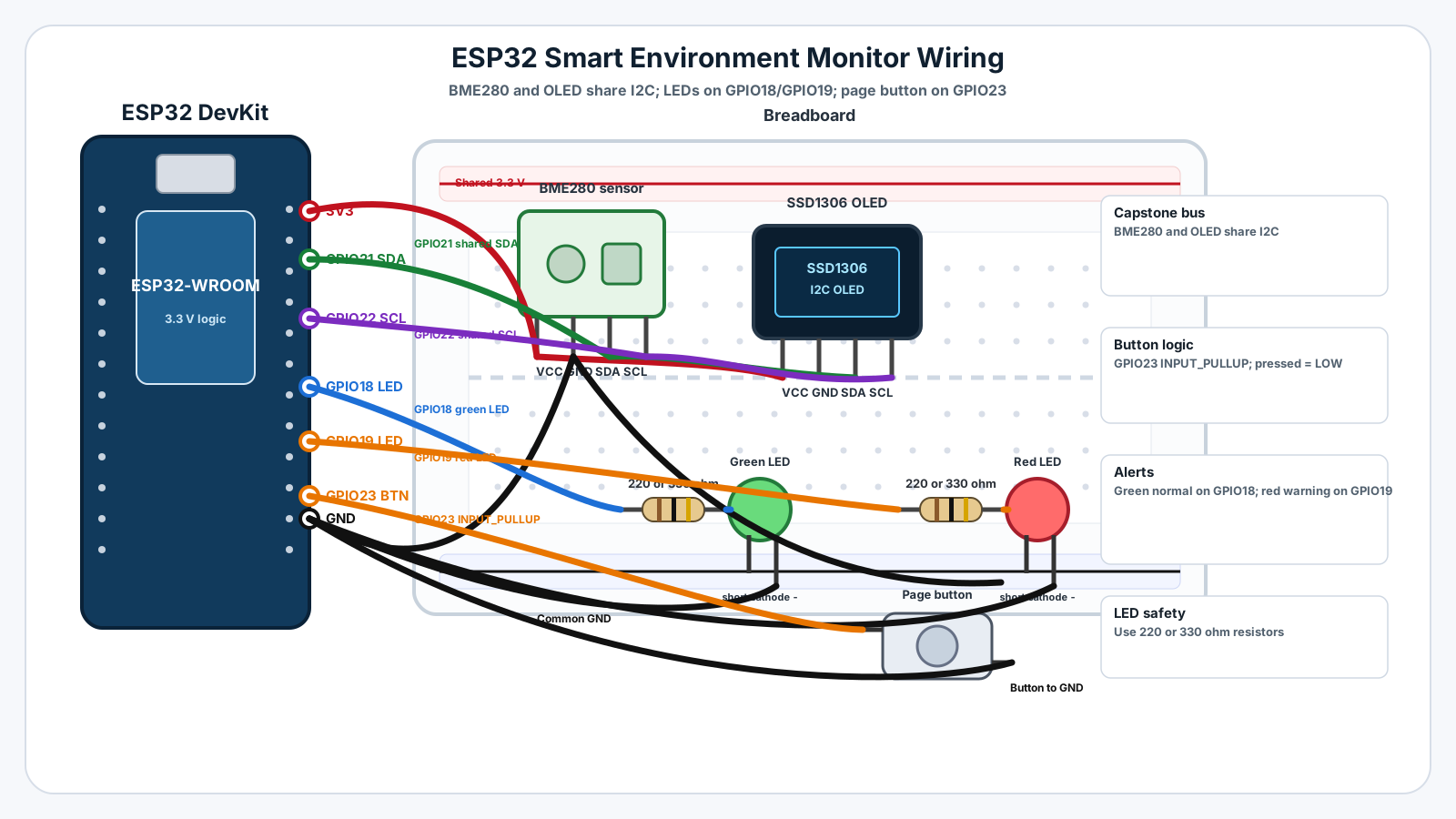
Wiring Diagram
Follow these steps in order. Unplug USB before you change any wires.
-
1
Unplug the ESP32 USB cable before wiring.
-
2
Connect BME280 VCC to ESP32 3.3 V and BME280 GND to ESP32 GND.
-
3
Connect BME280 SDA to GPIO21 and BME280 SCL to GPIO22.
-
4
Connect OLED VCC to ESP32 3.3 V and OLED GND to ESP32 GND.
-
5
Connect OLED SDA to the same GPIO21 SDA row and OLED SCL to the same GPIO22 SCL row.
-
6
Connect GPIO18 through a 220 ohm or 330 ohm resistor to the green LED anode, then connect the LED cathode to GND.
-
7
Connect GPIO19 through a 220 ohm or 330 ohm resistor to the red LED anode, then connect the LED cathode to GND.
-
8
Connect one side of the push button to GPIO23 and the other side to GND.
-
9
The button uses INPUT_PULLUP, so pressed reads LOW and released reads HIGH.
-
10
Install Adafruit BME280, Adafruit Unified Sensor, Adafruit SSD1306, and Adafruit GFX from Arduino Library Manager.
GPIO Table
| Signal | ESP32 Pin | Mode | Notes |
|---|---|---|---|
| I2C SDA | GPIO21 | I2C data | Shared by BME280 SDA and OLED SDA. |
| I2C SCL | GPIO22 | I2C clock | Shared by BME280 SCL and OLED SCL. |
| Green LED | GPIO18 | Digital output | ON when the environment is normal. |
| Red LED | GPIO19 | Digital output | ON when temperature is above the warning threshold. |
| Page button | GPIO23 | INPUT_PULLUP | Pressed reads LOW and switches OLED pages. |
Arduino Code
Copy this into Arduino IDE, then click Upload.
#include <Wire.h>
#include <Adafruit_GFX.h>
#include <Adafruit_SSD1306.h>
#include <Adafruit_BME280.h>

const int I2C_SDA = 21;
const int I2C_SCL = 22;

const int GREEN_LED_PIN = 18;
const int RED_LED_PIN = 19;
const int BUTTON_PIN = 23;

const int SCREEN_WIDTH = 128;
const int SCREEN_HEIGHT = 64;
const int OLED_RESET = -1;
const int OLED_ADDRESS = 0x3C;

const float TEMP_APPROACH_C = 28.0;
const float TEMP_WARNING_C = 30.0;

const unsigned long SAMPLE_INTERVAL_MS = 2000;
const unsigned long DEBOUNCE_MS = 40;

Adafruit_SSD1306 display(SCREEN_WIDTH, SCREEN_HEIGHT, &Wire, OLED_RESET);
Adafruit_BME280 bme;

float temperatureC = 0.0;
float humidity = 0.0;
float pressureHpa = 0.0;

int currentPage = 0;
int lastButtonReading = HIGH;
int stableButtonState = HIGH;
unsigned long lastButtonChangeTime = 0;
unsigned long lastSampleTime = 0;

void setup() {
  Serial.begin(115200);
  delay(1000);

  pinMode(GREEN_LED_PIN, OUTPUT);
  pinMode(RED_LED_PIN, OUTPUT);
  pinMode(BUTTON_PIN, INPUT_PULLUP);

  Wire.begin(I2C_SDA, I2C_SCL);

  if (!display.begin(SSD1306_SWITCHCAPVCC, OLED_ADDRESS)) {
    Serial.println("OLED not found. Check wiring and address.");
    while (true) {
      delay(1000);
    }
  }

  bool bmeReady = bme.begin(0x76);
  if (!bmeReady) {
    bmeReady = bme.begin(0x77);
  }

  if (!bmeReady) {
    Serial.println("BME280 not found at 0x76 or 0x77.");
    showMessage("BME280 not found", "Check I2C wiring");
    while (true) {
      delay(1000);
    }
  }

  showMessage("Course 01", "Capstone ready");
  Serial.println("Mission 12: Smart Environment Monitor ready");
  delay(1500);
}

void loop() {
  handleButton();

  unsigned long now = millis();
  if (now - lastSampleTime >= SAMPLE_INTERVAL_MS) {
    lastSampleTime = now;
    readSensorData();
    updateAlerts();
    printSerialReport();
    updateDisplay();
  }
}

void handleButton() {
  int reading = digitalRead(BUTTON_PIN);

  if (reading != lastButtonReading) {
    lastButtonChangeTime = millis();
    lastButtonReading = reading;
  }

  if ((millis() - lastButtonChangeTime) > DEBOUNCE_MS) {
    if (reading != stableButtonState) {
      stableButtonState = reading;

      if (stableButtonState == LOW) {
        currentPage = 1 - currentPage;
        updateDisplay();
      }
    }
  }
}

void readSensorData() {
  temperatureC = bme.readTemperature();
  humidity = bme.readHumidity();
  pressureHpa = bme.readPressure() / 100.0;
}

String environmentStatus() {
  if (temperatureC >= TEMP_WARNING_C) {
    return "WARNING";
  }

  if (temperatureC >= TEMP_APPROACH_C) {
    return "WARM";
  }

  return "NORMAL";
}

void updateAlerts() {
  String status = environmentStatus();

  digitalWrite(GREEN_LED_PIN, status == "NORMAL" ? HIGH : LOW);
  digitalWrite(RED_LED_PIN, status == "WARNING" ? HIGH : LOW);
}

void updateDisplay() {
  display.clearDisplay();
  display.setTextColor(SSD1306_WHITE);
  display.setTextSize(1);

  if (currentPage == 0) {
    display.setCursor(0, 0);
    display.println("Page 1: Climate");
    display.setCursor(0, 20);
    display.print("Temp: ");
    display.print(temperatureC, 1);
    display.println(" C");
    display.setCursor(0, 38);
    display.print("Hum:  ");
    display.print(humidity, 1);
    display.println(" %");
  } else {
    display.setCursor(0, 0);
    display.println("Page 2: Status");
    display.setCursor(0, 20);
    display.print("Pres: ");
    display.print(pressureHpa, 1);
    display.println(" hPa");
    display.setCursor(0, 42);
    display.print("Status: ");
    display.println(environmentStatus());
  }

  display.display();
}

void printSerialReport() {
  Serial.print("Temperature: ");
  Serial.print(temperatureC, 1);
  Serial.print(" C | Humidity: ");
  Serial.print(humidity, 1);
  Serial.print(" % | Pressure: ");
  Serial.print(pressureHpa, 1);
  Serial.print(" hPa | Status: ");
  Serial.println(environmentStatus());
}

void showMessage(const char* line1, const char* line2) {
  display.clearDisplay();
  display.setTextColor(SSD1306_WHITE);
  display.setTextSize(1);
  display.setCursor(0, 14);
  display.println(line1);
  display.setCursor(0, 34);
  display.println(line2);
  display.display();
}- Required libraries: Adafruit BME280, Adafruit Unified Sensor, Adafruit SSD1306, and Adafruit GFX.
- The BME280 and OLED share GPIO21 SDA and GPIO22 SCL.
- The button uses INPUT_PULLUP, so pressed means LOW.
- Green LED means normal, red LED means temperature warning.
- Change TEMP_WARNING_C and TEMP_APPROACH_C to match your room.
Line-by-line Explanation
- The include lines load the I2C, OLED, graphics, and BME280 libraries needed by the project.
- GPIO21 and GPIO22 are used for the shared I2C bus, matching the OLED and BME280 lessons.
- GPIO18 and GPIO19 control the green and red LED alert outputs.
- GPIO23 reads the page button with INPUT_PULLUP, so pressing the button connects the pin to GND and reads LOW.
- TEMP_APPROACH_C and TEMP_WARNING_C are the decision thresholds. They turn numbers into status.
- SAMPLE_INTERVAL_MS keeps sensor reading stable instead of reading as fast as possible.
- The button handler uses debounce timing so one physical press changes the page once.
- readSensorData() keeps measurement code separate from display and alert code.
- environmentStatus() is the decision-making function. It returns NORMAL, WARM, or WARNING.
- updateAlerts() turns the LEDs on or off based on the current status.
- updateDisplay() shows either Page 1 or Page 2 depending on the button-selected page.
- printSerialReport() prints complete formatted data for debugging and testing.
Expected Behaviour
OLED Page 1 should show:
Page 1: Climate Temp: 24.8 C Hum: 47.2 %
OLED Page 2 should show:
Page 2: Status Pres: 1012.4 hPa Status: NORMAL
Serial Monitor should print formatted reports:
Mission 12: Smart Environment Monitor ready Temperature: 24.8 C | Humidity: 47.2 % | Pressure: 1012.4 hPa | Status: NORMAL Temperature: 29.1 C | Humidity: 46.8 % | Pressure: 1012.3 hPa | Status: WARM Temperature: 30.2 C | Humidity: 46.5 % | Pressure: 1012.1 hPa | Status: WARNING
Common Mistakes
Forgetting LED resistors
The LEDs need current limiting even in a capstone project.
Expecting yellow LED hardware
The project uses yellow as an OLED status text, not a separate LED.
Button switches pages many times
Mechanical bounce creates repeated transitions.
OLED and BME280 disappear together
Shared I2C wiring means one bad SDA or SCL connection can affect both modules.
Temperature warning never triggers
The room may be below the warning threshold.
Red LED stays on
Threshold may be too low or the sensor is near heat.
Display looks crowded
Trying to show all values on one tiny OLED page is hard to read.
Sampling too fast
Fast sampling makes normal fluctuation look dramatic.
No Serial Monitor output
Wrong baud rate or upload problem.
Treating this as only a wiring exercise
The real lesson is system design.
Troubleshooting
Most ESP32 problems are wiring, power, library, or timing issues. Check these first.
Nothing appears on the OLED
Likely cause: OLED address, power, or I2C wiring may be wrong.
Fix: Run the I2C scanner from Mission 10 and confirm the OLED address.
BME280 not found
Likely cause: Sensor address or wiring is wrong.
Fix: Check for 0x76 or 0x77 with the scanner, then confirm 3.3 V, GND, SDA, and SCL.
Button does nothing
Likely cause: The button may not connect GPIO23 to GND when pressed.
Fix: Check the button orientation and confirm INPUT_PULLUP wiring.
LEDs are backwards
Likely cause: LED polarity is reversed.
Fix: Connect the longer leg through the resistor to the GPIO side and the shorter leg to GND.
Values look unrealistic
Likely cause: Sensor placement, heat, address mismatch, or wrong module can affect readings.
Fix: Move the sensor away from heat and compare with Mission 11 output.
Engineer Tip
- Test one subsystem at a time before trusting the full project.
- Keep thresholds easy to change because real rooms are different.
- Separate measurement, decision, display, and alert code into small functions.
- Use Serial Monitor as your engineering log even when the OLED is working.
- A portfolio project is stronger when you document what you tested and what you would improve next.
Remember This Forever
A real embedded system does not just run code.
It observes the world, makes a decision, and communicates clearly.
Mini Challenge
No wrong answers — experiment and have fun!
- Add a simple average of the last five temperature readings before deciding status.
- Add a yellow LED on another GPIO for the WARM state.
- Create a third OLED page that shows all raw values in compact form.
- Change Serial Monitor output into CSV format for later graphing.
- Design a small enclosure layout and decide where the sensor should sit so it reads room air.
FAQs
Why is this mission called a capstone?
A capstone combines many earlier skills into one complete project. This monitor uses GPIO, buttons, debouncing, I2C, OLED display, sensor readings, thresholds, and debugging.
Why does the monitor need thresholds?
Thresholds turn raw measurements into decisions. The ESP32 does not just read temperature; it decides whether the environment is normal or needs attention.
Why use two OLED pages?
A small OLED cannot show everything clearly at once. Pages make the display easier to read, just like menus in real devices.
Why use a button if the OLED can update automatically?
The button gives the user control. It also lets you practice reliable input handling in a complete project.
Why does the Serial Monitor still matter?
Serial Monitor is the engineering view. The OLED is the user view. Real projects often keep both during development.
Why not read the BME280 as fast as possible?
Room conditions change slowly. Fast reading wastes effort and can make normal noise look more important than it is.
Can I use a DHT22 instead of BME280?
You can build a simpler version with DHT22 for temperature and humidity, but this capstone uses BME280 because it also measures pressure and uses I2C.
Why are the LEDs useful if the OLED already shows status?
LEDs provide instant glanceable feedback. A user can see normal or warning status without reading the screen.
What should I put on GitHub for this project?
Include the Arduino sketch, wiring notes, a short README, threshold values, photos of your build, and what you tested.
What should I learn after Course 01?
Move into connected IoT: WiFi, HTTP, REST APIs, MQTT, JSON, dashboards, Firebase, OTA updates, Bluetooth, and real IoT projects.