
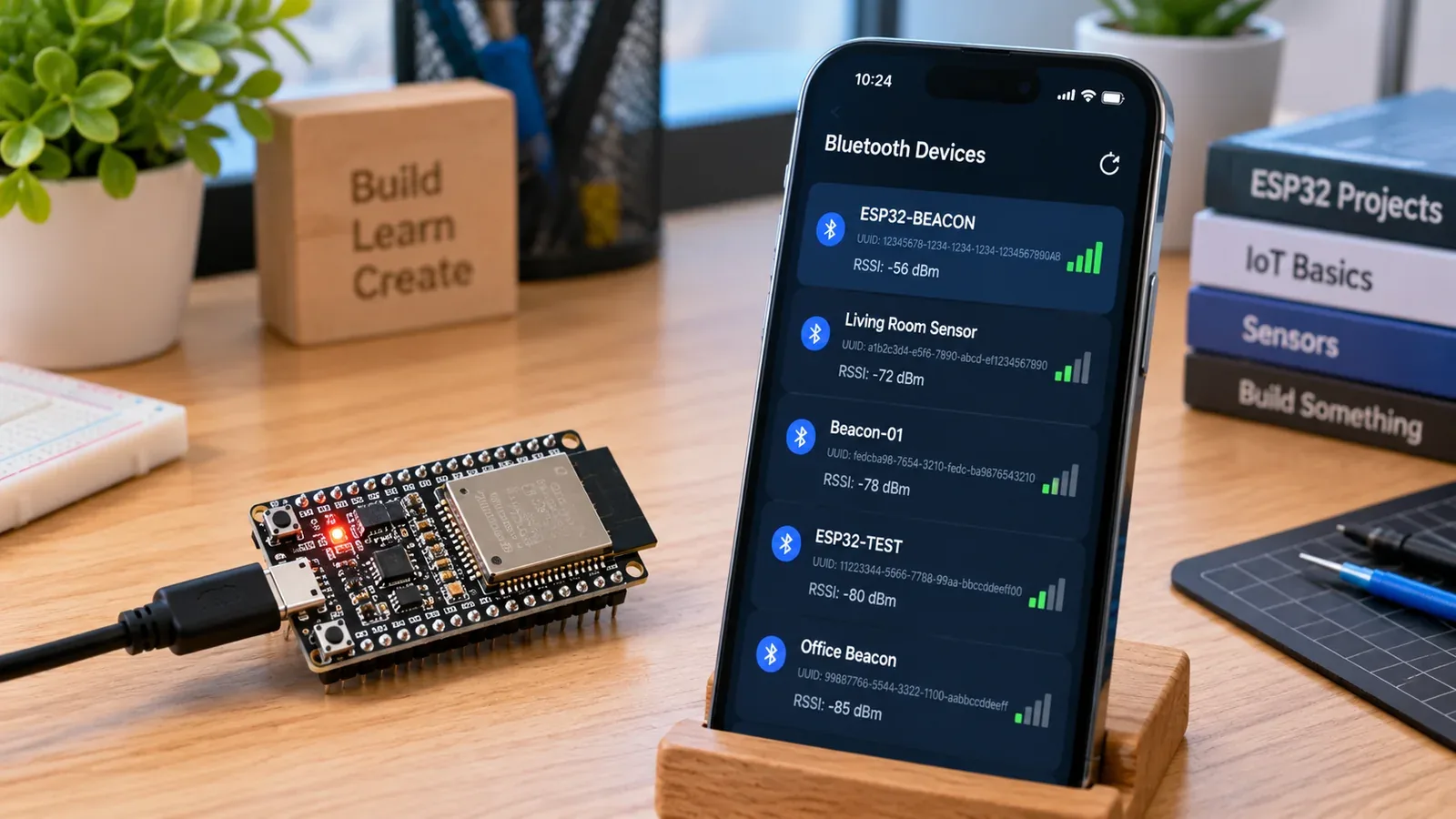
Build a BLE Beacon
The Story
ESP32 BLE Beacon solves a real beginner problem: turning an ESP32 reading into a useful physical or networked result. Build this to understand wireless advertising before building BLE sensors, asset tags, attendance systems, or proximity projects.
The tutorial focuses on the engineering path: prove the input, understand the circuit, write readable code, then test the output under real conditions.
Explain Like I'm 12
A BLE beacon is like a lighthouse. It does not hold a conversation; it repeatedly announces a small identity signal so nearby devices can notice it.
Safety Standards
- Unplug USB before changing jumper wires. Recheck 3.3 V, 5 V, and GND before reconnecting power.
- Do not power motors, pumps, LED strips, or servos from the ESP32 3.3 V pin. Use a suitable external supply and common ground.
- Breadboards are for low-current prototypes. Move high-current or unattended builds to proper terminals, enclosure, strain relief, and fusing.
What You Will Build
A no-extra-hardware ESP32 BLE beacon and iBeacon demo that advertises a packet and lets you detect it from a phone app.
Learning Objectives
- Create a BLE advertiser on the ESP32.
- Read the beacon from a phone scanner app.
- Understand UUID, advertising interval, and RSSI.
- Recognize why RSSI is not accurate distance.
- Prepare for BLE sensor and proximity projects.
Components List
- 1× ESP32 DevKit V1Built-in BLE 4.2
- 1× USB cable and power supplyRequired for this build
- 1× Smartphone with BLE scanner appnRF Connect (iOS/Android) for testing
Bill of Materials
| Part | Qty | Estimated Cost | Notes |
|---|---|---|---|
| 1× ESP32 DevKit V1 | 1 | Varies | Built-in BLE 4.2 |
| 1× USB cable and power supply | 1 | Varies | Required for this build |
| 1× Smartphone with BLE scanner app | 1 | Varies | nRF Connect (iOS/Android) for testing |
Wiring
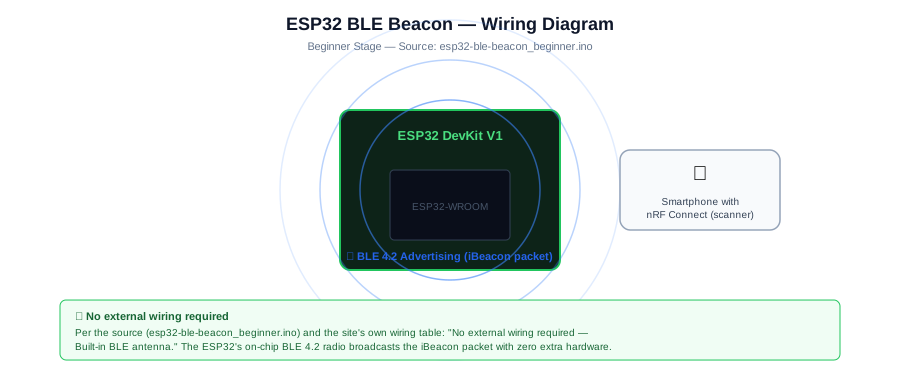
No external wiring is required. USB powers and programs the ESP32 DevKit, and the built-in BLE radio broadcasts the iBeacon advertisement through the board antenna.
-
1
Unplug USB before changing anything; no external wiring is required for this beacon build.
-
2
Connect the ESP32 DevKit to your computer with USB.
-
3
Upload the sketch and open Serial Monitor at 115200 baud.
-
4
Open a BLE scanner app on a phone and scan for the ESP32-Beacon/iBeacon UUID.
-
5
Keep the ESP32 antenna area clear of metal and your hand while comparing RSSI.
GPIO Mapping
| Signal | ESP32 Pin | Direction | Notes |
|---|---|---|---|
| No external wiring required | Built-in BLE antenna | Signal | ESP32 BLE runs on-chip without extra hardware |
Circuit Explanation
No external wiring is required because the ESP32 includes a Bluetooth radio and PCB antenna. USB powers the board and uploads the sketch. The important hardware rule is to keep the antenna area clear of metal and your hand during testing.
Engineering Explanation
BLE advertising is designed for short, low-power messages. A phone scanner receives the advertisement and estimates signal strength with RSSI. RSSI is useful for near/far behavior, but it is not a precise distance measurement because walls, hands, and antenna orientation change the reading.
Libraries
- Arduino ESP32 coreInstall ESP32 board support in Arduino IDE.
Code
Copy into Arduino IDE. Install any libraries noted in the component guides first.
// ESP32 BLE Beacon - Beginner
// Broadcasts a standard iBeacon advertisement packet
#include <BLEDevice.h>
#include <BLEServer.h>
#include <BLEUtils.h>
#include <BLEAdvertising.h>
#include <BLEBeacon.h>

// iBeacon identity — change UUID for your deployment
#define BEACON_UUID "8ec76ea3-6668-48da-9866-75be8bc86f4d"
#define MAJOR        1
#define MINOR        1
#define TX_POWER   -59  // Measured RSSI at 1 metre (calibrate per device)

BLEAdvertising *pAdvertising;

void setBeacon() {
  BLEBeacon beacon;
  beacon.setManufacturerId(0x004C); // Apple iBeacon manufacturer ID
  beacon.setProximityUUID(BLEUUID(BEACON_UUID));
  beacon.setMajor(MAJOR);
  beacon.setMinor(MINOR);
  beacon.setSignalPower(TX_POWER);

  BLEAdvertisementData adData;
  adData.setFlags(0x04); // BR/EDR not supported, LE general discoverable
  adData.setManufacturerData(std::string(
    (char*)beacon.getData().data(), beacon.getData().size()));

  pAdvertising->setAdvertisementData(adData);
}

void setup() {
  Serial.begin(115200);
  BLEDevice::init("ESP32-Beacon");
  BLEServer *pServer = BLEDevice::createServer();
  pAdvertising = BLEDevice::getAdvertising();
  setBeacon();
  pAdvertising->setScanResponse(false);
  pAdvertising->setMinPreferred(0x00);
  BLEDevice::startAdvertising();
  Serial.println("iBeacon advertising — UUID: " BEACON_UUID);
  Serial.printf("Major: %d  Minor: %d  TX Power: %d dBmn",MAJOR,MINOR,TX_POWER);
}

void loop() {
  delay(1000); // Beacon advertises continuously in background
}
Code Explanation
The sketch initializes BLE as ESP32-Beacon, builds a standard iBeacon manufacturer-data payload, sets the UUID, major, minor, and calibrated TX power fields, disables scan response, and starts non-connectable BLE advertising. No pairing, Bluetooth Classic connection, or GATT service is used.
Expected Output
Serial Monitor prints the iBeacon UUID plus major, minor, and TX power values. A phone BLE scanner should show the advertisement and changing RSSI while the ESP32 continues advertising in the background.
Troubleshooting
- Phone cannot see the beacon Use a BLE scanner rather than a Bluetooth Classic device list, reset the ESP32, restart the scanner app, and confirm Bluetooth/location permission is enabled on the phone.
- RSSI jumps a lot Treat RSSI as a rough near/far clue, not exact distance. Move away from metal objects and test with the board still on a table.
- Upload fails Hold BOOT during upload if your ESP32 board requires manual boot mode.
- Beacon name does not update Forget the device or restart the scanner app because BLE scan results can be cached.
Common Mistakes
- Expecting RSSI to behave like a tape measure.
- Holding the ESP32 antenna while testing signal strength.
- Using Wi-Fi-heavy code at the same time without understanding radio sharing.
- Forgetting that phones cache BLE scan results.
- Using the same UUID for every test beacon.
Testing Checklist
- Upload a simple Blink sketch first to confirm the board and USB cable work.
- Upload the beacon sketch and confirm Serial Monitor prints the UUID, major, minor, and TX power.
- Scan from a phone BLE scanner app while the board is on a table.
- Move the phone slowly closer and farther away and watch RSSI change without expecting exact distance.
- Power-cycle the ESP32 and confirm the beacon appears again without pairing.
Engineering Tips
- Use unique UUIDs for different beacon projects.
- Keep the antenna end of the ESP32 away from metal enclosures.
- Use RSSI bands such as near/far instead of exact centimeters.
- Lower advertising rate for battery experiments.
- Record RSSI at fixed distances to understand your environment.
Performance Tips
- Increase advertising interval to reduce power use.
- Add deep sleep between advertising windows for measured battery experiments.
- Avoid running Wi-Fi unless the project really needs both radios.
- Keep advertisement payload short.
Upgrade Ideas
- Add Eddystone-URL broadcasting to push a web URL to nearby phones without an app
- Add a button to cycle between multiple beacon profiles stored in NVS
- Add deep sleep between advertising bursts for measured battery experiments
- Add an LED that blinks on each advertising interval as a visual status indicator
Real-World Applications
- Asset tag prototype
- Museum exhibit proximity trigger
- Classroom attendance experiment
- Indoor navigation research demo
Downloads
- ESP32 BLE Beacon Arduino sketchUse the code section as the source sketch.
- Bench test checklistFollow the testing checklist before permanent installation.
FAQs
Why does RSSI change when the beacon is not moving?
BLE signal strength changes with walls, metal objects, phone position, antenna direction, and people near the board. Use RSSI as a rough signal clue, not as a stable measurement.
Can the beacon measure exact distance?
No. The TX_POWER value gives a calibration reference, but RSSI is too environment-dependent for exact distance without extra filtering and testing.
Does this BLE beacon need internet?
No. The ESP32 advertises over Bluetooth Low Energy locally, and a phone scanner app can see it without Wi-Fi or cloud services.
Review, Testing, and References
Author: Abdul Mubeen and the ESP32 Engine editorial team. Last updated: 2026-08-23. Reviewed: wiring logic, Arduino code structure, beginner safety, and learning sequence.
Educational level: Beginner. Estimated completion time: 45-70 min. This project is for learning and prototyping; production or unattended hardware needs additional engineering review.
Project Complete!
You completed an ESP32 BLE iBeacon advertiser as a real ESP32 wireless build. You now know how to identify the beacon payload, test it with a phone scanner, interpret RSSI cautiously, and improve the project safely.
- Read and verify project input hardware
- Map signals to safe ESP32 GPIO pins
- Debug with Serial Monitor
- Apply safety and performance checks
- Plan the next learning step