
ESP32 GPS Tracker

SensorBeginnerIntermediateAdvanced

Connect a NEO-6M GPS module to the ESP32 to parse real-time coordinates, display them on an OLED, log tracks to an SD card, and transmit live location to ThingSpeak via MQTT.

Overview

In this beginner project you will connect a NEO-6M GPS module to the ESP32 over UART and parse the NMEA sentences it outputs to extract latitude, longitude, speed, and satellite count. All data is printed to the Serial Monitor. This project teaches hardware serial communication, NMEA sentence parsing, and working with the TinyGPS++ library, which converts raw GPS strings into usable floating-point values with a single library call.

Components
  • 1× ESP32 DevKit V1
  • 1× NEO-6M GPS module with antenna — UART interface, 3.3-5 V compatible
  • 1× External GPS antenna (optional) — SMA connector; improves indoor lock time
  • 1× Breadboard and jumper wires
Wiring
Component PinESP32 PinNotes
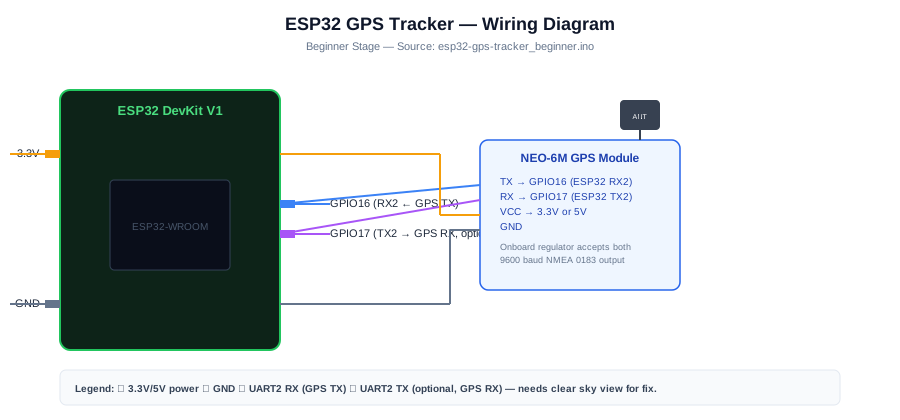
NEO-6M TXGPIO 16 (RX2)GPS TX to ESP32 RX
NEO-6M RXGPIO 17 (TX2)GPS RX to ESP32 TX (optional)
NEO-6M VCC3V3 or 5 VModule has onboard regulator
NEO-6M GNDGND
Arduino Code
esp32-gps-tracker_beginner.ino
// ESP32 GPS Tracker - Beginner
// NEO-6M via UART2 + TinyGPS++ library
#include <TinyGPS++.h>

TinyGPSPlus gps;
HardwareSerial gpsSerial(2); // UART2: RX=16, TX=17

void setup(){
  Serial.begin(115200);
  gpsSerial.begin(9600, SERIAL_8N1, 16, 17);
  Serial.println("GPS Tracker starting...");
}

void loop(){
  while(gpsSerial.available()){
    gps.encode(gpsSerial.read());
  }

  if(gps.location.isUpdated()){
    Serial.print("Lat: ");  Serial.println(gps.location.lat(), 6);
    Serial.print("Lon: ");  Serial.println(gps.location.lng(), 6);
    Serial.print("Speed (km/h): "); Serial.println(gps.speed.kmph(), 1);
    Serial.print("Altitude (m): "); Serial.println(gps.altitude.meters(), 1);
    Serial.print("Satellites: ");   Serial.println(gps.satellites.value());
    Serial.print("HDOP: ");         Serial.println(gps.hdop.hdop(), 2);
    Serial.println("---");
  }

  if(millis() > 10000 && gps.charsProcessed() < 10){
    Serial.println("No GPS data — check wiring and antenna");
  }
}
How It Works
01

NMEA Sentence Output: The NEO-6M outputs NMEA 0183 sentences at 9600 baud including GPRMC (position, speed, time) and GPGGA (altitude, satellites, HDOP). Each sentence is a comma-delimited ASCII string starting with a dollar sign.

02

TinyGPS++ Parsing: gps.encode() is called for every byte received from the GPS UART. TinyGPS++ accumulates bytes and parses complete sentences internally. gps.location.isUpdated() returns true when a fresh fix with valid coordinates has been decoded.

03

Fix Quality Indicators: gps.satellites.value() shows how many satellites are locked (4+ needed for reliable 3D fix). gps.hdop.hdop() is the horizontal dilution of precision; below 2.0 is excellent, above 10 is poor.

04

No-Data Detection: If gps.charsProcessed() is still below 10 after 10 seconds, the wiring is likely wrong or the antenna has no sky view. Move to an outdoor location or a window for the initial cold-start fix which can take 1-3 minutes.

Applications
  • Vehicle location logging for fleet management prototypes
  • Hiking trail tracker saving coordinates to SD card
  • Drone ground station displaying live position
  • STEM project teaching satellite navigation concepts
Troubleshooting

No GPS data after 10 seconds

Check that NEO-6M TX is wired to GPIO 16 (not GPIO 17). The GPS module outputs data even without a fix; if no characters are received the UART wiring is wrong.

GPS locks satellites but location does not update

The NEO-6M needs a clear sky view. Indoors or near tall buildings the signal is too weak for a position fix. A patch antenna improves indoor performance slightly.

Latitude shows 0.000000

The module has no fix yet. Wait 1-3 minutes outdoors. The blue LED on the NEO-6M module blinks once per second when a fix is obtained.

Speed reads as a negative value

TinyGPS++ speed is always non-negative. A negative value means the NMEA RMC sentence is being parsed incorrectly. Verify baud rate is 9600 and check for wiring noise on the UART line.

Upgrades
  • Add an OLED display to show coordinates and speed without a computer
  • Add an SD card module and log fixes to a CSV file for track replay
  • Calculate and display distance from a saved home waypoint
  • Add a push button to mark a waypoint and save it to NVS
FAQ

You need an ESP32 DevKit, TODO: sensor, NEO-6M TX, a breadboard, jumper wires, and a USB cable for power and programming.

Only the Advanced stage uses Wi-Fi. Beginner and Intermediate builds run offline on the ESP32 with USB power.

Start with Beginner if you are new to Sensor Projects. Use Intermediate for OLED feedback and Advanced for dashboards or connected monitoring.

Overview

The intermediate build adds a 128x64 OLED display showing live latitude, longitude, speed, altitude, satellite count, and elapsed distance from the start point. GPS tracks are logged to a microSD card as CSV files named by date. An SD-based waypoint file lets you preload destination coordinates and the display shows bearing and distance to the active waypoint.

Components
  • 1× ESP32 DevKit V1
  • 1× NEO-6M GPS module
  • 1× SSD1306 OLED 128x64 I2C
  • 1× MicroSD SPI module — 3.3 V logic; FAT32 formatted card
  • 1× Push button — Cycle display pages
  • 1× CR2032 battery holder — For NEO-6M backup RAM
  • 1× Breadboard and wires
Wiring
Component PinESP32 PinNotes
NEO-6M TXGPIO 16
OLED SDAGPIO 21
OLED SCLGPIO 22
SD MOSIGPIO 23SPI
SD MISOGPIO 19SPI
SD SCKGPIO 18SPI
SD CSGPIO 5SPI chip select
Page buttonGPIO 0Internal pull-up
Arduino Code
esp32-gps-tracker_intermediate.ino
// ESP32 GPS Tracker - Intermediate (OLED + SD logging + waypoints)
#include <TinyGPS++.h>
#include <Wire.h>
#include <Adafruit_SSD1306.h>
#include <SD.h>
#include <SPI.h>

TinyGPSPlus gps;
HardwareSerial gpsSerial(2);
Adafruit_SSD1306 oled(128,64,&Wire,-1);

const int SD_CS=5, BTN=0;
int page=0;
double startLat=0, startLng=0;
bool started=false;

File logFile;
String filename;

void createLog(){
  // Name file by satellite count as proxy for date (NTP not available without WiFi)
  filename="/track_"+String(millis()/1000)+".csv";
  logFile=SD.open(filename,FILE_WRITE);
  if(logFile) logFile.println("lat,lon,speed_kmh,alt_m,sats");
}

void logFix(){
  if(!logFile) return;
  logFile.print(gps.location.lat(),6); logFile.print(",");
  logFile.print(gps.location.lng(),6); logFile.print(",");
  logFile.print(gps.speed.kmph(),1);   logFile.print(",");
  logFile.print(gps.altitude.meters(),1); logFile.print(",");
  logFile.println(gps.satellites.value());
  logFile.flush();
}

double distKm(double la1,double lo1,double la2,double lo2){
  // Haversine formula
  double R=6371.0;
  double dLat=(la2-la1)*DEG_TO_RAD;
  double dLon=(lo2-lo1)*DEG_TO_RAD;
  double a=sin(dLat/2)*sin(dLat/2)+
           cos(la1*DEG_TO_RAD)*cos(la2*DEG_TO_RAD)*
           sin(dLon/2)*sin(dLon/2);
  return R*2*atan2(sqrt(a),sqrt(1-a));
}

void showPage(){
  oled.clearDisplay(); oled.setCursor(0,0);
  if(page==0){
    oled.printf("Lat: %.5fn", gps.location.lat());
    oled.printf("Lon: %.5fn", gps.location.lng());
    oled.printf("Spd: %.1f km/hn", gps.speed.kmph());
    oled.printf("Alt: %.0f mn",    gps.altitude.meters());
  } else {
    oled.printf("Sats: %dn", gps.satellites.value());
    oled.printf("HDOP: %.1fn", gps.hdop.hdop());
    if(started)
      oled.printf("Dist: %.2f kmn",
        distKm(startLat,startLng,gps.location.lat(),gps.location.lng()));
    oled.printf("Log: %sn", SD.exists(filename)?"OK":"--");
  }
  oled.display();
}

void setup(){
  Serial.begin(115200);
  gpsSerial.begin(9600,SERIAL_8N1,16,17);
  Wire.begin(21,22);
  oled.begin(SSD1306_SWITCHCAPVCC,0x3C);
  oled.setTextSize(1); oled.setTextColor(WHITE);
  SD.begin(SD_CS);
  createLog();
  pinMode(BTN,INPUT_PULLUP);
}

void loop(){
  while(gpsSerial.available()) gps.encode(gpsSerial.read());

  if(digitalRead(BTN)==LOW){ page^=1; delay(200); }

  if(gps.location.isUpdated()){
    if(!started){ startLat=gps.location.lat(); startLng=gps.location.lng(); started=true; }
    logFix();
  }
  showPage();
  delay(500);
}
How It Works
01

Dual-Page OLED Display: A button toggles between page 0 (lat, lon, speed, altitude) and page 1 (satellites, HDOP, distance from start, SD log status). The XOR operation page^=1 flips between 0 and 1 efficiently.

02

Haversine Distance Calculation: distKm() uses the Haversine formula to compute the great-circle distance between the start coordinates and the current fix in kilometres. This gives accumulated straight-line displacement, not total path length.

03

SD Card CSV Logging: A new CSV file is created at startup with a timestamp-based name. Each valid GPS fix appends a row with lat, lon, speed, altitude, and satellite count. logFile.flush() writes the buffer to the card immediately to prevent data loss if power is cut.

04

NEO-6M Backup Battery: A CR2032 coin cell connected to the VBAT pin of the NEO-6M keeps the real-time clock and almanac alive when main power is off. This reduces warm-start lock time from 1-3 minutes to 10-30 seconds.

Applications
  • Hiking and cycling route recording for GPX export
  • Vehicle tracking with SD card log retrieval
  • Geo-tagged photo location logger using a camera
  • Agricultural field mapping with equipment attachment
Troubleshooting

SD card not detected

Format the card as FAT32 (not exFAT). Verify SPI wiring and that the SD module operates at 3.3 V logic. Some SD modules need a 3.3 V logic level on MOSI; add a level shifter if using 5 V.

OLED shows corrupted characters

I2C bus conflict can occur if the SD SPI CS line floats. Make sure GPIO 5 is driven HIGH when the SD is idle so it does not interfere with the I2C OLED on the shared bus.

Distance reads 0.00 km always

The started flag is set on the first valid fix. If the GPS has not locked yet when you check the display, startLat and startLng are 0. Move outdoors to get an initial fix first.

Upgrades
  • Add a DS3231 RTC to timestamp log entries with real date and time
  • Generate GPX track files directly on the SD card for Google Maps import
  • Add a buzzer that alerts when you travel more than 500 m from start
  • Add Wi-Fi hotspot support to download the SD log over HTTP without removing the card
FAQ

You need an ESP32 DevKit, TODO: sensor, NEO-6M TX, a breadboard, jumper wires, and a USB cable for power and programming.

Only the Advanced stage uses Wi-Fi. Beginner and Intermediate builds run offline on the ESP32 with USB power.

Start with Beginner if you are new to Sensor Projects. Use Intermediate for OLED feedback and Advanced for dashboards or connected monitoring.

Overview

The advanced build publishes GPS coordinates to ThingSpeak via MQTT every 30 seconds for live map tracking. A geofencing algorithm compares the current position against a saved home radius and triggers an alert (buzzer and MQTT message) if the tracked device leaves the zone. A web portal on the ESP32 shows the current position as a Google Maps link and lets you update the geofence centre and radius over Wi-Fi.

Components
  • 1× ESP32 DevKit V1
  • 1× NEO-6M GPS module
  • 1× SSD1306 OLED 128x64
  • 1× Active buzzer — Geofence breach alert
  • 1× MicroSD module — Offline log backup
  • 1× ThingSpeak account — Free tier; 4 fields per channel
  • 1× Wi-Fi access point — For MQTT and web portal
Wiring
Component PinESP32 PinNotes
NEO-6M TXGPIO 16
OLED SDA/SCLGPIO 21/22
SD SPIGPIO 5,18,19,23CS,SCK,MISO,MOSI
BuzzerGPIO 4Geofence alert
Arduino Code
esp32-gps-tracker_advanced.ino
// ESP32 GPS Tracker - Advanced (ThingSpeak MQTT + geofencing)
#include <TinyGPS++.h>
#include <WiFi.h>
#include <PubSubClient.h>
#include <WebServer.h>
#include <Preferences.h>
#include <math.h>

TinyGPSPlus gps;
HardwareSerial gpsSerial(2);
WiFiClient wifiClient;
PubSubClient mqtt(wifiClient);
WebServer server(80);
Preferences prefs;

const char* SSID="YourSSID", *PASS="YourPass";
const char* TS_HOST="mqtt3.thingspeak.com";
const int   TS_PORT=1883;
const char* TS_USER="YourTSUser";
const char* TS_PASS="YourTSApiKey";
const char* TS_CLIENT="ESP32GPS";
// Channel write topic format: channels/<channelID>/publish
const char* TS_TOPIC="channels/YOUR_CHANNEL_ID/publish";

double geoLat, geoLon, geoRadius; // geofence centre and radius in km
bool inFence=true;
unsigned long lastPublish=0;

double haversineKm(double la1,double lo1,double la2,double lo2){
  double R=6371.0, dLa=(la2-la1)*DEG_TO_RAD, dLo=(lo2-lo1)*DEG_TO_RAD;
  double a=sin(dLa/2)*sin(dLa/2)+cos(la1*DEG_TO_RAD)*cos(la2*DEG_TO_RAD)*sin(dLo/2)*sin(dLo/2);
  return R*2*atan2(sqrt(a),sqrt(1-a));
}

void publishTS(){
  char payload[128];
  snprintf(payload,sizeof(payload),
    "field1=%.6f&field2=%.6f&field3=%.1f&field4=%d",
    gps.location.lat(), gps.location.lng(),
    gps.speed.kmph(), (int)gps.satellites.value());
  mqtt.publish(TS_TOPIC, payload);
}

void checkGeofence(){
  double dist=haversineKm(geoLat,geoLon,gps.location.lat(),gps.location.lng());
  bool inside=(dist<=geoRadius);
  if(inFence && !inside){
    digitalWrite(4,HIGH); delay(200); digitalWrite(4,LOW);
    mqtt.publish("gps/alert","GEOFENCE_BREACH");
  }
  inFence=inside;
}

void setup(){
  Serial.begin(115200);
  gpsSerial.begin(9600,SERIAL_8N1,16,17);
  pinMode(4,OUTPUT);
  WiFi.begin(SSID,PASS);
  while(WiFi.status()!=WL_CONNECTED) delay(500);

  prefs.begin("geo",true);
  geoLat=prefs.getDouble("lat",0.0);
  geoLon=prefs.getDouble("lon",0.0);
  geoRadius=prefs.getDouble("r",0.5);
  prefs.end();

  mqtt.setServer(TS_HOST,TS_PORT);
  server.on("/",[](){
    String body="<h2>GPS Tracker</h2>";
    body+="<p>Lat: "+String(gps.location.lat(),6)+"</p>";
    body+="<p>Lon: "+String(gps.location.lng(),6)+"</p>";
    body+="<p><a href="https://maps.google.com/?q="+
          String(gps.location.lat(),6)+","+String(gps.location.lng(),6)+
          "">Open in Google Maps</a></p>";
    server.send(200,"text/html",body);
  });
  server.begin();
}

void loop(){
  while(gpsSerial.available()) gps.encode(gpsSerial.read());
  server.handleClient();

  if(!mqtt.connected()){
    mqtt.connect(TS_CLIENT,TS_USER,TS_PASS);
  }
  mqtt.loop();

  if(gps.location.isValid() && millis()-lastPublish>30000){
    publishTS();
    checkGeofence();
    lastPublish=millis();
  }
}
How It Works
01

ThingSpeak MQTT Publishing: ThingSpeak accepts MQTT publishes to a channels/<id>/publish topic with field1=value&field2=value format. Authentication uses the channel write API key as the MQTT password. The free tier allows one update every 15 seconds per channel.

02

Geofence Algorithm: haversineKm() computes the great-circle distance between the geofence centre (geoLat, geoLon) and the current GPS fix. If the distance exceeds geoRadius the inFence flag transitions from true to false, triggering a buzzer beep and an MQTT alert exactly once at the boundary crossing.

03

Web Portal Map Link: The embedded web server dynamically builds a Google Maps URL using the latest GPS coordinates. Clicking the link in any browser on the local network opens the current position on Google Maps without any mobile app.

04

NVS Geofence Storage: The geofence centre and radius are stored in NVS so they survive power cycles. A web form at /setfence accepts new lat, lon, and radius values and writes them to NVS with Preferences, taking effect immediately.

Applications
  • Pet tracker sending live location to ThingSpeak dashboard
  • Vehicle geofencing alert for company fleet management
  • School bus tracking with parent web portal access
  • Asset monitoring: alert if equipment leaves a job site
Troubleshooting

ThingSpeak MQTT authentication fails

Use the channel Write API Key as the MQTT password and your ThingSpeak username as the user. Ensure the MQTT client ID is unique per device; duplicate client IDs cause immediate disconnection.

Geofence triggers repeatedly while stationary

GPS position jitter can oscillate around the fence boundary. Add a 100 m hysteresis band: only trigger the exit alert when distance exceeds geoRadius + 0.1 km, and re-enter only when below geoRadius - 0.1 km.

Web server becomes unresponsive under GPS load

Move GPS encoding and MQTT to a dedicated FreeRTOS task on core 0 and run the web server on core 1 using xTaskCreatePinnedToCore() to prevent blocking.

Upgrades
  • Add a SIM800L GSM module for tracking without Wi-Fi coverage
  • Send WhatsApp alerts via Twilio API on geofence breach
  • Build a Node-RED dashboard showing the live track on an embedded map
  • Add power saving with GPS sleep mode between fixes for battery operation
FAQ

You need an ESP32 DevKit, TODO: sensor, NEO-6M TX, a breadboard, jumper wires, and a USB cable for power and programming.

Only the Advanced stage uses Wi-Fi. Beginner and Intermediate builds run offline on the ESP32 with USB power.

Start with Beginner if you are new to Sensor Projects. Use Intermediate for OLED feedback and Advanced for dashboards or connected monitoring.