
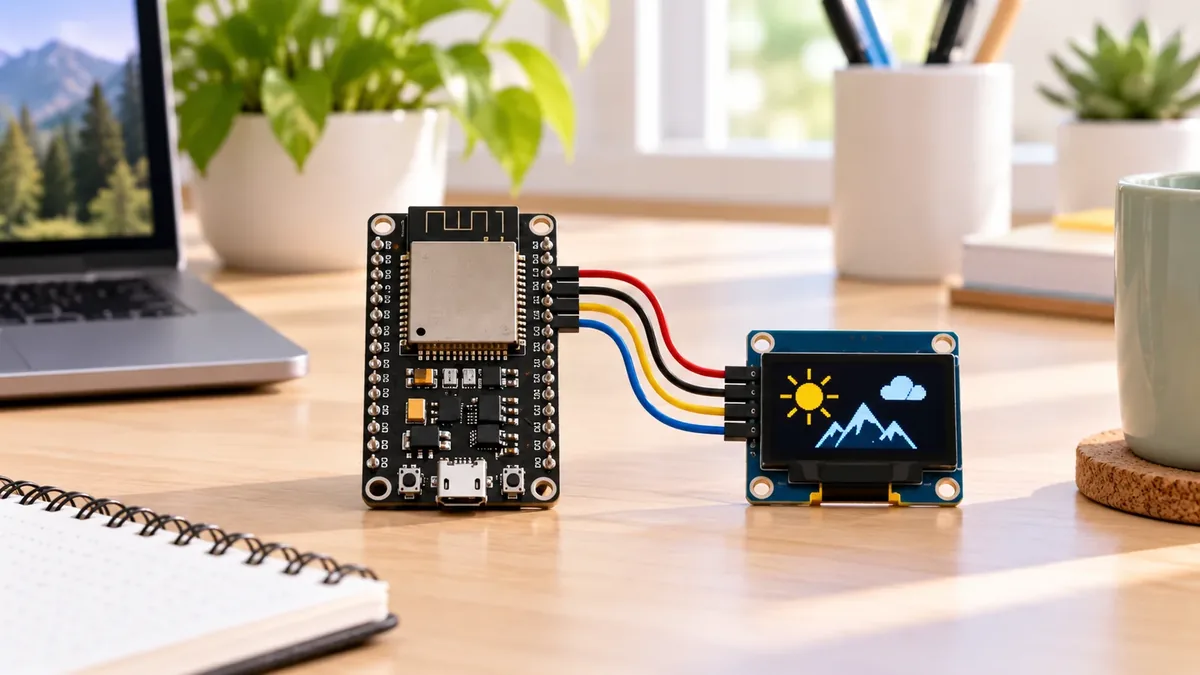
Give Your Project a Face!
The Story
Blinking lights and sensor numbers are cool — but every great gadget has a screen. Game consoles, phones, even microwave ovens show you what's happening.
Your ESP32 will talk to a four-pin SSD1306 OLED display over I2C using VCC, GND, SDA, and SCL. This is not SPI wiring; SPI OLED modules use extra signal pins and different code. When you see "Hello, Maker!" glow on that blue screen, your project starts to feel like a real product.
Explain Like I'm 12
The OLED is a tiny TV screen with only four wires: power, ground, and two communication wires called SDA and SCL. They form a language called I2C — like a two-lane road where the ESP32 sends drawing instructions and the screen shows them.
Mission Goal
Wire a four-pin SSD1306 I2C OLED to ESP32 using 3.3 V, GND, SDA on GPIO21, and SCL on GPIO22 in this site's examples, then show Hello, Maker on the screen.
Estimated Time
10–15 min
Difficulty
Beginner
Prerequisites
No prerequisites.
Skills You'll Learn
- Wire SSD1306 OLED via I2C (SDA, SCL, 3.3 V, GND)
- Use Adafruit SSD1306 and GFX libraries
- Draw text on a 128×64 screen
Components Required
- ESP32 DevKit board
- SSD1306 OLED display0.96 inch, 128×64, I2C interface
- Breadboard and jumper wiresFour wires for VCC, GND, SDA, SCL
- USB cable
What Is I2C?
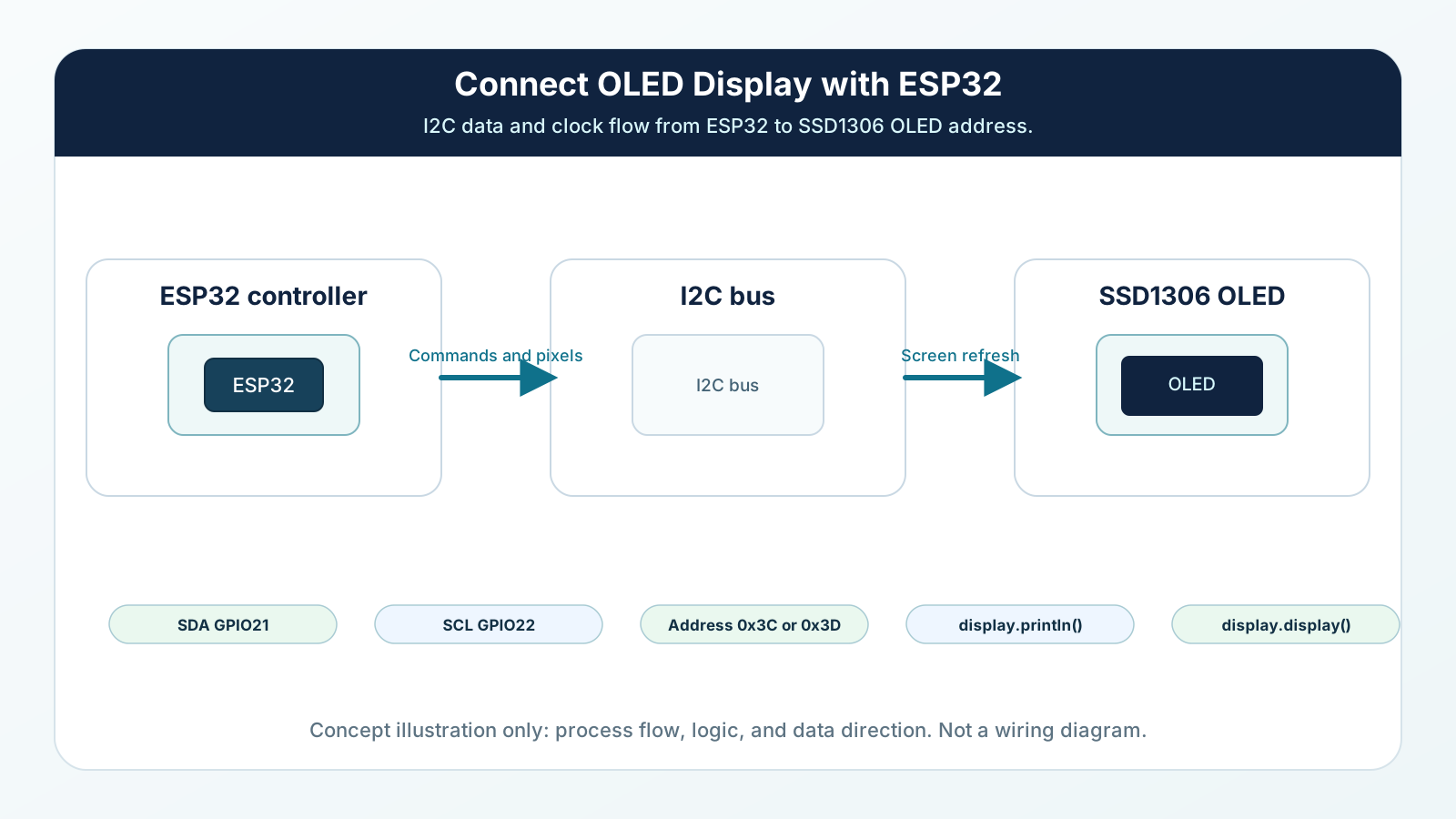
I2C lets multiple devices share two wires — SDA (data) and SCL (clock). Each device has an address; SSD1306 OLED modules usually use 0x3C and some use 0x3D.
This site uses GPIO21 for SDA and GPIO22 for SCL in ESP32 examples. Those pins are common, not universal fixed I2C pins. If you choose different ESP32 pins later, the wiring and Wire.begin(SDA, SCL) call must match.
The Adafruit SSD1306 library handles the hard work. You call display.println() like Serial, then display.display() to refresh the pixels.
Engineering Explanation
I2C lets multiple devices share two wires — SDA (data) and SCL (clock). Each device has an address; SSD1306 OLED modules usually use 0x3C and some use 0x3D.
This site uses GPIO21 for SDA and GPIO22 for SCL in ESP32 examples. Those pins are common, not universal fixed I2C pins. If you choose different ESP32 pins later, the wiring and Wire.begin(SDA, SCL) call must match.
The Adafruit SSD1306 library handles the hard work. You call display.println() like Serial, then display.display() to refresh the pixels.
Real-World Analogy
The OLED is a tiny TV screen with only four wires: power, ground, and two communication wires called SDA and SCL. They form a language called I2C — like a two-lane road where the ESP32 sends drawing instructions and the screen shows them.
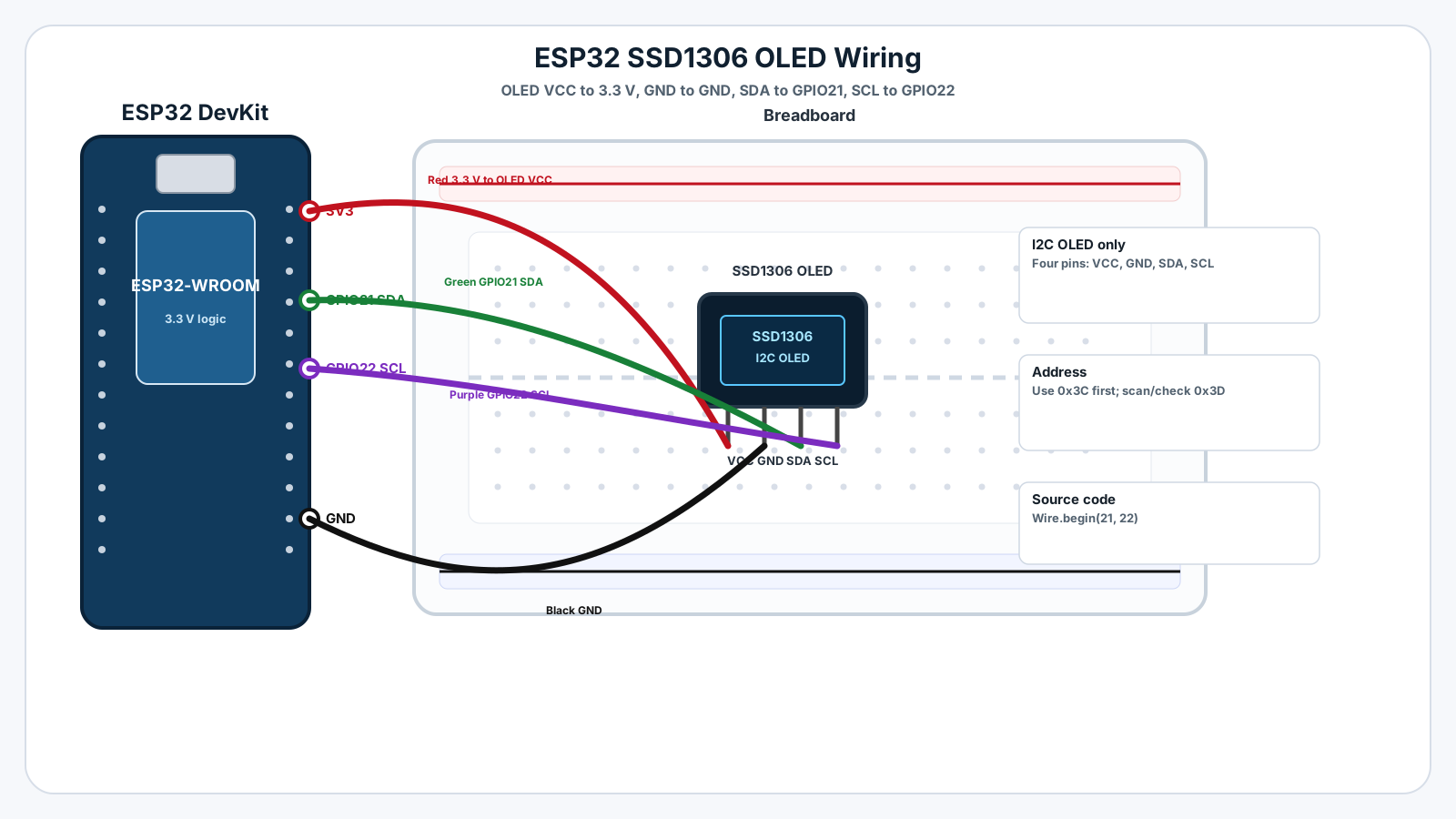
Wiring Diagram
Follow these steps in order. Unplug USB before you change any wires.
-
1
Unplug USB. Place the OLED module on the breadboard or connect its pins directly.
-
2
Connect OLED VCC to ESP32 3.3 V.
-
3
Connect OLED GND to ESP32 GND.
-
4
Connect OLED SDA to ESP32 GPIO21, the common SDA example pin used here.
-
5
Connect OLED SCL to ESP32 GPIO22, the common SCL example pin used here.
-
6
If your module is labeled differently or has SPI pins such as MOSI, CLK, DC, or CS, do not copy this I2C wiring.
-
7
Install Adafruit SSD1306 and Adafruit GFX libraries in Arduino IDE.
GPIO Table
| Signal | ESP32 Pin | Mode | Notes |
|---|---|---|---|
| OLED VCC | 3.3 V | Power | Use 3.3 V for this ESP32 beginner build. Some modules tolerate 5 V, but do not assume it. |
| OLED GND | GND | Ground | The OLED and ESP32 must share ground. |
| OLED SDA | GPIO21 | I2C data | Common ESP32 Arduino example SDA pin used by this site; match Wire.begin(21, 22). |
| OLED SCL | GPIO22 | I2C clock | Common ESP32 Arduino example SCL pin used by this site; match Wire.begin(21, 22). |
| OLED address | 0x3C or 0x3D | I2C address | Try 0x3C first, then run an I2C scanner or test 0x3D if the screen stays blank. |
Arduino Code
Copy this into Arduino IDE, then click Upload.
#include <Wire.h>
#include <Adafruit_GFX.h>
#include <Adafruit_SSD1306.h>

#define SCREEN_WIDTH 128
#define SCREEN_HEIGHT 64
#define OLED_RESET -1
#define OLED_ADDRESS 0x3C

Adafruit_SSD1306 display(SCREEN_WIDTH, SCREEN_HEIGHT, &Wire, OLED_RESET);

void setup() {
  Wire.begin(21, 22);

  if (!display.begin(SSD1306_SWITCHCAPVCC, OLED_ADDRESS)) {
    for (;;) {}
  }
  display.clearDisplay();
  display.setTextSize(2);
  display.setTextColor(SSD1306_WHITE);
  display.setCursor(0, 20);
  display.println("Hello,");
  display.println("Maker!");
  display.display();
}

void loop() {
}Expected Behaviour
After upload, the OLED shows "Hello," on the first line and "Maker!" on the second in bright white text on a dark background.
If the screen stays blank, run an I2C scanner sketch or check SDA/SCL wiring. Try address 0x3D if 0x3C doesn't work on your module.
Mini Challenge
No wrong answers — experiment and have fun!
Show live DHT22 temperature on the OLED if you completed Mission 2 — combine both sketches! Or animate text: scroll "ESP32 Engine" across the screen using setCursor in a loop.
Previous Mission
Start here.