
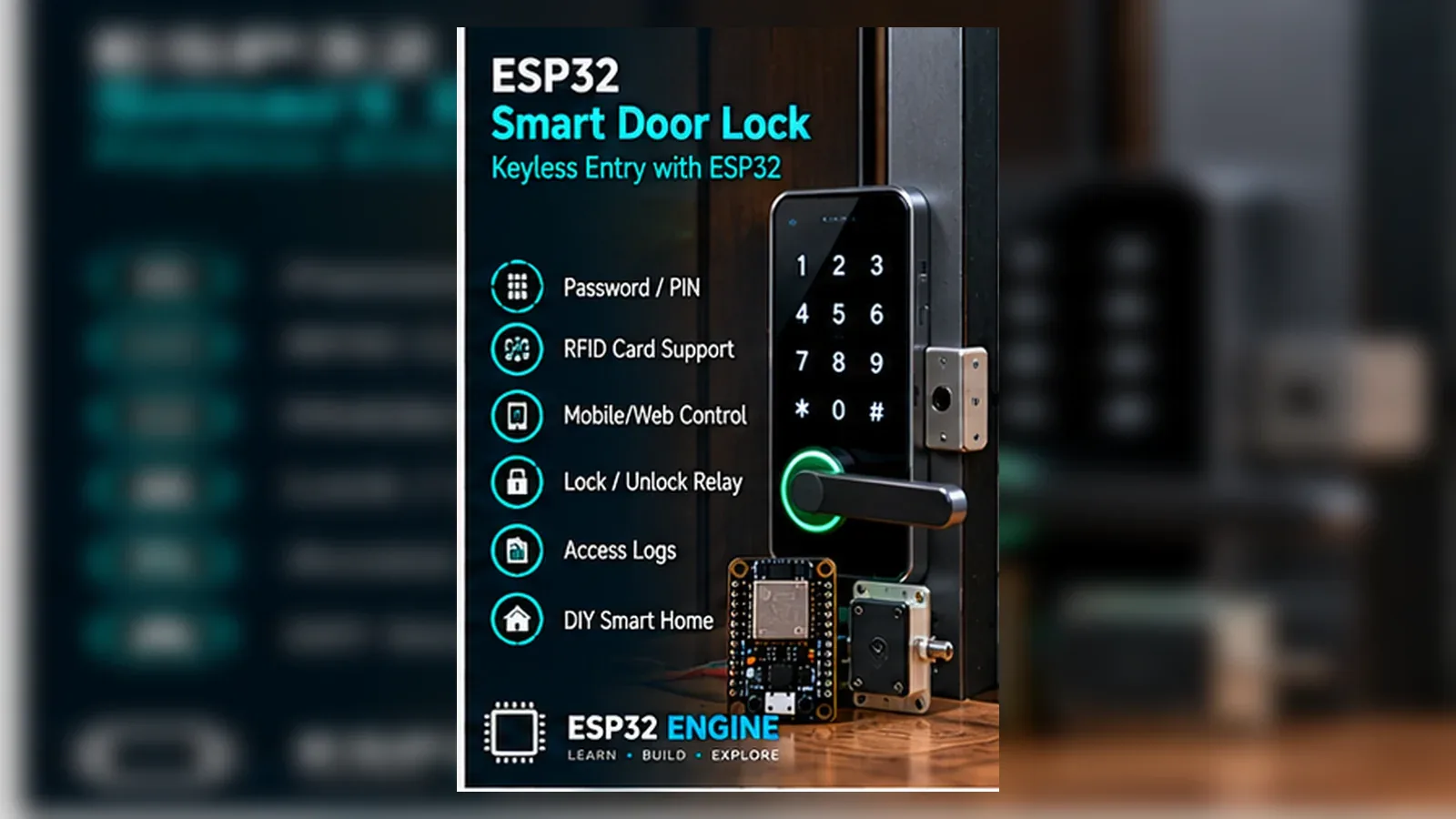
Build Your Smart Door Lock
The Story
ESP32 Smart Door Lock reads an MFRC522 RFID card, compares the scanned UID with the approved-card list, and moves the servo on GPIO26 only for the classroom card that should unlock the prototype.
The important lesson is not only the finished door lock prototype. You learn to test the reader before the servo, keep actuator power separate from ESP32 GPIO control, and return the servo to the locked position after the timed unlock window.
Explain Like I'm 12
Think of the ESP32 as the brain. The RFID reader checks the card. The servo is the small arm that moves when the card is approved. The code is the rule book that decides whether to unlock or stay locked.
Safety Standards
- Unplug USB before changing jumper wires. Recheck 3.3 V, 5 V, and GND before reconnecting power.
- Do not power motors, pumps, LED strips, or servos from the ESP32 3.3 V pin. Use a suitable external supply and common ground.
- Breadboards are for low-current prototypes. Move high-current or unattended builds to proper terminals, enclosure, strain relief, and fusing.
- Relay and mains-voltage projects require isolation, correct relay ratings, enclosed wiring, and qualified adult supervision.
- Motors and servos can reset the ESP32 when they draw surge current. Use a separate motor supply, driver module, and flyback protection where needed.
What You Will Build
A working educational RFID door lock prototype with an ESP32, an MFRC522 RFID reader using SS on GPIO5 and RST on GPIO22, a servo signal on GPIO26, Serial Monitor messages for approved and unknown cards, and clear limits so it is not mistaken for a certified access-control system.
Learning Objectives
- Wire and test the MFRC522 RFID reader before connecting the rest of the circuit.
- Map each signal to a named ESP32 GPIO and keep the code constants readable.
- Control the servo signal on GPIO26 using an explicit approved-card decision.
- Use Serial Monitor as an engineering tool, not only as a success message.
- Identify power, wiring, and timing faults using a repeatable test checklist.
Components List
- ESP32 DevKit boardMain controller
- MFRC522 RFID readerCard reader used for the access decision
- Small hobby servo or low-voltage lock actuatorDemonstration lock movement controlled from GPIO26
- Breadboard and jumper wiresPrototype wiring
- USB data cableProgramming and testing
Bill of Materials
| Part | Qty | Estimated Cost | Notes |
|---|---|---|---|
| ESP32 DevKit | 1 | $6-$10 | USB board |
| MFRC522 RFID reader | 1 | $2-$10 | Card reader input |
| Small hobby servo or low-voltage lock actuator | 1 | $3-$12 | Use low-voltage test hardware and avoid real door hardware |
| Breadboard and wires | 1 set | $3-$5 | Prototype wiring |
Wiring
Wire the MFRC522 RFID reader first, verify card reads in Serial Monitor, then connect the servo signal on GPIO26. Keep the build low-voltage and treat the servo or lock mechanism as a classroom prototype.
-
1
Unplug USB before placing modules on the breadboard.
-
2
Connect the MFRC522 RFID reader power pins according to its module label; common MFRC522 boards use 3.3 V logic, not 5 V GPIO signals.
-
3
Connect MFRC522 SS/SDA to GPIO5 and RST to GPIO22 to match the code constants.
-
4
Connect the MFRC522 SPI bus to the ESP32 SPI pins used by your board and library setup.
-
5
Connect the servo signal wire to GPIO26 and share ground with the ESP32.
-
6
Power the servo or lock actuator from a suitable low-voltage supply if USB power is not stable; do not power a motorized lock directly from an ESP32 GPIO.
-
7
Upload the sketch, scan a known card, and verify Serial Monitor before attaching the lock mechanism.
GPIO Mapping
| Signal | ESP32 Pin | Direction | Notes |
|---|---|---|---|
| MFRC522 SS/SDA | GPIO5 | Output | Chip-select pin defined as SS_PIN in the sketch |
| MFRC522 RST | GPIO22 | Output | Reset pin defined as RST_PIN in the sketch |
| MFRC522 SPI bus | Board SPI pins | I/O | SPI.begin() uses the ESP32 board/library SPI setup |
| Servo signal | GPIO26 | Output | Signal only; use suitable low-voltage actuator power |
| Status LED | GPIO2 | Output | Optional debug indicator |
| Serial Monitor | USB | Debug | 115200 baud |
Circuit Explanation
The circuit is split into an input side and an actuator side. The MFRC522 RFID reader tells the ESP32 which card is present. The servo receives only a control signal from GPIO26; actuator power must come from a suitable low-voltage source, not from an ESP32 GPIO pin.
Engineering Explanation
A reliable door lock prototype is built in layers. First prove the input, then prove the output, then join them with simple state logic. This prevents a common beginner problem where the robot, lock, or automation fails and every wire looks suspicious at the same time. RFID card IDs are identifiers for a prototype demo, not tamper-resistant authentication.
Code
Copy into Arduino IDE. Install any libraries noted in the component guides first.
#include <SPI.h>
#include <MFRC522.h>
#include <ESP32Servo.h>

#define SS_PIN 5
#define RST_PIN 22
#define SERVO_PIN 26

MFRC522 rfid(SS_PIN, RST_PIN);
Servo lockServo;
byte allowedUid[] = {0xDE, 0xAD, 0xBE, 0xEF};

bool allowedCard() {
  if (rfid.uid.size != sizeof(allowedUid)) return false;
  for (byte i = 0; i < rfid.uid.size; i++) {
    if (rfid.uid.uidByte[i] != allowedUid[i]) return false;
  }
  return true;
}

void setup() {
  Serial.begin(115200);
  SPI.begin();
  rfid.PCD_Init();
  lockServo.attach(SERVO_PIN);
  lockServo.write(0);
  Serial.println("Door lock ready");
}

void loop() {
  if (!rfid.PICC_IsNewCardPresent() || !rfid.PICC_ReadCardSerial()) return;
  if (allowedCard()) {
    Serial.println("Unlocked for 5 seconds");
    lockServo.write(90);
    delay(5000);
    lockServo.write(0);
  } else {
    Serial.println("Unknown card");
  }
  rfid.PICC_HaltA();
}
Code Explanation
The example defines SS_PIN as GPIO5, RST_PIN as GPIO22, and SERVO_PIN as GPIO26. It reads the RFID UID, compares it with allowedUid, moves the servo only for an approved card, and prints "Unknown card" for anything else.
Expected Output
Serial Monitor should print "Door lock ready" after boot. An approved RFID card should print "Unlocked for 5 seconds", move the servo to the unlocked position, wait, then return it to locked. An unknown card should print "Unknown card" and leave the servo in the locked position.
Troubleshooting
- RFID reader never detects a card Check MFRC522 power, ground, SS on GPIO5, RST on GPIO22, SPI wiring, and whether the card is close enough to the antenna.
- Servo moves weakly or ESP32 resets Use a suitable separate low-voltage servo supply, keep grounds shared, and do not power the servo from an ESP32 GPIO pin.
- ESP32 resets under load Use a separate supply for motors, pumps, or locks and keep only control signals connected to ESP32.
- Behavior is reversed Check the servo horn position and locked/unlocked angles before changing access logic.
Common Mistakes
- Testing input and output for the first time together.
- Using a GPIO pin that does not match the code constant.
- Expecting an ESP32 GPIO to power a motor, pump, or lock directly.
- Forgetting the shared ground between modules.
Testing Checklist
- ESP32 appears on the correct port and accepts a basic blink upload.
- Ground is shared between every module that exchanges signals with the ESP32.
- Each GPIO in the code matches the wire connected on the breadboard.
- Serial Monitor prints startup text at 115200 baud.
- The MFRC522 reader reports card scans before the servo is attached.
- An unknown card leaves the servo locked.
- The approved card unlocks for 5 seconds and then returns to locked.
- The circuit still behaves correctly after power is removed and restored.
Upgrade Ideas
- Add OLED status feedback.
- Add Wi-Fi dashboard or mobile alerts.
- Store event history in flash or a cloud service.
- Add calibration settings instead of hard-coded thresholds.
Real-World Applications
- Classroom door lock prototype trainer
- STEM lab demonstration
- Home automation prototype
- Engineering debugging practice
- IoT portfolio project
Downloads
- ESP32 Smart Door Lock Arduino sketchUse the code section as the downloadable source until file downloads are published.
- Wiring checklistMatch the GPIO table and wiring steps before powering the circuit.
- Troubleshooting worksheetRecord symptoms, Serial output, voltage checks, and fixes.
FAQs
Why does my RFID reader or keypad input reading look wrong?
Check MFRC522 power, ground, SS on GPIO5, RST on GPIO22, and SPI wiring before changing access logic. Test the reader alone first.
Why does the servo lock not respond?
Check the shared ground, GPIO26 signal wire, servo power supply, and servo horn position before changing the allowed card list.
Can this protect a real door?
No. Treat it as a low-voltage classroom prototype. Real locks need mechanical fail-safe planning, secure installation, and adult review.
Review, Testing, and References
Author: Abdul Mubeen and the ESP32 Engine editorial team. Last updated: 2026-08-22. Reviewed: wiring logic, Arduino code structure, beginner safety, and learning sequence.
Educational level: Intermediate. Estimated completion time: 90-150 min. This project is for learning and prototyping; production or unattended hardware needs additional engineering review.
Project Complete!
You built a real door lock prototype and learned how to connect sensing, decision logic, and output control in one ESP32 project.
- Wire and test MFRC522 RFID reader
- Control servo lock actuator from ESP32
- Debug hardware with Serial Monitor
- Improve the project safely