
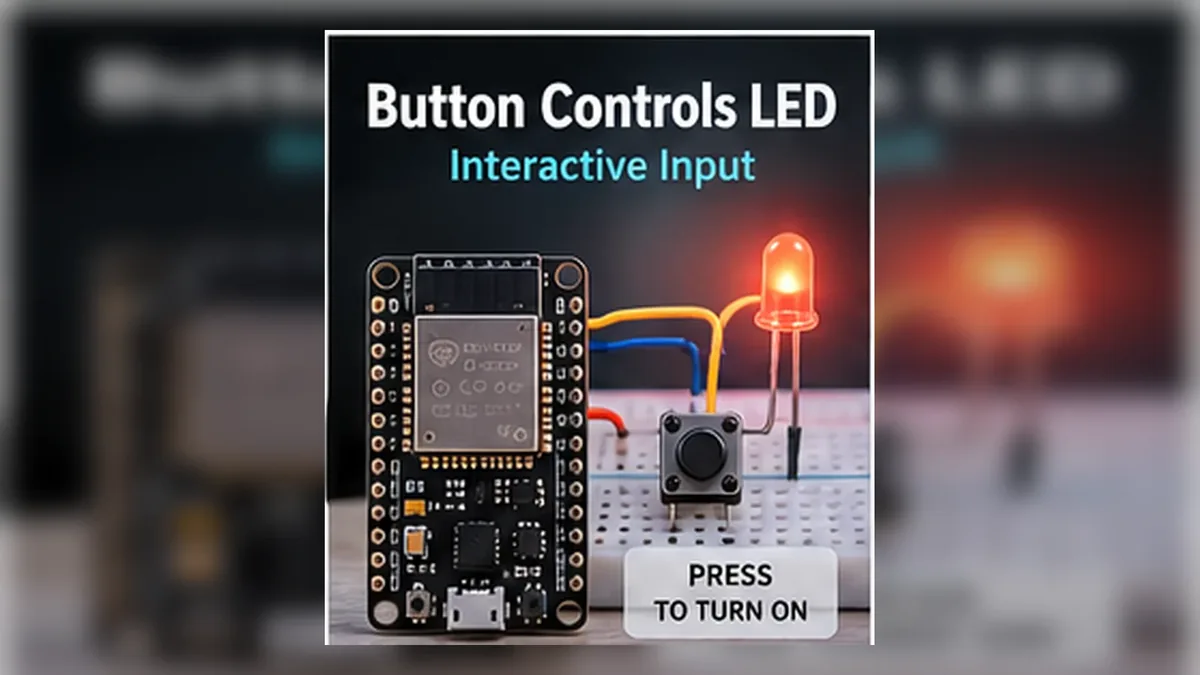
Press a Button, Control a Light
The Story
Your ESP32 can already speak with an LED. Now it needs to listen.
This circuit uses a push button on GPIO27 as the input and an LED on GPIO2 as the output. The button is wired between GPIO27 and GND, and the sketch enables INPUT_PULLUP so the pin has a stable default value.
A button is the simplest way for a human to talk to a microcontroller. Pressed means one thing. Released means another. This tiny idea appears everywhere: doorbells, keyboards, machine controls, robot bumpers, reset buttons, and safety switches.
Explain Like I'm 12
A button is like a tiny bridge. When you press it, it connects two points together. The ESP32 watches one pin and asks: is this pin HIGH or LOW right now?
The trick is that an unpressed button must still have a clear value. INPUT_PULLUP gives the pin a gentle built-in connection to 3.3 V, so it reads HIGH until the button pulls it down to GND.
Mission Goal
Pressing the button turns the LED on. Releasing the button turns it off.
Estimated Time
15-20 min
Difficulty
Beginner
Prerequisites
Skills You'll Learn
- Read a digital input with digitalRead()
- Use INPUT_PULLUP to avoid floating button signals
- Connect a button safely between GPIO and GND
- Control an output from an input condition
- Debug pressed and released states in Serial Monitor
Components Required
- ESP32 DevKit boardAny USB-programmable ESP32 board
- Push buttonStandard 4-leg tactile button
- LEDAny color
- 220 ohm resistorProtects the LED from too much current
- Breadboard and jumper wiresFor the button and LED circuit
- USB data cableFor upload and Serial Monitor
Digital Input, Pull-Up, and Floating Pins
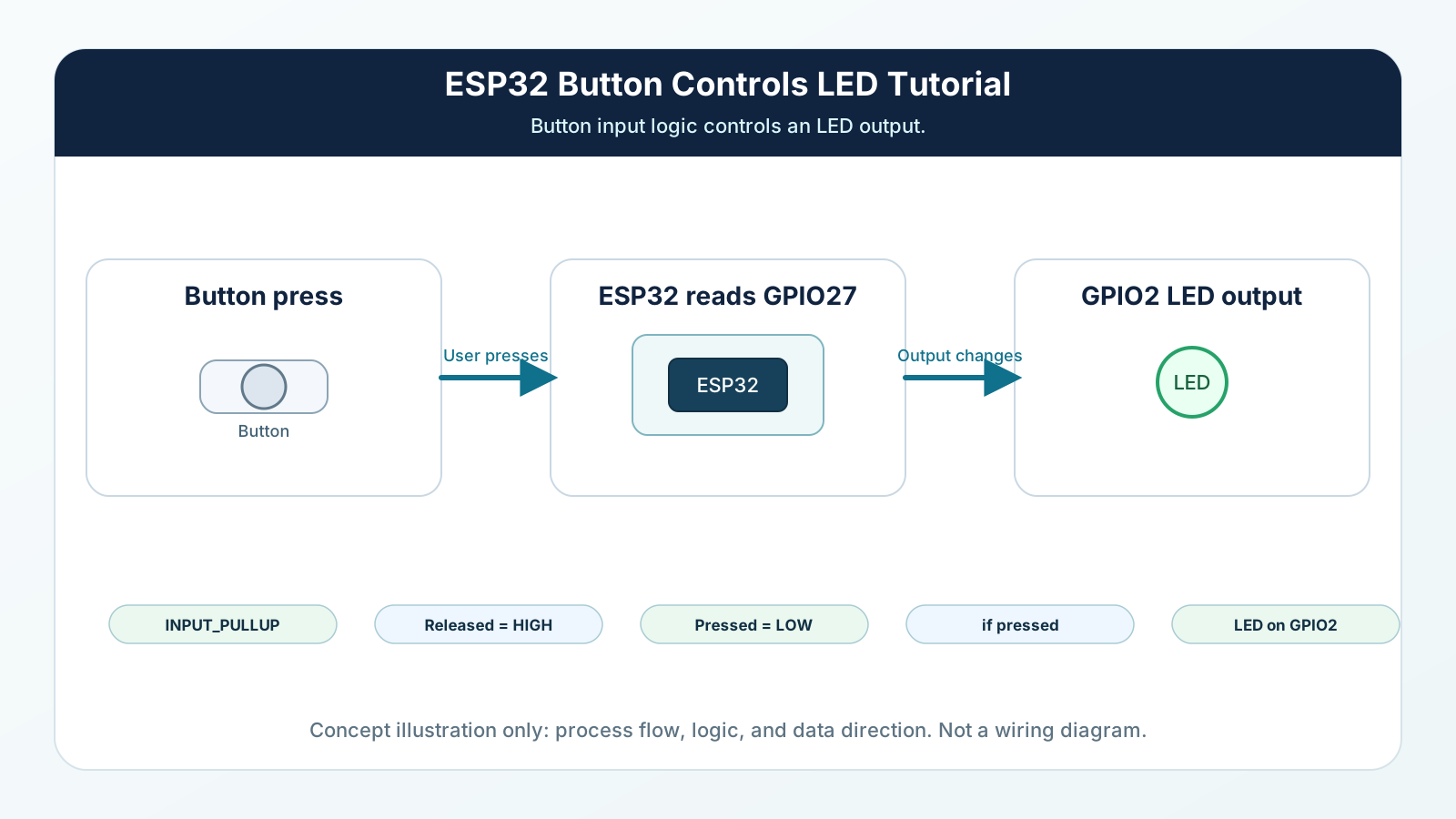
A digital input has only two useful states: HIGH or LOW. HIGH means the pin is near 3.3 V. LOW means the pin is near GND.
If a button pin is not connected to anything when released, it can float. A floating pin is like an unanswered question: it may randomly read HIGH or LOW because tiny electrical noise is enough to move it.
INPUT_PULLUP fixes that. The ESP32 connects a weak internal resistor from the pin to 3.3 V. When the button is released, the pin reads HIGH. When the button is pressed, the button connects the pin to GND, so it reads LOW.
Engineering Explanation
This mission combines one input and one output. GPIO27 is configured as an input so the ESP32 listens to the button. GPIO2 is configured as an output so the ESP32 can drive the LED.
The button uses INPUT_PULLUP. That enables a weak internal resistor inside the ESP32, holding GPIO27 HIGH when the button is open. Pressing the button connects GPIO27 to GND, so the input reads LOW. This active-low logic is normal for pull-up button circuits.
The LED still needs a resistor in series. The resistor limits current through the LED and protects the LED and GPIO pin from excessive current.
The code turns the electrical state into a clear software idea: buttonPressed is true when digitalRead(BUTTON_PIN) equals LOW. After that, the LED logic becomes easy to read.
Real-World Analogy
Think of the button like a simple yes/no switch at a desk. When nobody presses it, the ESP32 hears the default answer from INPUT_PULLUP. When you press it, you intentionally change the answer.
The LED is the response. The ESP32 listens first, decides second, and acts third. That listen-decide-act pattern appears in alarms, thermostats, robots, locks, and almost every interactive embedded system.
Wiring Diagram
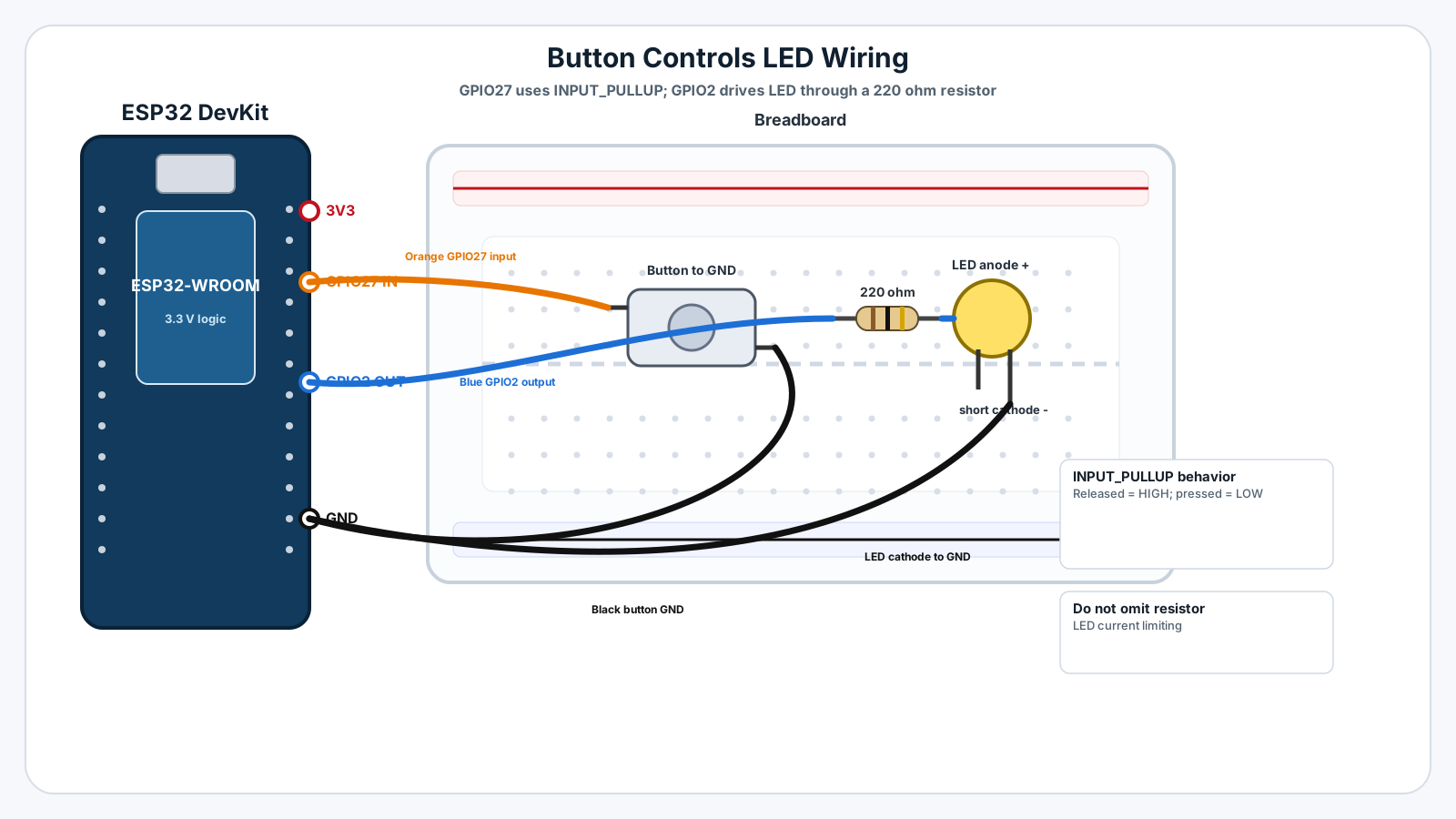
Follow these steps in order. Unplug USB before you change any wires.
-
1
Unplug the ESP32 USB cable before wiring.
-
2
Place the push button across the center gap of the breadboard so its two sides are separated.
-
3
Connect one side of the button to ESP32 GPIO27.
-
4
Connect the opposite side of the button to ESP32 GND.
-
5
Place the LED on the breadboard with the long leg and short leg in separate rows.
-
6
Connect ESP32 GPIO2 to one end of the 220 ohm resistor.
-
7
Connect the other end of the resistor to the LED long leg row.
-
8
Connect the LED short leg row to ESP32 GND.
-
9
Plug USB back in and upload the code.
GPIO Table
| Signal | ESP32 Pin | Mode | Notes |
|---|---|---|---|
| Button input | GPIO27 | INPUT_PULLUP | Reads HIGH when released and LOW when pressed. |
| LED output | GPIO2 | OUTPUT | Turns the LED on when the button is pressed. |
| Button ground | GND | Ground | Pressing the button connects GPIO27 to GND. |
| LED ground return | GND | Ground | Completes the LED circuit. |
Arduino Code
Copy this into Arduino IDE, then click Upload.
const int BUTTON_PIN = 27;
const int LED_PIN = 2;

void setup() {
  Serial.begin(115200);
  pinMode(BUTTON_PIN, INPUT_PULLUP);
  pinMode(LED_PIN, OUTPUT);
  digitalWrite(LED_PIN, LOW);
  Serial.println("Button controls LED mission ready");
}

void loop() {
  int buttonReading = digitalRead(BUTTON_PIN);
  bool buttonPressed = (buttonReading == LOW);

  digitalWrite(LED_PIN, buttonPressed ? HIGH : LOW);

  if (buttonPressed) {
    Serial.println("Button: PRESSED | LED: ON");
  } else {
    Serial.println("Button: RELEASED | LED: OFF");
  }

  delay(100);
}- INPUT_PULLUP makes the released button read HIGH.
- Pressing the button connects GPIO27 to GND, so the reading becomes LOW.
- The code converts that reading into a clear pressed variable.
- Serial output helps you prove the button is working before trusting the LED.
Line-by-line Explanation
- const int BUTTON_PIN = 27; and const int LED_PIN = 2; give the hardware pins readable names.
- pinMode(BUTTON_PIN, INPUT_PULLUP); enables the ESP32 internal pull-up resistor for a stable released state.
- pinMode(LED_PIN, OUTPUT); lets the ESP32 control the LED.
- digitalRead(BUTTON_PIN); reads the actual electrical state on GPIO27.
- buttonPressed is true when the reading is LOW because this INPUT_PULLUP circuit is active-low.
- digitalWrite(LED_PIN, buttonPressed ? HIGH : LOW); turns the LED on only while the button is pressed.
Expected Behaviour
Open Serial Monitor at 115200 baud.
When the button is not pressed, you should see: Button: RELEASED | LED: OFF
When you press and hold the button, you should see: Button: PRESSED | LED: ON
The LED should turn on only while the button is pressed.
Common Mistakes
Button always reads PRESSED
The GPIO may be connected to GND all the time, or the button legs are placed in the wrong breadboard rows.
Button changes randomly
The input is floating because INPUT_PULLUP is missing or the wire is loose.
LED never turns on
The LED may be backwards, the resistor may not be in series, or the wire may not be on GPIO2.
Upload fails after wiring
A wire may be pulling a boot-sensitive pin into the wrong state during reset.
Troubleshooting
Most ESP32 problems are wiring, power, library, or timing issues. Check these first.
Button always reads PRESSED
Likely cause: The GPIO may be connected to GND all the time, or the button legs are placed in the wrong breadboard rows.
Fix: Rotate the button 90 degrees or move it across the breadboard center gap. Confirm one side goes to GPIO27 and the opposite side goes to GND.
Button changes randomly
Likely cause: The input is floating because INPUT_PULLUP is missing or the wire is loose.
Fix: Use pinMode(BUTTON_PIN, INPUT_PULLUP), confirm the button goes from GPIO27 to GND, tighten the jumper wires, and keep the circuit short.
LED never turns on
Likely cause: The LED may be backwards, the resistor may not be in series, or the wire may not be on GPIO2.
Fix: Check LED long leg to resistor, short leg to GND, and confirm LED_PIN is 2 in the code.
Upload fails after wiring
Likely cause: A wire may be pulling a boot-sensitive pin into the wrong state during reset.
Fix: Use GPIO27 for the button and GPIO2 for the LED as shown. Unplug and recheck wiring.
Engineer Tip
Name the software meaning, not just the raw voltage. A variable called buttonPressed is easier to trust than repeatedly checking whether LOW means pressed.
Remember This Forever
Inputs let the ESP32 listen.
Outputs let the ESP32 act.
A useful embedded system usually does both: read the world, make a decision, then control something.
Mini Challenge
No wrong answers — experiment and have fun!
- Change the program so each button press toggles the LED on or off.
- Print only when the button changes state instead of printing every 100 ms.
- Make the LED stay on for 3 seconds after the button is pressed.
- Replace the LED with a relay module after reading the relay component guide.
FAQs
Why is my ESP32 button backwards?
With INPUT_PULLUP, the pin reads HIGH when the button is not pressed and LOW when the button is pressed. That feels backwards at first, but it is normal and reliable.
Do I need an external resistor for this button?
No. This mission uses the ESP32 internal pull-up resistor by setting pinMode(BUTTON_PIN, INPUT_PULLUP). The button connects the pin to GND when pressed.
Why does the LED flicker or change by itself?
That usually means the button input is floating. Use INPUT_PULLUP, connect one side of the button to GPIO, and connect the other side to GND.
Can I use any ESP32 GPIO for a button?
Many GPIO pins work, but avoid boot strapping pins while learning. GPIO27 is a safe beginner choice for this mission.