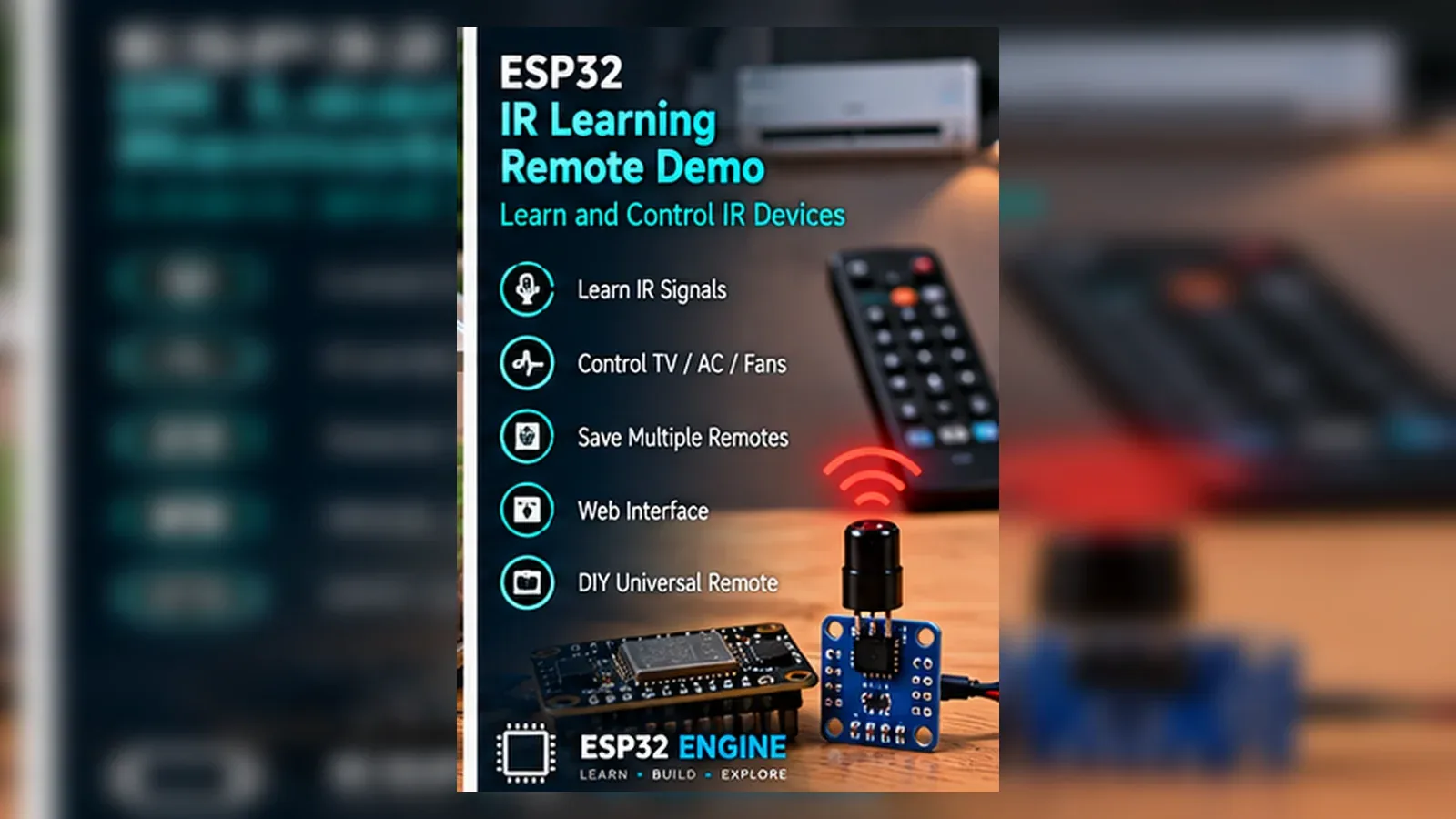
Build an ESP32 IR Remote Control Demo
The Story
This project receives real IR codes and can replay learned NEC commands from devices you own. It is a learning remote for line-of-sight consumer electronics, not a universal compatibility promise or access-control bypass tool.
Explain Like I'm 12
A remote blinks invisible light in patterns. The receiver turns those patterns into numbers, and the ESP32 can blink an IR LED with the same pattern.
Learning Support
- Recommended ageAges 12+
- Adult supervisionAdult help recommended when checking transistor and IR LED polarity.
- Classroom useUse a classroom TV remote or spare consumer remote and discuss protocols without promising universal compatibility.
- Parent promptAsk why a transmitter needs line of sight and why high-current LEDs need a driver.
- Screen-free activityDraw carrier pulses, receiver output pulses, and a transistor-driven IR LED.
- Next challengeStore learned codes only after basic receive/send behavior is reliable.
- Skills practiced
- IR receiving
- Protocol decoding
- Transistor driver
- Line-of-sight limits
- Learning outcomes
- Decode IR signals on GPIO15.
- Transmit learned NEC commands from GPIO4.
- Explain 38 kHz carrier modulation.
- State protocol and appliance compatibility limits.
- Mini experiments
- Test remote angle and distance.
- Compare two remote protocols.
- Block line of sight and observe failure.
Safety Standards
- Unplug USB before changing jumper wires. Recheck 3.3 V, 5 V, and GND before reconnecting power.
- Do not power motors, pumps, LED strips, or servos from the ESP32 3.3 V pin. Use a suitable external supply and common ground.
- Breadboards are for low-current prototypes. Move high-current or unattended builds to proper terminals, enclosure, strain relief, and fusing.
What You Will Build
A safe ESP32 IR remote control learning demo that receives consumer remote codes with a TSOP38238 module, stores one NEC address and command in memory, and replays that learned NEC command through a transistor-driven IR LED.
Learning Objectives
- Decode IR signals on GPIO15.
- Transmit learned NEC commands from GPIO4.
- Explain 38 kHz carrier modulation.
- State protocol and appliance compatibility limits.
Components List
- ESP32 DevKit boardUSB-programmable ESP32 board for the low-voltage logic side.
- TSOP38238 IR receiver38 kHz demodulating receiver, OUT to GPIO15.
- 940 nm IR LEDTransmitter LED; use correct polarity.
- 2N2222 NPN transistorDrives IR LED current from GPIO4 control signal.
- ResistorsBase and LED current limiting resistors.
- Breadboard and jumper wiresFor low-voltage prototyping.
Bill of Materials
| Part | Qty | Estimated Cost | Notes |
|---|---|---|---|
| ESP32 DevKit board | 1 | Varies | USB-programmable ESP32 board for the low-voltage logic side. |
| TSOP38238 IR receiver | 1 | Varies | 38 kHz demodulating receiver, OUT to GPIO15. |
| 940 nm IR LED | 1 | Varies | Transmitter LED; use correct polarity. |
| 2N2222 NPN transistor | 1 | Varies | Drives IR LED current from GPIO4 control signal. |
| Resistors | 1 | Varies | Base and LED current limiting resistors. |
| Breadboard and jumper wires | 1 | Varies | For low-voltage prototyping. |
Wiring
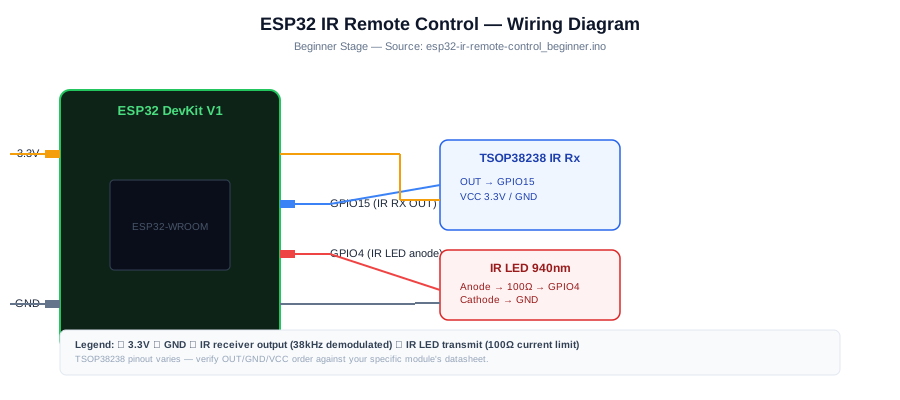
TSOP38238 OUT goes to GPIO15 for receive data. GPIO4 drives a transistor stage for the IR LED transmitter, so the ESP32 controls the LED without sourcing LED current directly from the GPIO.
-
1
Unplug USB before wiring.
-
2
Connect TSOP38238 VCC to 3.3 V, GND to GND, and OUT to GPIO15.
-
3
Connect GPIO4 through a base resistor to the 2N2222 base.
-
4
Wire the IR LED and current-limiting resistor through the transistor driver, observing LED polarity.
-
5
Keep the receiver window aimed at the handheld remote during learning.
-
6
Keep the IR LED aimed at the same safe consumer device during replay.
-
7
Upload the sketch and open Serial Monitor.
GPIO Mapping
| Signal | ESP32 Pin | Direction | Notes |
|---|---|---|---|
| TSOP38238 OUT | GPIO15 | Input | IR receive data; boot strap pin, avoid external pull conflicts. |
| IR LED driver | GPIO4 | Output | Controls transistor base through resistor. |
Circuit Explanation
The TSOP38238 receiver demodulates 38 kHz infrared light into digital pulses on GPIO15. On transmit, GPIO4 switches the 2N2222 transistor, and the transistor pulses the IR LED through its current-limiting resistor.
Engineering Explanation
Consumer remotes encode address and command values inside timed IR pulse patterns. This sketch logs the decoded protocol, address, and command for study, then stores and retransmits NEC commands only. Unsupported protocols can still be observed in Serial Monitor, but they are not replayed by this beginner sketch. IR also needs line of sight, correct LED polarity, and a compatible target device.
Libraries
- IRremoteInstall Arduino-IRremote library.
Code
Copy into Arduino IDE. Install any libraries noted in the component guides first.
// ESP32 IR receive-and-send learning demo
// Learn codes from your own remote before transmitting.
#include <IRremote.hpp>

const int IR_RECV_PIN = 15;
const int IR_SEND_PIN = 4;

uint16_t learnedAddress = 0;
uint16_t learnedCommand = 0;
decode_type_t learnedProtocol = UNKNOWN;
bool hasLearnedCode = false;

void sendLearnedCodeIfRequested() {
  if (!Serial.available()) return;

  char c = Serial.read();
  if ((c == 's' || c == 'S') && hasLearnedCode && learnedProtocol == NEC) {
    IrSender.sendNEC(learnedAddress, learnedCommand, 2);
    Serial.println("Sent learned NEC command.");
  } else if (c == 's' || c == 'S') {
    Serial.println("Learn an NEC code before sending.");
  }
}

void setup() {
  Serial.begin(115200);
  IrReceiver.begin(IR_RECV_PIN, ENABLE_LED_FEEDBACK);
  IrSender.begin(IR_SEND_PIN);
  Serial.println("IR demo ready. Point a safe consumer remote at the receiver.");
}

void loop() {
  sendLearnedCodeIfRequested();

  if (!IrReceiver.decode()) return;

  Serial.println("IR signal received");
  Serial.print("Protocol: ");
  Serial.println(getProtocolString(IrReceiver.decodedIRData.protocol));
  Serial.print("Address: 0x");
  Serial.println(IrReceiver.decodedIRData.address, HEX);
  Serial.print("Command: 0x");
  Serial.println(IrReceiver.decodedIRData.command, HEX);

  if (IrReceiver.decodedIRData.protocol == NEC) {
    learnedProtocol = NEC;
    learnedAddress = IrReceiver.decodedIRData.address;
    learnedCommand = IrReceiver.decodedIRData.command;
    hasLearnedCode = true;
    Serial.println("Stored NEC code. Type s in Serial Monitor to send it.");
  } else {
    Serial.println("This sketch retransmits NEC only. Use raw examples for other protocols.");
  }

  IrReceiver.resume();
}
Code Explanation
The sketch decodes any received IR signal, prints the protocol, address, and command, stores NEC address/command values, and then checks Serial Monitor for s or S on every loop so the learned NEC command can be sent after learning.
Expected Output
Serial Monitor shows protocol, address, and command whenever a remote signal is received. If the protocol is NEC, the sketch stores the command. After that, type s in Serial Monitor to retransmit the learned NEC command toward the same safe consumer device.
Troubleshooting
- No receive data Check the TSOP38238 pinout, confirm OUT is on GPIO15, and aim the handheld remote directly at the receiver window.
- Protocol UNKNOWN The remote may use an unsupported or complex protocol. Use the Serial output for study, but replay only works for stored NEC commands in this sketch.
- Transmit does not work Check IR LED polarity, transistor wiring, line of sight, and whether the target appliance responds to the learned NEC command.
- Typing s does nothing Learn a NEC command first, keep Serial Monitor focused at 115200 baud, and type s or S after the sketch prints that it stored the NEC code.
Common Mistakes
- Expecting universal compatibility from a beginner NEC replay sketch.
- Driving a high-current IR LED directly from GPIO instead of using the transistor driver.
- Using IR to bypass access systems or devices you are not allowed to control.
- Forgetting that IR needs line of sight between remote, receiver, transmitter, and target device.
- Reversing the IR LED polarity or aiming the LED away from the appliance.
Testing Checklist
- Decode a known consumer remote.
- Learn one NEC command.
- Send only toward the same safe device.
Engineering Tips
- Test in moderate lighting.
- Keep examples to owned consumer devices.
- Label learned codes by device and button.
Upgrade Ideas
- Store learned NEC codes in Preferences.
- Add OLED display for the last decoded command.
- Add a web page after local transmit works.
Real-World Applications
- Consumer remote protocol lesson
- IR receiver test fixture
- Line-of-sight communication demo
FAQs
Will this ESP32 IR remote control every appliance?
No. This beginner sketch stores and replays NEC commands only. Many appliances use other protocols, repeat frames, or timing details that need separate handling.
Can I copy any remote?
Only learn and replay codes for safe consumer devices you own and are allowed to control. Do not use the project to bypass access-control, security, or safety systems.
Why use a transistor for the IR LED?
IR LEDs often need more pulse current than an ESP32 GPIO should provide directly. The transistor lets GPIO4 control the LED while the LED current flows through the driver stage.
Why does IR transmit fail even after learning a code?
Check line of sight, IR LED polarity, target compatibility, and whether the learned protocol is NEC. Bright light and poor aiming can also reduce range.
Review, Testing, and References
Author: Abdul Mubeen and the ESP32 Engine editorial team. Last updated: 2026-08-22. Reviewed: wiring logic, Arduino code structure, beginner safety, and learning sequence.
Educational level: Intermediate. Estimated completion time: 60-75 min. This project is for learning and prototyping; production or unattended hardware needs additional engineering review.
Project Complete!
You completed an ESP32 IR remote control demo with TSOP38238 receive wiring, transistor-driven IR LED output, IRremote library code, NEC replay limits, and safe testing boundaries.
- IR receiving
- Protocol decoding
- Transistor driver