
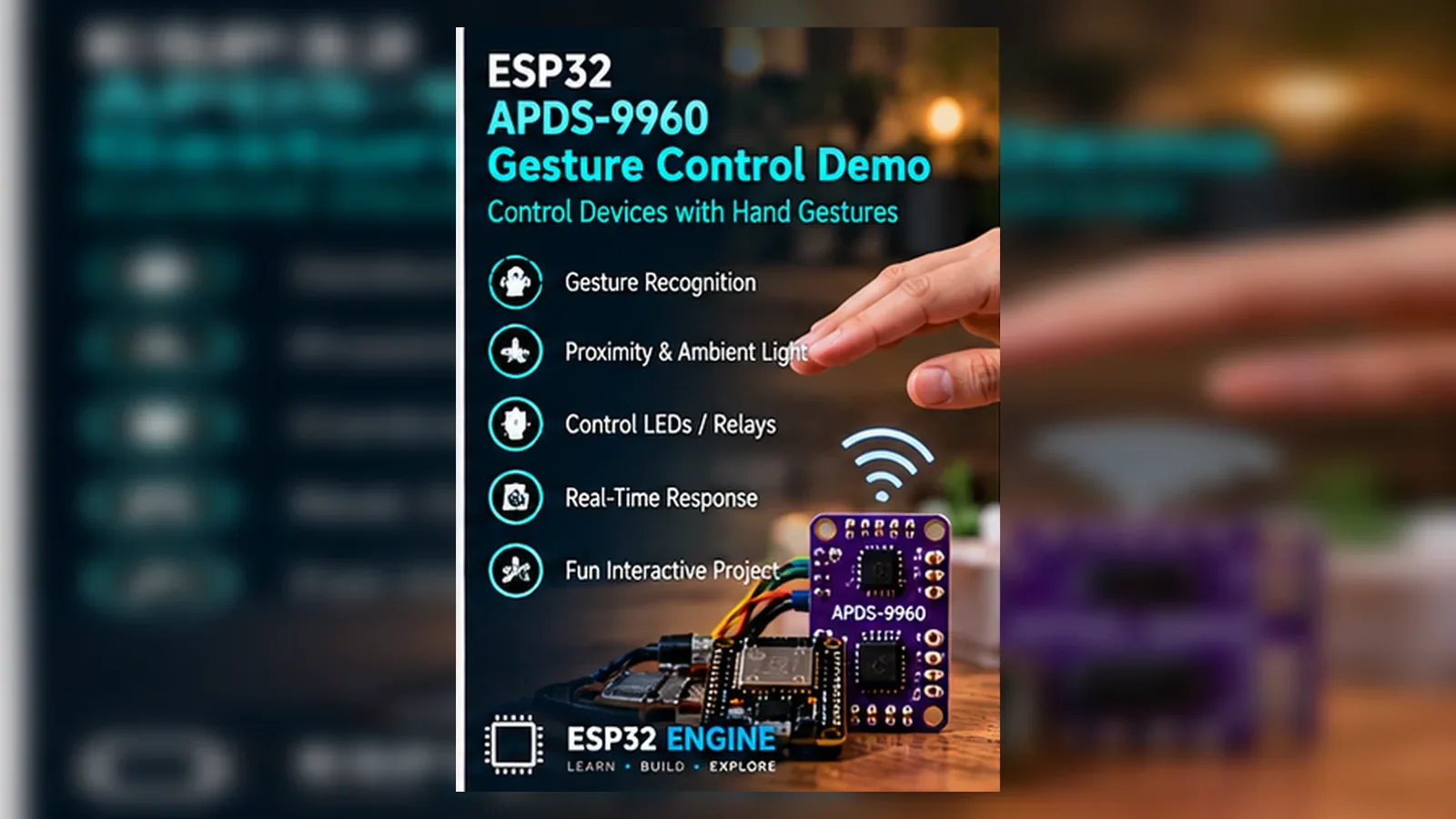
Build an APDS-9960 Gesture Control Demo
The Story
This project detects directional swipes from a real gesture sensor. It is not camera AI, accessibility hardware, or a security system.
Explain Like I'm 12
The sensor shines invisible light and watches how your hand reflects it while moving. The ESP32 turns that direction into an LED color.
Learning Support
- Recommended ageAges 12+
- Adult supervisionAdult help recommended for checking APDS-9960 voltage and LED resistor wiring.
- Classroom useUse it to compare directional gestures, speed, distance, and false triggers without calling it AI.
- Parent promptAsk how a swipe differs from a trained gesture class.
- Screen-free activityDraw the sensor and four LEDs, then map each hand direction to one output.
- Next challengeLog gesture counts before connecting the sensor to home automation.
- Skills practiced
- I2C wiring
- Interrupt input
- LED outputs
- Sensor limitations
- Learning outcomes
- Wire APDS-9960 SDA/SCL on GPIO21/GPIO22.
- Use GPIO4 as an interrupt input.
- Map four gesture directions to four LEDs.
- Explain speed, distance, and lighting limits.
- Mini experiments
- Swipe faster and slower.
- Move the hand higher above the sensor.
- Swap which LED lights for each direction.
Safety Standards
- Unplug USB before changing jumper wires. Recheck 3.3 V, 5 V, and GND before reconnecting power.
- Do not power motors, pumps, LED strips, or servos from the ESP32 3.3 V pin. Use a suitable external supply and common ground.
- Breadboards are for low-current prototypes. Move high-current or unattended builds to proper terminals, enclosure, strain relief, and fusing.
What You Will Build
A local APDS-9960 directional hand-swipe demo with four indicator LEDs.
Learning Objectives
- Wire APDS-9960 SDA/SCL on GPIO21/GPIO22.
- Use GPIO4 as an interrupt input.
- Map four gesture directions to four LEDs.
- Explain speed, distance, and lighting limits.
Components List
- ESP32 DevKit boardUSB-programmable ESP32 board for the low-voltage logic side.
- APDS-9960 gesture sensor breakoutI2C gesture/proximity sensor; confirm 3.3 V logic.
- Four LEDsOne LED for each direction.
- 220 ohm resistorsOne resistor in series with each LED.
- Breadboard and jumper wiresFor low-voltage prototyping.
Bill of Materials
| Part | Qty | Estimated Cost | Notes |
|---|---|---|---|
| ESP32 DevKit board | 1 | Varies | USB-programmable ESP32 board for the low-voltage logic side. |
| APDS-9960 gesture sensor breakout | 1 | Varies | I2C gesture/proximity sensor; confirm 3.3 V logic. |
| Four LEDs | 1 | Varies | One LED for each direction. |
| 220 ohm resistors | 1 | Varies | One resistor in series with each LED. |
| Breadboard and jumper wires | 1 | Varies | For low-voltage prototyping. |
Wiring
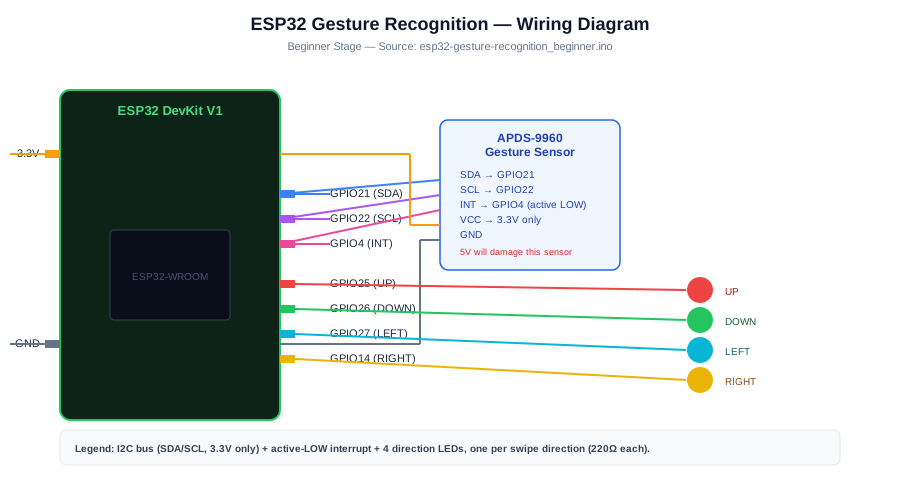
APDS-9960 uses I2C on GPIO21/GPIO22 and INT on GPIO4. LEDs use GPIO25, GPIO26, GPIO27, and GPIO14 through resistors.
-
1
Unplug USB before wiring.
-
2
Connect APDS-9960 VCC to 3.3 V and GND to GND.
-
3
Connect SDA to GPIO21 and SCL to GPIO22.
-
4
Connect INT to GPIO4.
-
5
Connect LED anodes through 220 ohm resistors to GPIO25, GPIO26, GPIO27, and GPIO14; connect cathodes to GND.
-
6
Upload the sketch and open Serial Monitor at 115200 baud.
GPIO Mapping
| Signal | ESP32 Pin | Direction | Notes |
|---|---|---|---|
| APDS-9960 SDA | GPIO21 | I2C data | Shared I2C bus. |
| APDS-9960 SCL | GPIO22 | I2C clock | Shared I2C bus. |
| APDS-9960 INT | GPIO4 | Input | Interrupt input with pull-up. |
| UP LED | GPIO25 | Output | Series resistor required. |
| DOWN LED | GPIO26 | Output | Series resistor required. |
| LEFT LED | GPIO27 | Output | Series resistor required. |
| RIGHT LED | GPIO14 | Output | Avoid using this as a boot strap output. |
Circuit Explanation
The APDS-9960 reports gesture events over I2C and pulls INT low when data is ready. The ESP32 reads the direction and lights one LED.
Engineering Explanation
Gesture detection depends on hand distance, speed, sensor orientation, and ambient light. The sketch classifies directional swipes only.
Libraries
- SparkFun APDS9960Install SparkFun_APDS9960 Arduino library.
- WireBundled with Arduino ESP32 core.
Code
Copy into Arduino IDE. Install any libraries noted in the component guides first.
// ESP32 APDS-9960 directional gesture demo
// Detects directional hand swipes; this is not AI gesture recognition.
#include <Wire.h>
#include <SparkFun_APDS9960.h>

SparkFun_APDS9960 apds;

const int INT_PIN = 4;
const int LED_UP = 25;
const int LED_DOWN = 26;
const int LED_LEFT = 27;
const int LED_RIGHT = 14;

volatile bool gestureFlag = false;

void IRAM_ATTR onGesture() {
  gestureFlag = true;
}

void clearLeds() {
  digitalWrite(LED_UP, LOW);
  digitalWrite(LED_DOWN, LOW);
  digitalWrite(LED_LEFT, LOW);
  digitalWrite(LED_RIGHT, LOW);
}

void setup() {
  Serial.begin(115200);
  Wire.begin(21, 22);

  pinMode(INT_PIN, INPUT_PULLUP);
  pinMode(LED_UP, OUTPUT);
  pinMode(LED_DOWN, OUTPUT);
  pinMode(LED_LEFT, OUTPUT);
  pinMode(LED_RIGHT, OUTPUT);
  clearLeds();

  if (!apds.init()) {
    Serial.println("APDS-9960 not found. Check 3.3 V, SDA GPIO21, and SCL GPIO22.");
    while (true) delay(10);
  }
  if (!apds.enableGestureSensor(true)) {
    Serial.println("Gesture sensor did not enable.");
    while (true) delay(10);
  }

  attachInterrupt(digitalPinToInterrupt(INT_PIN), onGesture, FALLING);
  Serial.println("APDS-9960 gesture demo ready. Swipe above the sensor.");
}

void loop() {
  if (!gestureFlag) return;
  gestureFlag = false;

  if (!apds.isGestureAvailable()) return;
  int gesture = apds.readGesture();
  clearLeds();

  switch (gesture) {
    case DIR_UP:
      digitalWrite(LED_UP, HIGH);
      Serial.println("UP");
      break;
    case DIR_DOWN:
      digitalWrite(LED_DOWN, HIGH);
      Serial.println("DOWN");
      break;
    case DIR_LEFT:
      digitalWrite(LED_LEFT, HIGH);
      Serial.println("LEFT");
      break;
    case DIR_RIGHT:
      digitalWrite(LED_RIGHT, HIGH);
      Serial.println("RIGHT");
      break;
    default:
      Serial.println("Gesture not classified.");
      break;
  }
}
Code Explanation
GPIO4 sets a flag on the APDS-9960 interrupt. The main loop reads the gesture and updates GPIO25/GPIO26/GPIO27/GPIO14 LEDs.
Expected Output
Serial Monitor prints UP, DOWN, LEFT, or RIGHT and exactly one LED lights after a recognized swipe.
Troubleshooting
- Sensor not found Check 3.3 V, ground, SDA GPIO21, SCL GPIO22, and I2C address.
- Gestures are inconsistent Change swipe speed, distance, and lighting; keep the hand centered over the sensor.
- Direction appears reversed Rotate the module or remap directions in code.
Common Mistakes
- Calling the project AI gesture recognition.
- Powering a 3.3 V-only breakout from 5 V.
- Forgetting LED resistors.
- Mounting the sensor backwards and expecting directions to match.
Testing Checklist
- Run an I2C scan if initialization fails.
- Test each LED output with a simple blink first.
- Swipe each direction five times and note misses without claiming accuracy.
Engineering Tips
- Keep wires short on I2C.
- Place the sensor flat and unobstructed.
- Treat false triggers as part of the lesson.
Upgrade Ideas
- Add an OLED that shows the last direction.
- Count gestures over one minute.
- Use gestures to control a low-current LED pattern.
Real-World Applications
- Touchless menu prototype
- Gesture-controlled LED lesson
- Human-interface sensor demo
FAQs
Is this AI?
No. It uses the APDS-9960 sensor's directional gesture engine.
Can it detect custom gestures?
Not with this sketch; it detects simple directions only.
Why do gestures fail sometimes?
Distance, speed, lighting, and sensor orientation affect detection.
Review, Testing, and References
Author: Abdul Mubeen and the ESP32 Engine editorial team. Last updated: 2026-06-27. Reviewed: wiring logic, Arduino code structure, beginner safety, and learning sequence.
Educational level: Intermediate. Estimated completion time: 60-75 min. This project is for learning and prototyping; production or unattended hardware needs additional engineering review.
Project Complete!
You completed Build an APDS-9960 Gesture Control Demo with matching wiring, code, tests, and limitations.
- I2C wiring
- Interrupt input
- LED outputs