
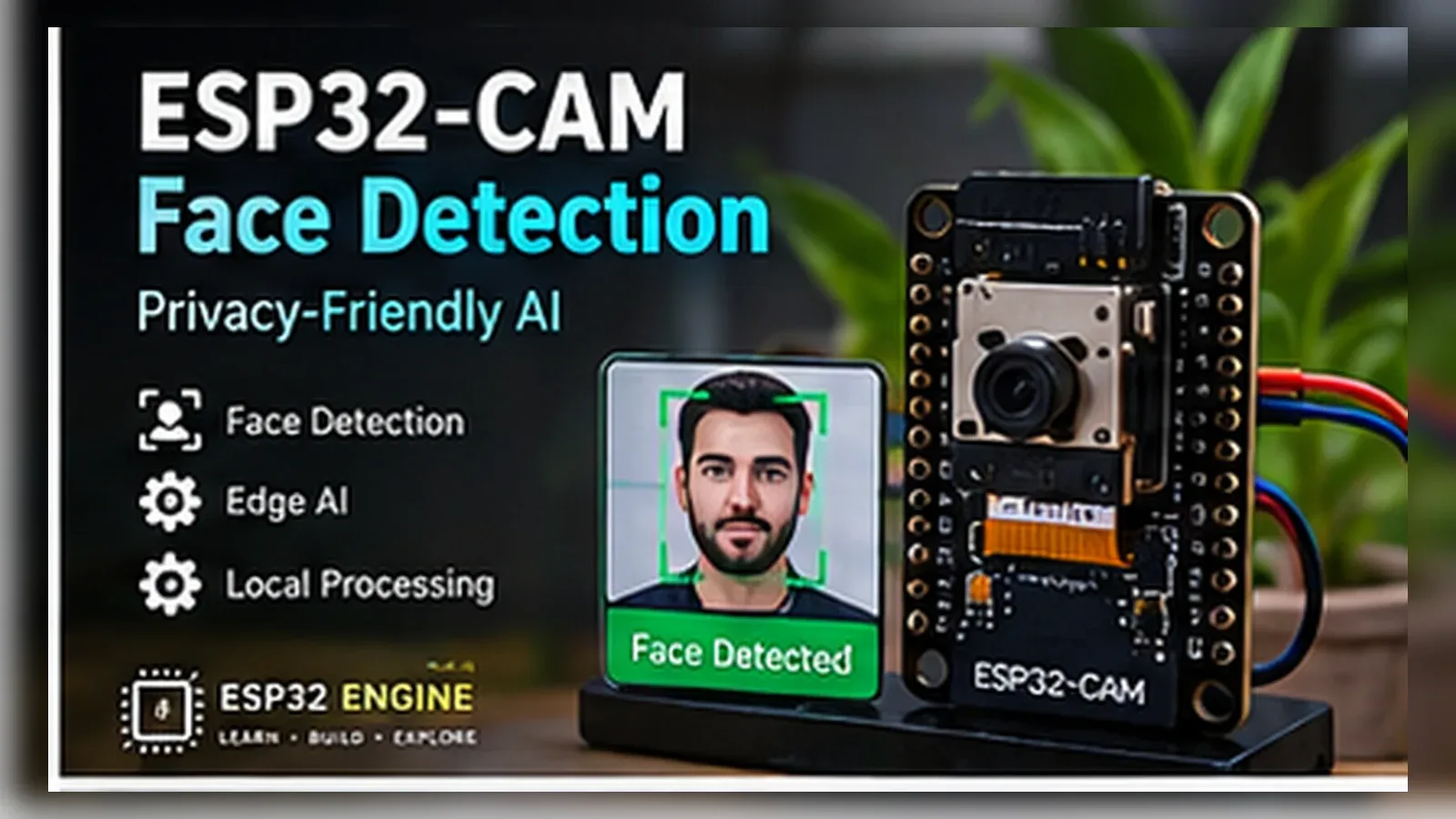
Build a Local Face Detection Demo
The Story
Face detection needs careful wording. This project only locates face-like regions; it does not identify people or provide security. The Golden version keeps the implementation narrow and testable: code constants, wiring, GPIO notes, expected output, limitations, and troubleshooting all describe the same educational prototype.
Explain Like I'm 12
The camera looks for a pattern shaped like a face. It can say a face-like area is present, but it does not know who the person is. The ESP32 reads a signal, checks it against a simple rule, and prints or changes an output so you can see what happened.
Learning Support
- Recommended ageAges 14+
- Adult supervisionAdult supervision required for camera privacy, local-network setup, and power troubleshooting.
- Classroom useUse printed faces or consented volunteers only; discuss detection versus recognition.
- Parent promptAsk what the camera detects and what it cannot know about a person.
- Screen-free activityList privacy rules before powering the camera.
- Next challengeAdd authentication or keep the camera on an isolated local network before any longer demo.
- Skills practiced
- ESP32-CAM pin map
- Local Wi-Fi camera
- Face detection limits
- Privacy consent
- Learning outcomes
- Wire and power an AI-Thinker ESP32-CAM for local testing.
- Use the official CameraWebServer face-detection example boundary.
- Explain detection versus recognition.
- Identify brownout, lighting, and memory limits.
- Mini experiments
- Compare detection in bright and dim light.
- Lower frame size and observe stability.
- Test a printed face-like image with consented classroom rules.
Safety Standards
- Unplug USB before changing jumper wires. Recheck 3.3 V, 5 V, and GND before reconnecting power.
- Do not power motors, pumps, LED strips, or servos from the ESP32 3.3 V pin. Use a suitable external supply and common ground.
- Breadboards are for low-current prototypes. Move high-current or unattended builds to proper terminals, enclosure, strain relief, and fusing.
What You Will Build
A local-network AI-Thinker ESP32-CAM demo based on the Arduino ESP32 CameraWebServer example. The OV2640 stream stays on the local network, the example server performs face detection, and the page must not be described as face recognition because it does not identify people or enroll identities.
Learning Objectives
- Wire and power an AI-Thinker ESP32-CAM for local testing.
- Use the official CameraWebServer face-detection example boundary.
- Explain detection versus recognition.
- Identify brownout, lighting, and memory limits.
Components List
- ESP32-CAM AI-Thinker board with OV2640ESP32-family camera board; use the fixed AI-Thinker camera pin map and stable 5 V power.
- FTDI USB-to-serial adapter3.3 V logic for programming.
- Stable 5 V supplyCamera and Wi-Fi need current headroom.
- IO0 upload jumperUsed only while flashing.
Bill of Materials
| Part | Qty | Estimated Cost | Notes |
|---|---|---|---|
| ESP32-CAM AI-Thinker board with OV2640 | 1 | Varies | ESP32-family camera board; use the fixed AI-Thinker camera pin map and stable 5 V power. |
| FTDI USB-to-serial adapter | 1 | Varies | 3.3 V logic for programming. |
| Stable 5 V supply | 1 | Varies | Camera and Wi-Fi need current headroom. |
| IO0 upload jumper | 1 | Varies | Used only while flashing. |
Wiring
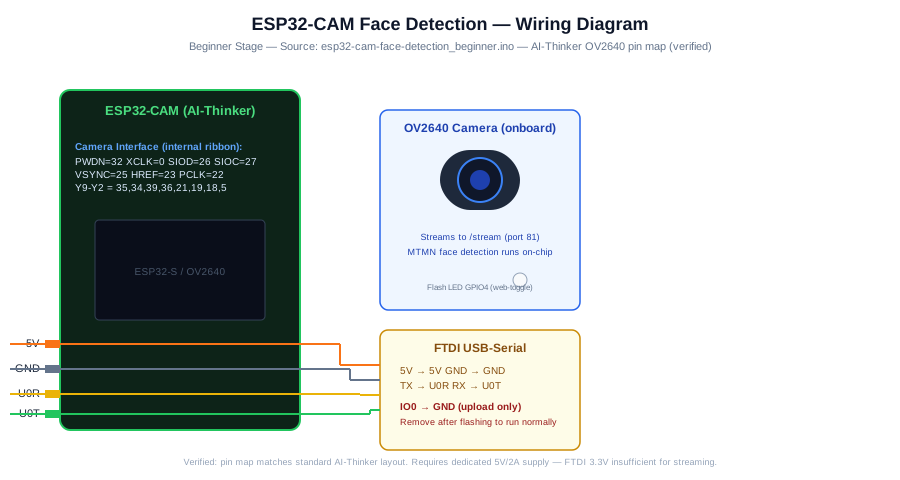
FTDI programming uses GPIO3/GPIO1. IO0 is grounded only for upload. OV2640 camera wiring is fixed on AI-Thinker ESP32-CAM.
-
1
Unplug power before changing programming wires.
-
2
Connect FTDI TX to U0R/GPIO3 and FTDI RX to U0T/GPIO1.
-
3
Connect FTDI GND and ESP32-CAM GND together.
-
4
Power the board from stable 5 V.
-
5
Connect IO0 to GND only during upload, then remove it and reset.
-
6
Use the local IP on a trusted network only.
GPIO Mapping
| Signal | ESP32 Pin | Direction | Notes |
|---|---|---|---|
| OV2640 camera bus | AI-Thinker fixed camera pins | I/O | Matches the Arduino ESP32 CameraWebServer AI-Thinker profile. |
| FTDI UART | GPIO3 / GPIO1 | I/O | Upload and Serial Monitor. |
| IO0 upload strap | GPIO0 | Boot strap | Ground only while flashing. |
Circuit Explanation
The ESP32-CAM board already connects OV2640 signals to fixed ESP32 pins. The external wiring is for programming, power, and boot mode.
Engineering Explanation
Face detection processing happens in the local ESP32-CAM CameraWebServer example files, not in a cloud API. It uses memory and CPU, so lower frame sizes are more stable. Lighting, angle, distance, and background can cause missed or false detections.
Libraries
- Arduino ESP32 core CameraWebServer exampleUse the bundled CameraWebServer app_httpd.cpp with face detection enabled.
Code
Copy into Arduino IDE. Install any libraries noted in the component guides first.
// ESP32-CAM local face-detection starter
// Based on Arduino ESP32 CameraWebServer example. Keep access on a trusted local network.
#include "esp_camera.h"
#include <WiFi.h>

#define PWDN_GPIO_NUM 32
#define RESET_GPIO_NUM -1
#define XCLK_GPIO_NUM 0
#define SIOD_GPIO_NUM 26
#define SIOC_GPIO_NUM 27
#define Y9_GPIO_NUM 35
#define Y8_GPIO_NUM 34
#define Y7_GPIO_NUM 39
#define Y6_GPIO_NUM 36
#define Y5_GPIO_NUM 21
#define Y4_GPIO_NUM 19
#define Y3_GPIO_NUM 18
#define Y2_GPIO_NUM 5
#define VSYNC_GPIO_NUM 25
#define HREF_GPIO_NUM 23
#define PCLK_GPIO_NUM 22

const char *WIFI_SSID = "YOUR_SSID";
const char *WIFI_PASS = "YOUR_PASSWORD";
void startCameraServer(); // provided by the Arduino ESP32 CameraWebServer example app_httpd.cpp

void setup() {
  Serial.begin(115200);
  camera_config_t config;
  config.ledc_channel = LEDC_CHANNEL_0;
  config.ledc_timer = LEDC_TIMER_0;
  config.pin_d0 = Y2_GPIO_NUM; config.pin_d1 = Y3_GPIO_NUM; config.pin_d2 = Y4_GPIO_NUM; config.pin_d3 = Y5_GPIO_NUM;
  config.pin_d4 = Y6_GPIO_NUM; config.pin_d5 = Y7_GPIO_NUM; config.pin_d6 = Y8_GPIO_NUM; config.pin_d7 = Y9_GPIO_NUM;
  config.pin_xclk = XCLK_GPIO_NUM; config.pin_pclk = PCLK_GPIO_NUM; config.pin_vsync = VSYNC_GPIO_NUM; config.pin_href = HREF_GPIO_NUM;
  config.pin_sscb_sda = SIOD_GPIO_NUM; config.pin_sscb_scl = SIOC_GPIO_NUM;
  config.pin_pwdn = PWDN_GPIO_NUM; config.pin_reset = RESET_GPIO_NUM;
  config.xclk_freq_hz = 20000000;
  config.pixel_format = PIXFORMAT_JPEG;
  config.frame_size = FRAMESIZE_QVGA;
  config.jpeg_quality = 12;
  config.fb_count = 1;
  if (esp_camera_init(&config) != ESP_OK) {
    Serial.println("Camera init failed");
    while (true) delay(1000);
  }
  WiFi.begin(WIFI_SSID, WIFI_PASS);
  while (WiFi.status() != WL_CONNECTED) delay(300);
  startCameraServer();
  Serial.print("Open local camera page: http://");
  Serial.println(WiFi.localIP());
}

void loop() {
  delay(1000);
}
Code Explanation
The sketch initializes the AI-Thinker OV2640 camera pin map, connects to Wi-Fi, starts the local CameraWebServer example, and prints the board IP address. Face detection support lives in the example server files; this starter sketch does not implement identity recognition.
Expected Output
Serial Monitor prints a local IP address. Open it on the same network and enable/test detection in the CameraWebServer page only with consented or printed face-like targets.
Troubleshooting
- Brownout reset Use a stronger 5 V supply and shorter wires.
- Camera init failed Check the AI-Thinker ESP32-CAM board profile, stable 5 V power, common ground with the FTDI adapter, and the OV2640 ribbon cable.
- No faces detected Lower frame size, improve lighting, and check that face detection is enabled in CameraWebServer.
- Browser cannot open the stream Confirm the computer or phone is on the same local Wi-Fi network as the ESP32-CAM and use the IP printed in Serial Monitor.
- Project is described as face recognition Rename the claim in your notes. This build detects face-like regions only; it does not recognize identities.
Common Mistakes
- Calling detection recognition.
- Publishing the stream on the public internet.
- Leaving IO0 grounded after upload.
- Using weak 5 V power.
Testing Checklist
- Boot with the IO0 jumper removed.
- Confirm the local IP appears.
- Open the page only on the local network.
- Test lighting and frame-size changes.
Engineering Tips
- Keep the camera private by default.
- Use QVGA for stability.
- Treat detections as hints, not identity facts.
Upgrade Ideas
- Add a privacy shutter.
- Add a local-only status LED.
- Move to ESP32-S3 for heavier vision work.
Real-World Applications
- Camera privacy lesson
- Local face-like region demo
- ESP32-CAM stability lab
FAQs
Does this recognize people?
No. It only detects face-like regions.
Can I use it for a door lock?
No. It is not biometric security.
Can I expose the stream online?
No. Keep the demo local and consent-based.
Review, Testing, and References
Author: Abdul Mubeen and the ESP32 Engine editorial team. Last updated: 2026-08-23. Reviewed: wiring logic, Arduino code structure, beginner safety, and learning sequence.
Educational level: Advanced. Estimated completion time: 90-120 min. This project is for learning and prototyping; production or unattended hardware needs additional engineering review.
Project Complete!
You completed Build an ESP32-CAM Face Detection Privacy Demo as a safe, bounded ESP32 learning build with matching wiring, code, tests, and limitations.
- ESP32-CAM pin map
- Local Wi-Fi camera
- Face detection limits