ESP32 AC Power Monitor

Energy MonitoringBeginnerIntermediateAdvanced

Measure real AC mains power consumption with an ESP32, ZMPT101B voltage transformer, and SCT-013 current transformer. Calculate Vrms, Irms, true power, power factor, and daily kWh, then publish results to an MQTT energy dashboard.

Overview

In this beginner project you will connect an SCT-013 current transformer clamp around the live wire of a mains circuit and read the alternating current output using the ESP32 ADC. The Emonlib library computes the RMS current value from 1480 ADC samples (approximately one mains cycle at 50 Hz). The current in amps and estimated power in watts (assuming 230 V mains) are printed to the Serial Monitor every 5 seconds.

Components
  • 1× ESP32 DevKit V1
  • 1× SCT-013-030 current transformer clamp — 30 A max; built-in burden resistor; 1 V output
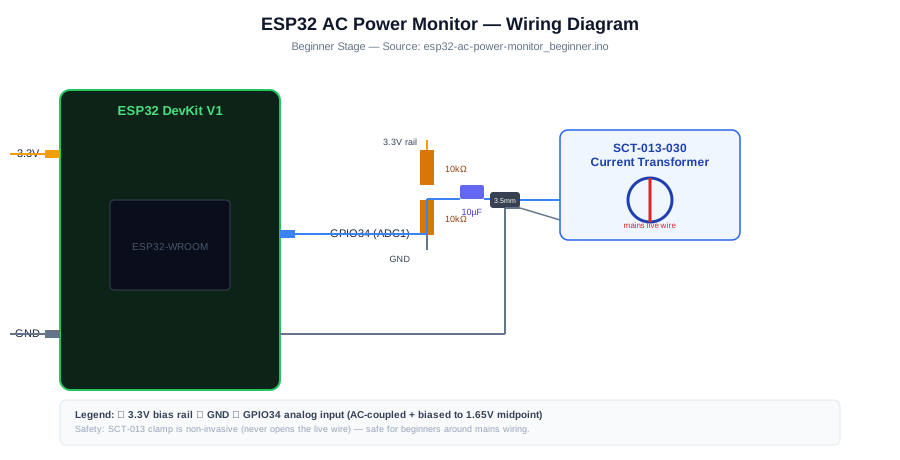
  • 2× 10 kohm resistor — Voltage divider bias for ADC midpoint
  • 1× 10 uF electrolytic capacitor — AC coupling capacitor
  • 1× 3.5 mm stereo socket — Matches SCT-013 jack plug
  • 1× Breadboard and jumper wires
Wiring
Component PinESP32 PinNotes
SCT-013 output (via 3.5 mm jack tip)GPIO 34 via 10uF capAC coupled; 10k+10k voltage divider to set midpoint at 1.65 V
SCT-013 output (jack sleeve)GND
10k + 10k voltage divider midpointGPIO 34Biases ADC input to 1.65 V mid-rail
Divider top to 3.3 V, bottom to GND3.3 V / GND
Arduino Code
esp32-ac-power-monitor_beginner.ino
// ESP32 AC Power Monitor - Beginner
// SCT-013 current clamp + Emonlib for RMS current calculation
// Install: EmonLib by OpenEnergyMonitor in Arduino Library Manager

#include "EmonLib.h"

EnergyMonitor emon;
const int CT_PIN = 34;
const float ICAL = 29.0;  // Calibration: SCT-013-030 with 1V burden = 30A / 1V / (ADC 3.3V range)
                           // Tune by comparing to a calibrated clamp meter

void setup() {
  Serial.begin(115200);
  analogReadResolution(12);
  emon.current(CT_PIN, ICAL);
}

void loop() {
  double irms = emon.calcIrms(1480); // 1480 samples = ~1 mains cycle at 50 Hz
  double power = irms * 230.0;       // Apparent power assuming 230 V
  Serial.printf("Irms: %.3f A  Apparent Power: %.1f VAn", irms, power);
  delay(5000);
}
How It Works
01

Current Transformer Principle: The SCT-013 clamp is a split-core current transformer. The mains live wire passes through the core acting as a single-turn primary winding. The secondary coil (typically 2000 turns) induces a proportional current. The built-in 62 ohm burden resistor converts this to a voltage: at 30 A primary, the output is approximately 1 V peak AC.

02

AC Coupling and Bias: The ESP32 ADC cannot measure negative voltages. The 10 uF capacitor blocks the DC component and the 10k+10k voltage divider biases the ADC input to 1.65 V (half of 3.3 V). The AC current signal then swings symmetrically around this midpoint, staying within the 0-3.3 V ADC range.

03

RMS Calculation via Emonlib: Emonlib calculates Irms = sqrt(mean(i^2)) over 1480 samples. It automatically subtracts the DC bias (midpoint) from each sample before squaring. 1480 samples at the ESP32 ADC rate covers approximately one mains cycle at 50 Hz, capturing a complete AC waveform.

04

Calibration Constant: The ICAL constant converts ADC counts to amps. For the SCT-013-030 with 1 V output at 30 A: ICAL = 30.0. Tune by clamping the SCT-013 on a circuit with a known current (measured by a calibrated clamp meter) and adjusting ICAL until readings match.

Applications
  • Whole-home electricity consumption monitor
  • Individual appliance power profiling
  • Solar panel production monitoring on the grid tie inverter output
  • Tenant electricity sub-metering for cost allocation
Troubleshooting

Current reads non-zero with no load on the circuit

This is standby current from always-on appliances (routers, TVs on standby, smart meters). To measure zero baseline, remove all loads from the monitored circuit. Emonlib's DC offset subtraction handles the bias voltage automatically.

Current reads far from actual value

Adjust ICAL. Compare the ESP32 reading against a reference clamp meter on the same wire. If the ESP32 reads 15 A and the clamp meter reads 10 A, multiply ICAL by 10/15 = 0.67. Repeat until readings match within 2 percent.

ADC reads 0 or 4095 continuously

The voltage divider midpoint is not connected or the capacitor is short-circuited. Measure the voltage at GPIO 34 with a multimeter: it should be approximately 1.65 V at idle. If it reads 0 V or 3.3 V, check the divider and capacitor connections.

Upgrades
  • Add a ZMPT101B voltage transformer to measure Vrms and compute true real power
  • Add an OLED display showing live current, power, and estimated daily cost
  • Add Wi-Fi and publish readings to a Google Sheets spreadsheet
  • Add a second SCT-013 clamp to monitor a second circuit (solar vs grid)
FAQ

You need an ESP32 DevKit, TODO: sensor, SCT-013 output (via 3.5 mm jack tip), a breadboard, jumper wires, and a USB cable for power and programming.

Only the Advanced stage uses Wi-Fi. Beginner and Intermediate builds run offline on the ESP32 with USB power.

Start with Beginner if you are new to Energy Monitoring. Use Intermediate for OLED feedback and Advanced for dashboards or connected monitoring.

Overview

The intermediate build adds a ZMPT101B voltage transformer to measure true mains Vrms alongside the SCT-013 current measurement. The phase angle between voltage and current waveforms is used to compute real power (W) and power factor. An SSD1306 OLED displays Vrms, Irms, real power, and power factor. Readings are updated every 5 seconds and the daily kWh accumulator is displayed alongside the estimated electricity cost.

Components
  • 1× ESP32 DevKit V1
  • 1× SCT-013-030 current transformer
  • 1× ZMPT101B AC voltage transformer module — Isolated mains voltage measurement; 230 V or 120 V model
  • 1× SSD1306 OLED 128x64 I2C
  • 1× 10 kohm resistors and 10 uF capacitors — Bias and coupling for both ADC inputs
Wiring
Component PinESP32 PinNotes
SCT-013 outputGPIO 34 (via cap + divider)
ZMPT101B outputGPIO 35 (via cap + divider)ZMPT101B module includes isolation and conditioning
OLED SDA/SCLGPIO 21/22
Arduino Code
esp32-ac-power-monitor_intermediate.ino
// ESP32 AC Power Monitor - Intermediate (Vrms + Irms + real power + kWh)
#include "EmonLib.h"
#include <Wire.h>
#include <Adafruit_SSD1306.h>

Adafruit_SSD1306 oled(128,64,&Wire,-1);
EnergyMonitor emon;

const int CT_PIN=34, VT_PIN=35;
const float ICAL=29.0;   // Current calibration (tune with clamp meter)
const float VCAL=234.0;  // Voltage calibration (tune with multimeter)
const float PHASE=1.7;   // Phase lead correction in degrees (tune per installation)
const float TARIFF=0.28f; // Cost per kWh in local currency
float dailyKwh=0.0f;
unsigned long lastCalc=0;

void setup(){
  Serial.begin(115200);
  Wire.begin(21,22);
  oled.begin(SSD1306_SWITCHCAPVCC,0x3C); oled.setTextColor(WHITE);
  analogReadResolution(12);
  emon.voltage(VT_PIN,VCAL,PHASE);
  emon.current(CT_PIN,ICAL);
}

void loop(){
  emon.calcVI(20,2000); // 20 half-cycles, 2 s timeout
  float vrms=emon.Vrms;
  float irms=emon.Irms;
  float realP=emon.realPower;
  float appar=emon.apparentPower;
  float pf=emon.powerFactor;

  // Accumulate kWh
  unsigned long now=millis();
  if(lastCalc>0){
    float hours=(now-lastCalc)/3600000.0f;
    dailyKwh+=realP/1000.0f*hours;
  }
  lastCalc=now;

  Serial.printf("V:%.1f I:%.3f P:%.1fW PF:%.2f kWh:%.4fn",
    vrms,irms,realP,pf,dailyKwh);

  oled.clearDisplay(); oled.setTextSize(1); oled.setCursor(0,0);
  oled.printf("Vrms: %.1f Vn",vrms);
  oled.printf("Irms: %.3f An",irms);
  oled.printf("Power:%.1f Wn",realP);
  oled.printf("PF:   %.2fn",pf);
  oled.printf("kWh:  %.4fn",dailyKwh);
  oled.printf("Cost: %.4fn",dailyKwh*TARIFF);
  oled.display();
  delay(5000);
}
How It Works
01

ZMPT101B Voltage Measurement: The ZMPT101B is a precision single-phase voltage transformer that provides galvanic isolation between the mains circuit and the ESP32. The module conditions the mains sine wave to a safe 0-3.3 V range. VCAL converts ADC counts to volts: 234.0 is a typical starting point for 230 V mains; calibrate against a multimeter.

02

Phase Correction: The CT (current transformer) and VT (voltage transformer) introduce small, different phase shifts. The PHASE parameter (in degrees) corrects for this difference in Emonlib's calcVI() function. Without correction, the computed power factor and real power will be inaccurate even for purely resistive loads.

03

Real Power vs Apparent Power: Emonlib computes real power by multiplying instantaneous voltage and current samples before averaging: P = mean(v*i). Apparent power is Vrms * Irms. Power factor = real power / apparent power. Real power represents the energy actually consumed; apparent power includes the reactive component that does no useful work.

04

kWh Accumulation: kWh is accumulated using trapezoidal integration: each reading adds (realPower_W / 1000) * (elapsed_hours) to the accumulator. The accumulator resets each day at midnight or on power-on. Daily cost is kWh multiplied by the electricity tariff per unit.

Applications
  • Home energy audit identifying high-consumption appliances
  • Electricity bill prediction with daily kWh tracking
  • Power factor correction monitoring for industrial equipment
  • Solar self-consumption analysis (compare generation vs consumption)
Troubleshooting

Power factor reads above 1.0 or below -1.0

The PHASE calibration is too large or the CT and VT have opposite polarity. Try PHASE=0 and compare real vs apparent power. Adjust PHASE until real power for a known resistive load (e.g. 1000 W kettle) matches the rated wattage within 5 percent.

Vrms reads 0 with ZMPT101B connected

The ZMPT101B module requires the mains circuit to be live. Verify the module AC input is connected to the live and neutral terminals. Check the output voltage at the module output pins with a multimeter for approximately 1.5 V AC RMS.

kWh accumulates when no load is connected

Stray coupling between the ZMPT101B output and CT input can create phantom power readings. Ensure CT and VT signal cables are separated and shielded. Set a minimum real-power threshold (e.g. 5 W) below which kWh accumulation pauses.

Upgrades
  • Add NTP time sync and reset the kWh accumulator automatically at midnight
  • Add an SD card to log per-minute power readings for trend analysis
  • Add a TFT display with a real-time power trend chart
  • Add MQTT publishing for Home Assistant energy integration
FAQ

You need an ESP32 DevKit, TODO: sensor, SCT-013 output (via 3.5 mm jack tip), a breadboard, jumper wires, and a USB cable for power and programming.

Only the Advanced stage uses Wi-Fi. Beginner and Intermediate builds run offline on the ESP32 with USB power.

Start with Beginner if you are new to Energy Monitoring. Use Intermediate for OLED feedback and Advanced for dashboards or connected monitoring.

Overview

The advanced build publishes all power metrics to MQTT every 30 seconds and integrates with Home Assistant energy dashboard as a custom energy sensor. Hourly kWh readings are stored in NVS for a 7-day consumption history. An overvoltage alert (above 250 V) and undervoltage alert (below 200 V) publish MQTT warnings. A web dashboard serves a 24-hour power trend chart using Chart.js populated via a JSON API endpoint on the ESP32.

Components
  • 1× ESP32 DevKit V1
  • 1× SCT-013-030 current transformer
  • 1× ZMPT101B voltage transformer
  • 1× MQTT broker (Mosquitto)
  • 1× Home Assistant — Energy dashboard integration
Wiring
Component PinESP32 PinNotes
CT and VT connectionsSame as intermediate
Arduino Code
esp32-ac-power-monitor_advanced.ino
// ESP32 AC Power Monitor - Advanced (MQTT + HA energy + 7-day NVS history)
#include "EmonLib.h"
#include <WiFi.h>
#include <WebServer.h>
#include <PubSubClient.h>
#include <ArduinoJson.h>
#include <Preferences.h>
#include <time.h>

EnergyMonitor emon;
WebServer server(80);
WiFiClient wifiClient; PubSubClient mqtt(wifiClient);
Preferences prefs;

const char* SSID="YourSSID", *PASS="YourPass";
const char* MQTT_HOST="192.168.1.100";
const int CT_PIN=34, VT_PIN=35;
const float ICAL=29.0, VCAL=234.0, PHASE=1.7;
const float V_MAX=250.0f, V_MIN=200.0f;
float totalKwh=0.0f;
int hourlyKwh[168]={0}; // 7 days x 24 hours
unsigned long lastCalc=0;
int lastHour=-1;

void publishMetrics(float v,float i,float p,float pf,float kwh){
  StaticJsonDocument<192> doc;
  doc["vrms"]=v; doc["irms"]=i; doc["power"]=p;
  doc["pf"]=pf; doc["kwh"]=kwh;
  char buf[192]; serializeJson(doc,buf);
  mqtt.publish("energy/meter",buf);
  if(v>V_MAX) mqtt.publish("energy/alert","OVERVOLTAGE");
  if(v<V_MIN && v>10.0f) mqtt.publish("energy/alert","UNDERVOLTAGE");
}

void serveChart(){
  String json="[";
  for(int i=0;i<168;i++){
    json+=String(hourlyKwh[i]);
    if(i<167) json+=",";
  }
  json+="]";
  server.send(200,"application/json",json);
}

void setup(){
  Serial.begin(115200);
  analogReadResolution(12);
  emon.voltage(VT_PIN,VCAL,PHASE);
  emon.current(CT_PIN,ICAL);
  WiFi.begin(SSID,PASS);
  while(WiFi.status()!=WL_CONNECTED) delay(500);
  configTime(0,0,"pool.ntp.org");
  mqtt.setServer(MQTT_HOST,1883);
  // Load 7-day history from NVS
  prefs.begin("energy",true);
  totalKwh=prefs.getFloat("total",0);
  for(int h=0;h<168;h++) hourlyKwh[h]=prefs.getInt(String(h).c_str(),0);
  prefs.end();
  server.on("/data",serveChart);
  server.begin();
}

void loop(){
  if(!mqtt.connected()) mqtt.connect("PowerMonitor");
  mqtt.loop();
  server.handleClient();

  static unsigned long last=0;
  if(millis()-last>30000){
    last=millis();
    emon.calcVI(20,2000);
    float v=emon.Vrms,i=emon.Irms,p=emon.realPower,pf=emon.powerFactor;
    unsigned long now=millis();
    if(lastCalc>0) totalKwh+=p/1000.0f*(now-lastCalc)/3600000.0f;
    lastCalc=now;
    publishMetrics(v,i,p,pf,totalKwh);
    // Hourly bucket
    struct tm ti; getLocalTime(&ti);
    int h=ti.tm_wday*24+ti.tm_hour; // 0-167
    if(ti.tm_hour!=lastHour){
      lastHour=ti.tm_hour;
      hourlyKwh[h]=(int)(totalKwh*10); // store in 0.1 kWh units
      prefs.begin("energy",false);
      prefs.putFloat("total",totalKwh);
      prefs.putInt(String(h).c_str(),hourlyKwh[h]);
      prefs.end();
    }
  }
}
How It Works
01

Home Assistant Energy Integration: HA energy dashboard requires a sensor publishing cumulative kWh (not incremental) in the utility_meter or sensor format. The totalKwh value is published every 30 seconds. In HA, add an MQTT sensor with state_topic energy/meter, value_template {{ value_json.kwh }}, device_class energy, and unit_of_measurement kWh.

02

7-Day Hourly History in NVS: An integer array of 168 slots (7 days x 24 hours) stores hourly kWh readings in 0.1 kWh units. tm_wday (0-6) and tm_hour (0-23) index the slot. The array is persisted to NVS on each hourly update and loaded at startup, providing a continuous 7-day consumption history across power cycles.

03

Voltage Limit Alerts: After each 30-second measurement, Vrms is compared against overvoltage (250 V) and undervoltage (200 V) limits. Alerts publish to energy/alert topic. HA automation rules trigger notifications to the homeowner's phone. The 10 V minimum (v > 10.0f) prevents false undervoltage alerts when the mains is genuinely off.

04

Chart.js JSON API: The /data endpoint returns a JSON array of 168 hourly kWh values. A web page served separately (or from SPIFFS) uses Chart.js with the fetch() API to retrieve this data and render a 7-day bar chart. The chart updates every time the page is loaded or refreshed.

Applications
  • Home energy management system with 7-day consumption history
  • Electricity tariff optimisation: identify peak usage hours to shift to off-peak rates
  • Photovoltaic self-consumption monitoring: compare solar generation vs grid import
  • Carbon footprint tracking: convert kWh to CO2 emissions using grid carbon intensity
Troubleshooting

Home Assistant energy dashboard shows flat line

HA energy dashboard requires the sensor state_class to be total_increasing and the value to be cumulative (never decreasing). Ensure totalKwh is never reset to zero during a session. Use a separate daily accumulator that resets, while totalKwh only ever increases.

NVS history data is lost after firmware update

By default, the Arduino IDE erases the NVS partition when flashing new firmware. In the ESP32 board manager partition scheme, select a scheme that preserves NVS (e.g. Default with OTA). Use OTA updates rather than serial flashing to preserve NVS data.

MQTT broker disconnects frequently during calcVI

calcVI(20, 2000) blocks for up to 2 seconds. MQTT keepalive packets may be missed during this period. Increase the MQTT keepalive interval to 60 seconds with mqtt.setKeepAlive(60) or move the calcVI call to a separate FreeRTOS task.

Upgrades
  • Add a tariff schedule: calculate cost differently for peak (07:00-21:00) and off-peak hours
  • Add a carbon intensity API call to calculate real-time CO2 per kWh for your grid region
  • Add export metering: if solar generation exceeds consumption, publish negative power values
  • Add a GSM module to send monthly kWh totals by SMS when internet is unavailable
FAQ

You need an ESP32 DevKit, TODO: sensor, SCT-013 output (via 3.5 mm jack tip), a breadboard, jumper wires, and a USB cable for power and programming.

Only the Advanced stage uses Wi-Fi. Beginner and Intermediate builds run offline on the ESP32 with USB power.

Start with Beginner if you are new to Energy Monitoring. Use Intermediate for OLED feedback and Advanced for dashboards or connected monitoring.