
Build a Smoke Sensor Alert Demo
The Story
Fire-alarm wording can be dangerous if it sounds like building-compliance hardware. This project is intentionally a bench demo for learning sensor thresholds and local alerts. This Golden version keeps the promise narrow: the parts list, code constants, GPIO table, expected output, safety notes, and troubleshooting all describe the same low-voltage educational build.
Explain Like I'm 12
The MQ-2 module gives the ESP32 a number that tends to rise when the sensor reacts to smoke or gas around it. The ESP32 is the decision maker: it reads one signal, compares it with simple rules, then changes an output you can see or hear.
Learning Support
- Recommended ageAges 13+
- Adult supervisionAdult supervision required for sensor warmup, buzzer noise, and safe non-flame bench testing.
- Classroom useUse as a sensor-threshold and safety-boundary discussion, not as a life-safety demonstration.
- Parent promptAsk what makes this different from a certified smoke detector.
- Screen-free activityDraw the alert decision tree: clean air, rising reading, alert output, reset.
- Next challengeAdd an OLED that shows raw sensor readings before adding any network notification.
- Skills practiced
- ADC1 analog input
- Voltage divider protection
- Threshold tuning
- Safety limits
- Learning outcomes
- Read MQ-2 analog output on ADC1 GPIO34.
- Use LEDs and buzzer as local outputs.
- Explain why the prototype is not a certified fire alarm.
- Tune a threshold from Serial Monitor readings.
- Mini experiments
- Record clean-air readings after warmup.
- Change SMOKE_THRESHOLD and observe when the alert starts.
- Cover and uncover the sensor area without using flame.
Safety Standards
- Unplug USB before changing jumper wires. Recheck 3.3 V, 5 V, and GND before reconnecting power.
- Do not power motors, pumps, LED strips, or servos from the ESP32 3.3 V pin. Use a suitable external supply and common ground.
- Breadboards are for low-current prototypes. Move high-current or unattended builds to proper terminals, enclosure, strain relief, and fusing.
- Motors and servos can reset the ESP32 when they draw surge current. Use a separate motor supply, driver module, and flyback protection where needed.
What You Will Build
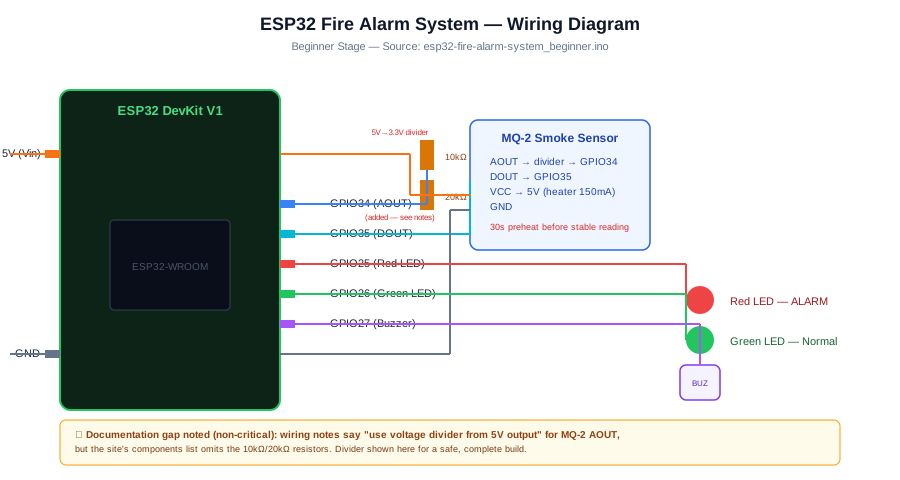
A low-voltage educational smoke/gas alert demo using an MQ-2 module powered from 5 V/VIN, its AOUT signal reduced by a 10 kOhm / 20 kOhm divider into GPIO34, a red alert LED on GPIO25, a green normal LED on GPIO26, and a buzzer on GPIO27.
Learning Objectives
- Read MQ-2 analog output on ADC1 GPIO34.
- Use LEDs and buzzer as local outputs.
- Explain why the prototype is not a certified fire alarm.
- Tune a threshold from Serial Monitor readings.
Components List
- ESP32 DevKit boardUSB-programmable ESP32 board used as the controller.
- MQ-2 smoke/gas sensor module5 V heater module; analog output must be divided before GPIO34.
- 10 kOhm resistorUpper resistor for AOUT divider.
- 20 kOhm resistorLower resistor for AOUT divider.
- Red and green LEDs with resistorsStatus outputs on GPIO25 and GPIO26.
- Active buzzer moduleGPIO27 alert output; use a driver if the buzzer module needs more current.
Bill of Materials
| Part | Qty | Estimated Cost | Notes |
|---|---|---|---|
| ESP32 DevKit board | 1 | Varies | USB-programmable ESP32 board used as the controller. |
| MQ-2 smoke/gas sensor module | 1 | Varies | 5 V heater module; analog output must be divided before GPIO34. |
| 10 kOhm resistor | 1 | Varies | Upper resistor for AOUT divider. |
| 20 kOhm resistor | 1 | Varies | Lower resistor for AOUT divider. |
| Red and green LEDs with resistors | 1 | Varies | Status outputs on GPIO25 and GPIO26. |
| Active buzzer module | 1 | Varies | GPIO27 alert output; use a driver if the buzzer module needs more current. |
Wiring
MQ-2 AOUT goes to GPIO34 through a 10 kOhm / 20 kOhm divider because the ESP32 ADC pin must not receive a 5 V signal. LEDs use GPIO25 and GPIO26; the buzzer uses GPIO27.
-
1
Unplug USB before changing sensor, LED, or buzzer wiring.
-
2
Power MQ-2 VCC from 5 V/VIN and connect MQ-2 GND to ESP32 GND.
-
3
Route MQ-2 AOUT through the 10 kOhm / 20 kOhm divider and connect the divided node to GPIO34.
-
4
Connect red LED through a resistor to GPIO25 and green LED through a resistor to GPIO26.
-
5
Connect the buzzer module signal to GPIO27 and its ground to GND.
-
6
Reconnect USB, wait for sensor warmup, and watch Serial Monitor.
-
7
Use safe bench checks such as observing warmup and changing threshold values; do not create an open flame for testing.
GPIO Mapping
| Signal | ESP32 Pin | Direction | Notes |
|---|---|---|---|
| MQ-2 VCC | 5 V / VIN | Power | Powers the heater module; keep signal voltage out of ESP32 GPIO until divided. |
| MQ-2 GND | GND | Ground | Shared ground with ESP32. |
| MQ-2 AOUT divided | GPIO34 | Input | ADC1 input-only pin; AOUT must pass through the 10 kOhm / 20 kOhm divider. |
| Red LED | GPIO25 | Output | Alert indicator. |
| Green LED | GPIO26 | Output | Normal indicator. |
| Buzzer | GPIO27 | Output | Local alert output. |
Circuit Explanation
The ESP32 reads the MQ-2 analog voltage after the divider. The code compares the 12-bit ADC value to SMOKE_THRESHOLD and switches the LEDs and buzzer.
Engineering Explanation
The threshold is a learning value, not a calibrated smoke limit. MQ sensors need warmup and can react to many gases, vapors, and environmental conditions, so false positives and missed conditions are possible.
Libraries
- Arduino ESP32 coreNo extra libraries required.
Code
Copy into Arduino IDE. Install any libraries noted in the component guides first.
// ESP32 Smoke Sensor Alarm Demo - educational low-voltage prototype
const int MQ2_AOUT = 34;   // ADC1 input through voltage divider
const int LED_R = 25;
const int LED_G = 26;
const int BUZZER = 27;
const int SMOKE_THRESHOLD = 1800; // tune from clean-air Serial Monitor readings

void setup() {
  Serial.begin(115200);
  analogReadResolution(12);
  pinMode(LED_R, OUTPUT);
  pinMode(LED_G, OUTPUT);
  pinMode(BUZZER, OUTPUT);
  digitalWrite(LED_G, HIGH);
  Serial.println("Educational smoke/gas sensor demo. Not a certified fire alarm.");
  Serial.println("MQ-2 warmup: wait at least 30 seconds before judging readings.");
  delay(30000);
}

void loop() {
  int raw = analogRead(MQ2_AOUT);
  bool alert = raw > SMOKE_THRESHOLD;
  Serial.printf("MQ2 raw=%d alert=%s\n", raw, alert ? "YES" : "no");
  digitalWrite(LED_R, alert ? HIGH : LOW);
  digitalWrite(LED_G, alert ? LOW : HIGH);
  digitalWrite(BUZZER, alert ? HIGH : LOW);
  delay(1000);
}
Code Explanation
MQ2_AOUT is GPIO34. The sketch waits for warmup, reads the ADC value, compares it with 1800, and drives GPIO25, GPIO26, and GPIO27.
Expected Output
Serial Monitor first prints that this is an educational demo and waits through MQ-2 warmup. After warmup it prints MQ2 raw values once per second. Values over SMOKE_THRESHOLD turn the red LED and buzzer on while the green LED turns off; lower values keep the green LED on.
Troubleshooting
- Reading is stuck near 0 Check MQ-2 power, common ground, and the divided AOUT node to GPIO34.
- Buzzer is always on Wait for warmup, record clean-air readings, then raise SMOKE_THRESHOLD above the stable baseline.
- Reading is stuck near 4095 Recheck the 10 kOhm / 20 kOhm divider and confirm raw MQ-2 AOUT is not connected directly to GPIO34.
- Board resets Use a stable USB supply and avoid powering high-current buzzers from GPIO.
Common Mistakes
- Calling the prototype a certified fire alarm.
- Connecting MQ-2 AOUT directly to ESP32 when the module output can exceed 3.3 V.
- Testing with open flame.
- Skipping warmup before judging readings.
Testing Checklist
- Power the sensor and wait at least 30 seconds.
- Record clean-air readings.
- Change the threshold and confirm outputs follow the printed value.
- Power-cycle and confirm the normal green state returns.
Engineering Tips
- Label this as a smoke/gas sensor demo.
- Keep the divider close to GPIO34.
- Never install this as a real alarm.
Upgrade Ideas
- Add OLED raw reading display.
- Add a silence button for bench testing.
- Log readings only after local behavior is understood.
Real-World Applications
- Sensor threshold lesson
- Safety-boundary classroom discussion
- Local alert prototype
FAQs
Can this replace a smoke detector?
No. It is only an educational prototype.
Why use a voltage divider?
The MQ-2 module is powered from 5 V, so the analog signal must be kept safe for ESP32 GPIO.
Is 1800 a fire threshold?
No. It is a starter value to tune from Serial Monitor readings.
Review, Testing, and References
Author: Abdul Mubeen and the ESP32 Engine editorial team. Last updated: 2026-08-23. Reviewed: wiring logic, Arduino code structure, beginner safety, and learning sequence.
Educational level: Intermediate. Estimated completion time: 75-90 min. This project is for learning and prototyping; production or unattended hardware needs additional engineering review.
Project Complete!
You completed ESP32 Fire Alarm System as a trustworthy ESP32 learning build with matching wiring, code, testing, and safety boundaries.
- ADC1 analog input
- Voltage divider protection
- Threshold tuning