
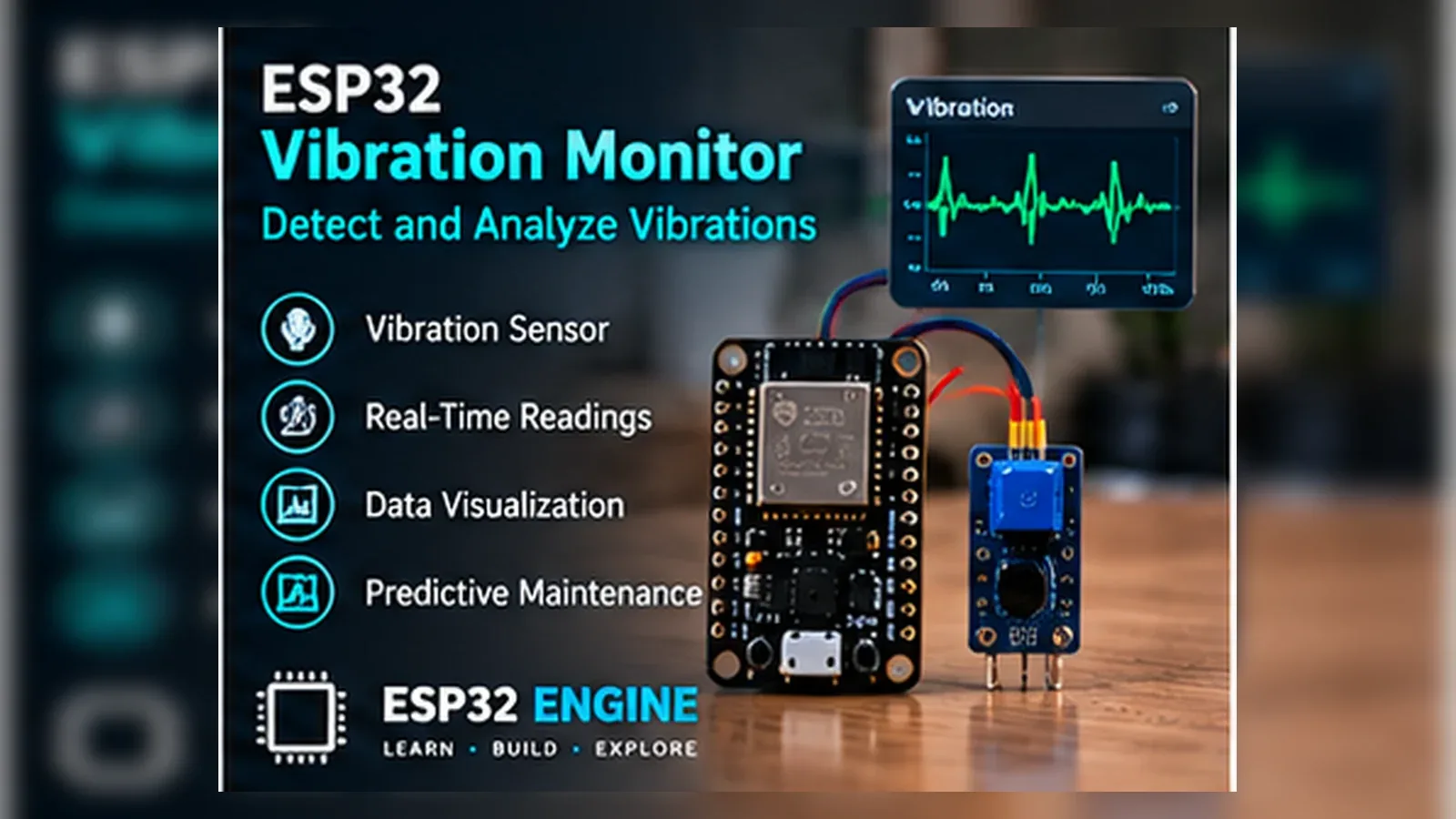
ESP32 Vibration Monitor

Industrial AutomationBeginnerIntermediateAdvanced

Mount an MPU6050 IMU on rotating machinery and use the ESP32 to detect abnormal vibration levels, perform FFT spectrum analysis, and publish maintenance alerts over MQTT before failures occur.

Overview

In this beginner project you will mount an MPU6050 IMU on a surface and use the ESP32 to read 3-axis acceleration data over I2C. The combined vibration magnitude is compared to a threshold: if exceeded, a red LED and buzzer alert the user. The Serial Plotter lets you watch vibration in real time. This project teaches I2C sensor communication, vector magnitude calculation, and simple threshold alerting.

Components
  • 1× ESP32 DevKit V1
  • 1× MPU6050 IMU module — Accelerometer + gyroscope, I2C
  • 1× Red LED 5 mm — Alert indicator
  • 1× Green LED 5 mm — Normal status indicator
  • 1× Active buzzer 5 V
  • 2× 220 ohm resistor — LED current limiting
  • 1× Breadboard and jumper wires
Wiring
Component PinESP32 PinNotes
MPU6050 SDAGPIO 21I2C data line; 3.3 V pullup
MPU6050 SCLGPIO 22I2C clock line
MPU6050 VCC3V3Do not use 5 V
MPU6050 GNDGND
MPU6050 AD0GNDI2C address 0x68; tie HIGH for 0x69
Red LED anodeGPIO 2220 ohm resistor
Green LED anodeGPIO 4220 ohm resistor
Buzzer +GPIO 15
Arduino Code
esp32-vibration-monitor_beginner.ino
// ESP32 Vibration Monitor - Beginner
// MPU6050 I2C + threshold LED/buzzer alert
#include <Adafruit_MPU6050.h>
#include <Adafruit_Sensor.h>
#include <Wire.h>

Adafruit_MPU6050 mpu;

const int LED_R=2, LED_G=4, BUZ=15;
const float THRESHOLD = 15.0; // m/s^2 combined; gravity=9.81

void setup(){
  Serial.begin(115200);
  Wire.begin(21,22);
  if(!mpu.begin()){
    Serial.println("MPU6050 not found - check wiring");
    while(1) delay(10);
  }
  mpu.setAccelerometerRange(MPU6050_RANGE_8_G);
  mpu.setFilterBandwidth(MPU6050_BAND_21_HZ);
  pinMode(LED_R,OUTPUT); pinMode(LED_G,OUTPUT); pinMode(BUZ,OUTPUT);
  Serial.println("magnitude_m_s2");
}

void loop(){
  sensors_event_t a, g, temp;
  mpu.getEvent(&a,&g,&temp);

  float ax=a.acceleration.x;
  float ay=a.acceleration.y;
  float az=a.acceleration.z;
  float mag=sqrt(ax*ax+ay*ay+az*az);

  // Print for Serial Plotter
  Serial.println(mag);

  if(mag > THRESHOLD){
    digitalWrite(LED_R,HIGH); digitalWrite(LED_G,LOW);
    digitalWrite(BUZ,HIGH);
  } else {
    digitalWrite(LED_R,LOW); digitalWrite(LED_G,HIGH);
    digitalWrite(BUZ,LOW);
  }
  delay(20); // 50 Hz sample rate
}
How It Works
01

MPU6050 I2C Communication: The MPU6050 communicates over I2C at address 0x68 (AD0 low) or 0x69 (AD0 high). The Adafruit MPU6050 library handles register reads and converts raw 16-bit ADC values into calibrated m/s^2 acceleration values.

02

Vector Magnitude Calculation: The 3-axis acceleration vector magnitude sqrt(ax^2+ay^2+az^2) represents total vibration energy from all directions. At rest this equals approximately 9.81 m/s^2 (gravity). Dynamic vibration adds to this value.

03

Threshold Alert Logic: If magnitude exceeds THRESHOLD (default 15 m/s^2) the red LED and buzzer activate. The green LED indicates normal operation. Adjust the threshold based on the baseline vibration of the specific machine.

04

Serial Plotter Visualisation: Printing the magnitude value to Serial at 50 Hz lets the Arduino IDE Serial Plotter display a live vibration waveform. Open Tools > Serial Plotter to see peaks when the machine vibrates.

Applications
  • Factory machine bearing wear early detection
  • Pump cavitation monitoring on fluid systems
  • Building structural vibration monitoring
  • Motor imbalance detection on rotating equipment
Troubleshooting

MPU6050 not found error at startup

Check that SDA is on GPIO 21 and SCL on GPIO 22. Ensure VCC is 3.3 V, not 5 V. Run an I2C scanner sketch to confirm the device appears at address 0x68.

Magnitude reads 9.81 m/s^2 with no vibration

This is correct: gravity contributes to the Z-axis reading when the sensor is horizontal. Subtract the gravity component or use only the AC portion of the signal for vibration analysis.

Alert triggers on normal machine vibration

Increase the THRESHOLD constant. Run the machine in normal operation and note the peak magnitude in the Serial Plotter. Set the threshold 30 percent above that baseline.

LED flickers rapidly during vibration

Add hysteresis: only trigger the alert when magnitude stays above threshold for 5 consecutive samples, and clear it when magnitude stays below for 5 consecutive samples.

Upgrades
  • Log peak vibration values to NVS with a timestamp
  • Add an OLED display showing live magnitude and alert status
  • Send an alert SMS via a GSM module when vibration is detected
  • Add a calibration routine that automatically measures the at-rest baseline
FAQ

You need an ESP32 DevKit, TODO: sensor, Red LED anode, a breadboard, jumper wires, and a USB cable for power and programming.

Only the Advanced stage uses Wi-Fi. Beginner and Intermediate builds run offline on the ESP32 with USB power.

Start with Beginner if you are new to Industrial Automation. Use Intermediate for OLED feedback and Advanced for dashboards or connected monitoring.

Overview

The intermediate build samples acceleration at 500 Hz, calculates RMS (root mean square) vibration amplitude, identifies the peak frequency using a basic FFT, and serves a web page showing a rolling 60-second chart. RMS values are compared against ISO 10816 vibration severity limits and stored in NVS for trend analysis over time.

Components
  • 1× ESP32 DevKit V1
  • 1× MPU6050 IMU
  • 1× SSD1306 OLED 128x64 I2C — Live RMS and frequency display
  • 1× Active buzzer — Severity alert
  • 1× Wi-Fi router — For web chart access
  • 1× Breadboard and wires
Wiring
Component PinESP32 PinNotes
MPU6050 SDA/SCLGPIO 21/22
OLED SDA/SCLGPIO 21/22Shared I2C bus; different I2C addresses
BuzzerGPIO 15
Arduino Code
esp32-vibration-monitor_intermediate.ino
// ESP32 Vibration Monitor - Intermediate (RMS + peak frequency + web chart)
#include <Adafruit_MPU6050.h>
#include <Adafruit_Sensor.h>
#include <Wire.h>
#include <WiFi.h>
#include <WebServer.h>
#include <Adafruit_SSD1306.h>
#include <arduinoFFT.h>

const char* SSID="YourSSID", *PASS="YourPass";
Adafruit_MPU6050 mpu;
Adafruit_SSD1306 oled(128,64,&Wire,-1);
WebServer server(80);

const int SAMPLES=256;
double vReal[SAMPLES], vImag[SAMPLES];
ArduinoFFT<double> FFT=ArduinoFFT<double>(vReal,vImag,SAMPLES,500.0);

float rmsHistory[60]={0}; // 1-minute rolling buffer
int   histIdx=0;
float currentRMS=0, peakFreq=0;

float computeRMS(){
  float sum=0;
  sensors_event_t a,g,t;
  for(int i=0;i<SAMPLES;i++){
    mpu.getEvent(&a,&g,&t);
    float mag=sqrt(a.acceleration.x*a.acceleration.x+
                   a.acceleration.y*a.acceleration.y+
                   a.acceleration.z*a.acceleration.z)-9.81f;
    vReal[i]=mag; vImag[i]=0;
    sum+=mag*mag;
    delayMicroseconds(2000); // 500 Hz
  }
  FFT.windowing(FFT_WIN_TYP_HAMMING,FFT_FORWARD);
  FFT.compute(FFT_FORWARD);
  FFT.complexToMagnitude();
  peakFreq=FFT.majorPeak();
  return sqrt(sum/SAMPLES);
}

void setup(){
  Serial.begin(115200);
  Wire.begin(21,22);
  mpu.begin(); mpu.setAccelerometerRange(MPU6050_RANGE_8_G);
  oled.begin(SSD1306_SWITCHCAPVCC,0x3C);
  oled.setTextSize(1); oled.setTextColor(WHITE);
  WiFi.begin(SSID,PASS);
  while(WiFi.status()!=WL_CONNECTED) delay(500);
  server.on("/",[](){
    String body="<h2>Vibration Monitor</h2><p>RMS: "+String(currentRMS,3)+
      " m/s2 | Peak: "+String(peakFreq,1)+" Hz</p>";
    body+="<canvas id=c width=600 height=200></canvas><script>"
      "var d=[";
    for(int i=0;i<60;i++) body+=String(rmsHistory[(histIdx+i)%60])+",";
    body+="];"
      "var c=document.getElementById("c").getContext("2d");"
      "c.beginPath();"
      "for(var i=0;i<d.length;i++){c.lineTo(i*10,200-d[i]*20);}"
      "c.stroke();</script>";
    server.send(200,"text/html",body);
  });
  server.begin();
}

void loop(){
  currentRMS=computeRMS();
  rmsHistory[histIdx%60]=currentRMS;
  histIdx++;

  oled.clearDisplay(); oled.setCursor(0,0);
  oled.printf("RMS: %.3f m/s2n",currentRMS);
  oled.printf("Peak: %.1f Hzn",peakFreq);
  // ISO 10816 Zone A < 0.71, B < 1.8, C < 4.5, D >= 4.5 mm/s
  oled.println(currentRMS<0.71?"Zone A OK":currentRMS<1.8?"Zone B GOOD":
               currentRMS<4.5?"Zone C WARN":"Zone D ALARM");
  oled.display();
  digitalWrite(15, currentRMS>=4.5?HIGH:LOW);
  server.handleClient();
}
How It Works
01

High-Rate Sampling: The MPU6050 is sampled 256 times with a 2 ms delay (500 Hz effective rate). The gravity component (9.81 m/s^2) is subtracted from the magnitude so only dynamic vibration contributes to the RMS and FFT calculations.

02

RMS Amplitude: RMS = sqrt(sum of squared samples / N). RMS in mm/s is the industry standard metric for vibration severity. The Adafruit MPU6050 returns m/s^2; convert to mm/s by integrating over the dominant frequency period if needed.

03

FFT Peak Frequency: The arduinoFFT library applies a Hamming window to reduce spectral leakage, computes the DFT of the 256-sample buffer, converts to magnitude spectrum, and returns the dominant frequency in Hz. This identifies imbalance (1x RPM), misalignment (2x RPM), or bearing fault signatures.

04

ISO 10816 Severity Zones: ISO 10816-3 defines four vibration severity zones for industrial machines. The display shows Zone A (new machines), B (acceptable), C (alarm condition), or D (shut down). Thresholds here are approximate; consult the standard for machine-class-specific limits.

Applications
  • Predictive maintenance programme for pump and motor monitoring
  • HVAC fan bearing wear detection before failure
  • Industrial compressor vibration logging for compliance records
  • Research platform for vibration signature analysis
Troubleshooting

FFT peak frequency is always at 0 Hz

The DC offset from gravity subtraction may be imperfect. Apply a high-pass filter by subtracting the mean of the sample buffer before running the FFT.

RMS values vary wildly between readings

Ensure the MPU6050 is rigidly mounted to the surface being monitored. Any loose connection acts as a mechanical filter and introduces random variation.

Web chart does not update

Add a meta refresh tag to the HTML page or use JavaScript fetch() with a 1-second interval to auto-reload the data endpoint without refreshing the full page.

Upgrades
  • Log RMS and peak frequency to SD card with timestamp for long-term trending
  • Add email alerts when Zone C or D thresholds are exceeded
  • Display the full FFT magnitude spectrum as a bar chart on the OLED
  • Add a second MPU6050 at a different bearing location for comparative analysis
FAQ

You need an ESP32 DevKit, TODO: sensor, Red LED anode, a breadboard, jumper wires, and a USB cable for power and programming.

Only the Advanced stage uses Wi-Fi. Beginner and Intermediate builds run offline on the ESP32 with USB power.

Start with Beginner if you are new to Industrial Automation. Use Intermediate for OLED feedback and Advanced for dashboards or connected monitoring.

Overview

The advanced build publishes vibration RMS and peak FFT frequency to an MQTT broker every minute, where a Node-RED or Grafana dashboard plots long-term trends. A predictive maintenance score (0-100) is computed from trend slope and severity zone history. When the score drops below 40 the ESP32 publishes an MQTT maintenance request and sends an email alert via SMTP.

Components
  • 1× ESP32 DevKit V1
  • 1× MPU6050 IMU — Rigidly mounted on machine housing
  • 1× SSD1306 OLED 128x64
  • 1× MQTT broker (Mosquitto) — Local or cloud
  • 1× Node-RED or Grafana instance — For trend dashboard
  • 1× Wi-Fi router
Wiring
Component PinESP32 PinNotes
MPU6050 SDA/SCLGPIO 21/22
OLED SDA/SCLGPIO 21/22Shared I2C bus
BuzzerGPIO 15
Arduino Code
esp32-vibration-monitor_advanced.ino
// ESP32 Vibration Monitor - Advanced (MQTT + predictive score + alerts)
#include <Adafruit_MPU6050.h>
#include <Adafruit_Sensor.h>
#include <Wire.h>
#include <WiFi.h>
#include <PubSubClient.h>
#include <ArduinoJson.h>
#include <Preferences.h>

Adafruit_MPU6050 mpu;
WiFiClient wifiClient;
PubSubClient mqtt(wifiClient);
Preferences prefs;

const char* SSID="YourSSID", *PASS="YourPass";
const char* MQTT_HOST="192.168.1.100";
const char* TOPIC_DATA ="vibration/data";
const char* TOPIC_ALERT="vibration/alert";

const int HISTORY=60; // 60-minute trend window
float rmsLog[HISTORY]={0};
int   logIdx=0;

float measureRMS(){
  float sum=0;
  sensors_event_t a,g,t;
  for(int i=0;i<256;i++){
    mpu.getEvent(&a,&g,&t);
    float m=sqrt(a.acceleration.x*a.acceleration.x+
                 a.acceleration.y*a.acceleration.y+
                 a.acceleration.z*a.acceleration.z)-9.81f;
    sum+=m*m;
    delayMicroseconds(2000);
  }
  return sqrt(sum/256.0f);
}

int predictiveScore(){
  // Linear regression slope of last HISTORY readings
  float sumX=0,sumY=0,sumXY=0,sumX2=0;
  for(int i=0;i<HISTORY;i++){
    sumX+=i; sumY+=rmsLog[i]; sumXY+=i*rmsLog[i]; sumX2+=i*i;
  }
  float slope=(HISTORY*sumXY-sumX*sumY)/(HISTORY*sumX2-sumX*sumX);
  // Score 100 = flat trend near zero, 0 = steep upward trend
  int score=100-(int)(slope*200.0f);
  return constrain(score,0,100);
}

void setup(){
  Serial.begin(115200);
  Wire.begin(21,22);
  mpu.begin(); mpu.setAccelerometerRange(MPU6050_RANGE_8_G);
  WiFi.begin(SSID,PASS);
  while(WiFi.status()!=WL_CONNECTED) delay(500);
  mqtt.setServer(MQTT_HOST,1883);
}

void loop(){
  if(!mqtt.connected()) mqtt.connect("ESP32Vibe");
  mqtt.loop();

  float rms=measureRMS();
  rmsLog[logIdx%HISTORY]=rms;
  logIdx++;

  int score=predictiveScore();

  StaticJsonDocument<128> doc;
  doc["rms"]=rms; doc["score"]=score;
  char buf[128]; serializeJson(doc,buf);
  mqtt.publish(TOPIC_DATA,buf);

  if(score<40){
    mqtt.publish(TOPIC_ALERT,"MAINTENANCE_REQUIRED");
    Serial.println("ALERT: Maintenance required");
  }

  Serial.printf("RMS=%.3f score=%dn",rms,score);
  delay(60000); // publish every minute
}
How It Works
01

Rolling RMS History: Each 1-minute RMS measurement is stored in a circular buffer of 60 entries. This gives a 60-minute trend window. logIdx%HISTORY keeps the write index within bounds, automatically overwriting the oldest sample.

02

Linear Regression Trend Score: A least-squares linear regression is computed over the 60-sample RMS history. A positive slope means vibration is increasing over time. The predictive score converts slope to a 0-100 index: 100 = stable, 0 = rapidly increasing. Below 40 suggests maintenance intervention within days.

03

MQTT JSON Publishing: ArduinoJson serialises the RMS and predictive score into a compact JSON string published to vibration/data. Node-RED subscribes, parses the JSON, and feeds data to a Grafana InfluxDB panel for historical trending.

04

Maintenance Alert: When the predictive score drops below the 40-point threshold, a plain-text "MAINTENANCE_REQUIRED" message is published to vibration/alert. A Node-RED node subscribing to this topic can trigger email, SMS, or a ticketing system notification.

Applications
  • Factory predictive maintenance programme reducing unplanned downtime
  • HVAC system health monitoring with monthly trend reports
  • Pump fleet management with per-unit maintenance score tracking
  • Industrial IoT integration with Grafana and InfluxDB dashboards
Troubleshooting

Predictive score drops to 0 immediately

The regression slope is very sensitive to outlier readings in the first few samples. Prefill the rmsLog array with the first measured value before starting the trend calculation.

MQTT publish fails during 256-sample measurement

The measurement takes 512 ms (256 x 2 ms). Move the MQTT loop to a FreeRTOS task on core 0 so it runs concurrently with the ADC sampling on core 1.

Grafana shows gaps in the vibration trend

The 60-second delay between publishes is acceptable but confirm the MQTT keep-alive is longer than 60 seconds. Set mqtt.setKeepAlive(90) to prevent broker-side disconnection between publishes.

Upgrades
  • Store RMS history in InfluxDB directly from Node-RED for unlimited retention
  • Add a second vibration axis (vertical vs horizontal) and publish separately
  • Implement adaptive thresholds that learn the machine normal baseline over 24 hours
  • Integrate with a CMMS (Computerised Maintenance Management System) via REST API webhook
FAQ

You need an ESP32 DevKit, TODO: sensor, Red LED anode, a breadboard, jumper wires, and a USB cable for power and programming.

Only the Advanced stage uses Wi-Fi. Beginner and Intermediate builds run offline on the ESP32 with USB power.

Start with Beginner if you are new to Industrial Automation. Use Intermediate for OLED feedback and Advanced for dashboards or connected monitoring.